📢📢📢📣📣📣 作者:IT邦德 中国DBA联盟(ACDU)成员,15年DBA工作经验 Oracle、PostgreSQL ACE CSDN博客专家及B站知名UP主,全网粉丝15万+ 擅长主流Oracle、MySQL、PG、高斯及Greenplum备份恢复, 安装迁移,性能优化、故障应急处理
文章目录
- 1.安装环境准备
-
- 1.1.查看物理内存
- 1.2.操作系统版本
- 1.3.操作系统内存
- 1.4.磁盘空间
- 1.5.查看系统架构
- 1.6.解析/etc/hosts
- 1.7.关闭防火墙还有selinux
- 2.创建用户和组
- 3.创建工作的目录
- 4.配置Oracle的环境变量
- 5.修改内核参数
- 6./etc/profile配置
- 7.yum安装依赖
- 8.解压软件授权
- 9.静默安装Oracle数据库
-
- 9.1.编辑rsp文件
- 9.2.静默安装Oracle软件
- 10.监听创建
- 11.dbca建库
-
- 11.1.编辑dbca.rsp安装文件
- 11.2.静默安装数据库
1.安装环境准备
1.1.查看物理内存
[root@aiserver ~]# free -m
1.2.操作系统版本
[root@aiserver ~]# cat /etc/redhat-release Red Hat Enterprise Linux release 8.9 (Ootpa)
1.3.操作系统内存
[root@aiserver ~]# df -h /dev/shm/ Filesystem Size Used Avail Use% Mounted on tmpfs 1.8G 0 1.8G 0% /dev/shm
1.4.磁盘空间
[root@aiserver ~]# df -TH [root@aiserver ~]# df -h /tmp/ [root@aiserver ~]# df -h /u01 [root@aiserver ~]# grep SwapTotal /proc/meminfo Between 1 GB and 2 GB: 1.5 times the size of the RAM Between 2 GB and 16 GB: Equal to the size of the RAM More than 16 GB: 16 GB
1.5.查看系统架构
[root@aiserver ~]# uname -m x86_64 [root@aiserver ~]# cat /proc/version
1.6.解析/etc/hosts
[root@aiserver ~]# hostname aiserver
cat >> /etc/hosts << EOF 192.168.6.10 aiserver EOF
1.7.关闭防火墙还有selinux
systemctl stop firewalld.service systemctl disable firewalld.service
[root@aiserver ~]# /usr/sbin/sestatus SELinux status: enabled SELinuxfs mount: /sys/fs/selinux SELinux root directory: /etc/selinux Loaded policy name: targeted Current mode: enforcing Mode from config file: enforcing Policy MLS status: enabled Policy deny_unknown status: allowed Max kernel policy version: 31
以上发现selinux是打开的
修改/etc/selinux/config文件中设置SELINUX=disabled ,然后重启服务器
sed -i 's/SELINUX=enforcing/SELINUX=disabled/' /etc/selinux/config
##。1.8.CPU信息 [root@aiserver ~]# cat /proc/cpuinfo | grep name | cut -f2 -d: | uniq -c 4 Intel® Core™ i9-9980HK CPU @ 2.40GHz
2.创建用户和组
#查看是否安装有Oracle软件 [root@aiserver ~]# more /etc/oraInst.loc
#查看是否已存在相关用户组 [root@aiserver ~]# grep oinstall /etc/group [root@aiserver ~]# grep dba /etc/group [root@aiserver ~]# grep oper /etc/group
[root@aiserver ~]# /usr/sbin/groupadd -g 54321 oinstall [root@aiserver ~]# /usr/sbin/groupadd -g 54322 dba [root@aiserver ~]# /usr/sbin/groupadd -g 54323 oper [root@aiserver ~]# /usr/sbin/useradd -u 54321 -g oinstall -G dba,oper oracle
–修改密码为oracle [root@aiserver ~]# passwd oracle
3.创建工作的目录
[root@aiserver ~]# mkdir -p /u01/app/oracle [root@aiserver ~]# chown -R oracle:oinstall /u01/ [root@aiserver ~]# chmod -R 775 /u01/app/oracle
4.配置Oracle的环境变量
[oracle@aiserver ~]$ vi .bash_profile
export ORACLE_BASE=/u01/app/oracle
export ORACLE_HOME=$ORACLE_BASE/product/23.26.1/dbhome_1
export ORACLE_SID=prod
export PATH=$ORACLE_HOME/bin:$PATH:$HOME/bin
[oracle@aiserver ~]$ source .bash_profile
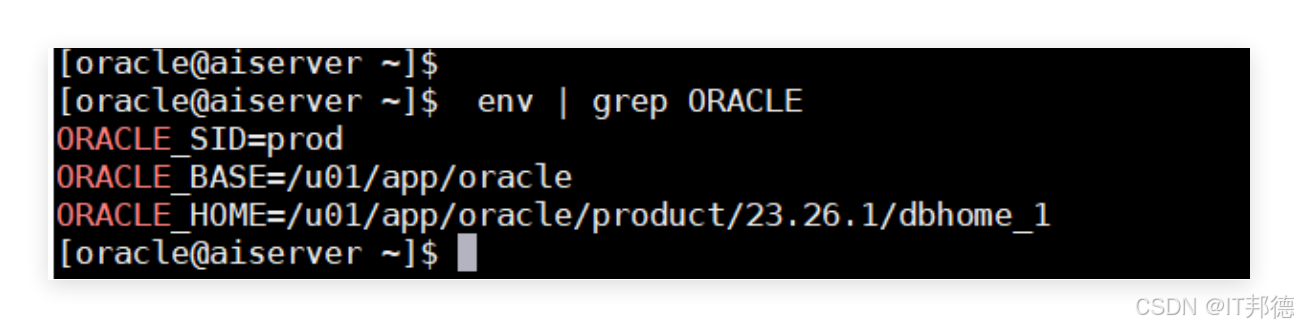
[oracle@aiserver ~]$ env | grep ORACLE
5.修改内核参数
以下在root用户下操作 cp /etc/sysctl.conf /etc/sysctl.conf.bak
cat >> /etc/sysctl.conf << “EOF” fs.file-max = 6815744 kernel.sem = 250 32000 100 128 kernel.shmmni = 4096 kernel.shmall = 751619276 kernel.shmmax = 3006477107 kernel.panic_on_oops = 1 net.core.rmem_default = 262144 net.core.rmem_max = 4194304 net.core.wmem_default = 262144 net.core.wmem_max = 1048576 fs.aio-max-nr = 1048576 net.ipv4.ip_local_port_range = 9000 65500 EOF
kernel.shmall :物理内存的70% kernel.shmmni=kernel.shmall/4
环境变量生效 sysctl –system
6./etc/profile配置
以下root用户操作 cp /etc/profile /etc/profile.bak
cat >> /etc/profile << “EOF” if [ $USER = “oracle” ]; then if [ $SHELL = “/bin/ksh” ]; then ulimit -p 16384 ulimit -n 65536 else ulimit -u 16384 -n 65536 fi fi EOF
vi /etc/pam.d/login session required pam_limits.so
#。7.修改资源限制 以下root用户操作 cp /etc/security/limits.conf /etc/security/limits.conf.bak
cat >> /etc/security/limits.conf << “EOF” oracle soft nproc 2047 oracle hard nproc 16384 oracle soft nofile 1024 oracle hard nofile 65536 EOF
7.yum安装依赖
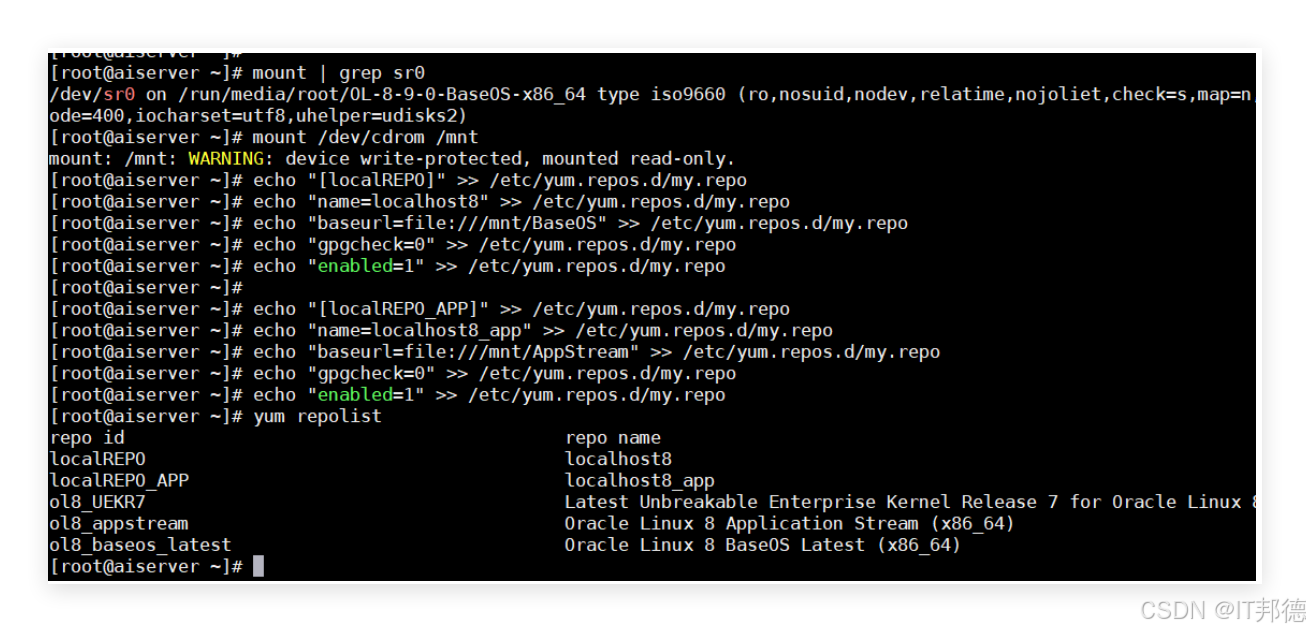
[root@aiserver ~]# mount | grep sr0
mount /dev/cdrom /mnt
echo "[localREPO]" >> /etc/yum.repos.d/my.repo
echo "name=localhost8" >> /etc/yum.repos.d/my.repo
echo "baseurl=file:///mnt/BaseOS" >> /etc/yum.repos.d/my.repo
echo "gpgcheck=0" >> /etc/yum.repos.d/my.repo
echo "enabled=1" >> /etc/yum.repos.d/my.repo
echo "[localREPO_APP]" >> /etc/yum.repos.d/my.repo
echo "name=localhost8_app" >> /etc/yum.repos.d/my.repo
echo "baseurl=file:///mnt/AppStream" >> /etc/yum.repos.d/my.repo
echo "gpgcheck=0" >> /etc/yum.repos.d/my.repo
echo "enabled=1" >> /etc/yum.repos.d/my.repo
[root@aiserver yum.repos.d]# yum repolist
以下命令安装依赖包
yum install bc \\
binutils \\
compat-openssl10 \\
elfutils-libelf \\
fontconfig \\
glibc \\
glibc-devel \\
ksh \\
libaio \\
libXrender \\
libX11 \\
libXau \\
libXi \\
libXtst \\
libgcc \\
libstdc++ \\
libxcb \\
libibverbs \\
libasan \\
liblsan \\
librdmacm \\
make \\
policycoreutils \\
policycoreutils-python-utils \\
smartmontools \\
sysstat -y
8.解压软件授权
oracle用户下操作 [oracle@aiserver ~]$ mkdir -p /u01/app/oracle/product/23.26.1/dbhome_1
oracle用户下操作 [oracle@aiserver ~]$ unzip /opt/LINUX.X64_2326100_db_home.zip -d $ORACLE_HOME
9.静默安装Oracle数据库
9.1.编辑rsp文件
[oracle@aiserver ~]$ cd
O
R
A
C
L
E
H
O
M
E
/
i
n
s
t
a
l
l
/
r
e
s
p
o
n
s
e
[
o
r
a
c
l
e
@
a
i
s
e
r
v
e
r
r
e
s
p
o
n
s
e
]
ORACLE_HOME/install/response [oracle@aiserver response]
ORACLEHOME/install/response[oracle@aiserverresponse] cp db_install.rsp /tmp
vi /tmp/db_install.rsp
修改db_install.rsp文件中以下内容
oracle.install.option=INSTALL_DB_SWONLY UNIX_GROUP_NAME=oinstall INVENTORY_LOCATION=/u01/app/oraInventory ORACLE_BASE=/u01/app/oracle ORACLE_HOME=/u01/app/oracle/product/23.26.1/dbhome_1 InstallEdition=EE oracle.install.db.OSDBA_GROU=dba oracle.install.db.OSOPER_GROUP=oper oracle.install.db.OSBACKUPDBA_GROUP=dba oracle.install.db.OSDGDBA_GROUP=dba oracle.install.db.OSKMDBA_GROUP=dba oracle.install.db.OSRACDBA_GROUP=dba
9.2.静默安装Oracle软件
[oracle@aiserver ~]$ cd $ORACLE_HOME ./runInstaller -silent -responseFile /tmp/db_install.rsp -ignorePrereq 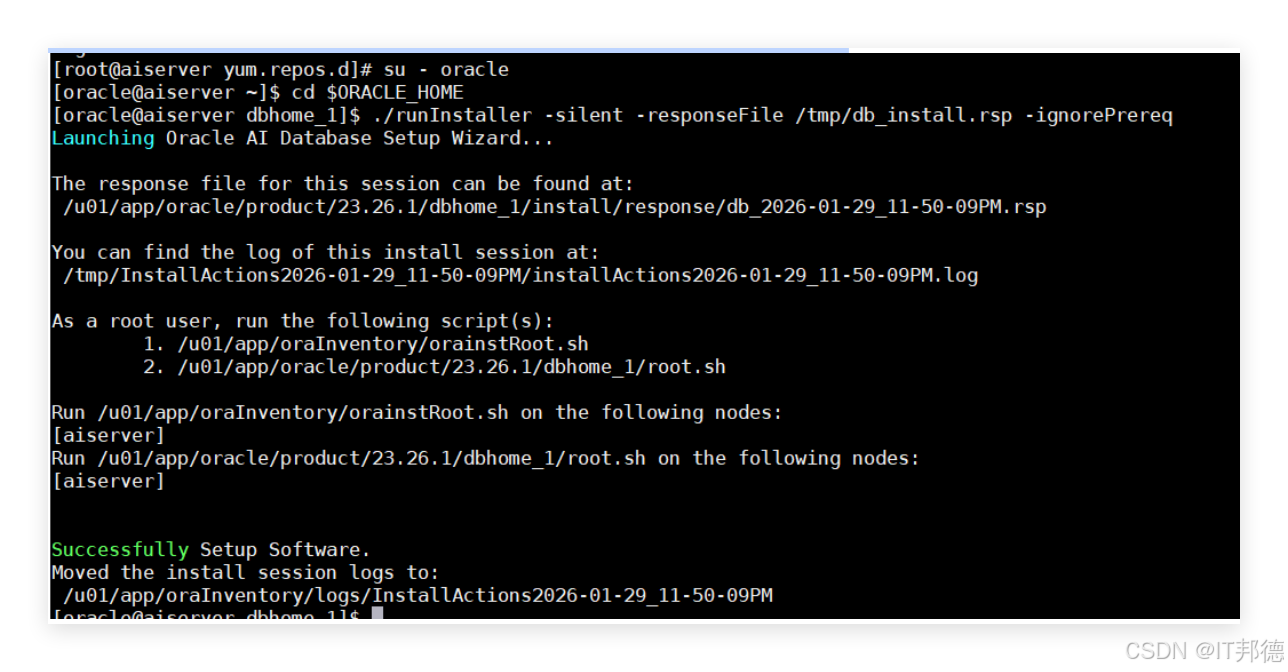
安装结束后需要以root用户执行以下两个脚本
/u01/app/oracle/oraInventory/orainstRoot.sh
/u01/app/oracle/product/23.26.1/dbhome_1/root.sh
10.监听创建
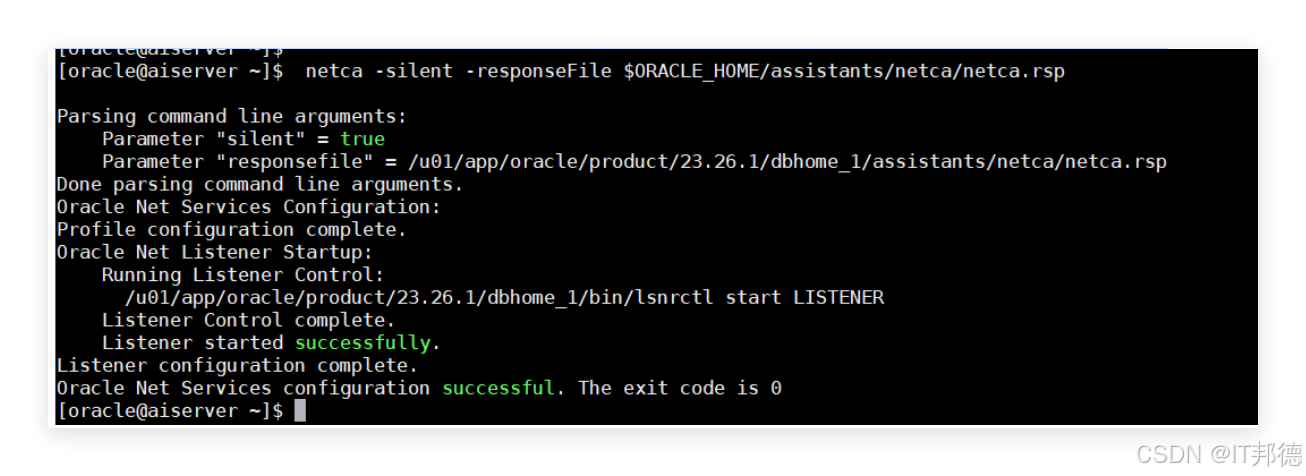
静默配置监听 [oracle@aiserver ~]$ netca -silent -responseFile $ORACLE_HOME/assistants/netca/netca.rsp
11.dbca建库
11.1.编辑dbca.rsp安装文件
[oracle@aiserver ~]$ cd $ORACLE_HOME/assistants/dbca
[oracle@aiserver dbca]$ cp dbca.rsp /tmp
[oracle@aiserver ~]$ vi /tmp/dbca.rsp
responseFileVersion=/oracle/assistants/rspfmt_dbca_response_schema_v23.0.0
gdbName=prod
sid=prod
databaseConfigType=SI
createAsContainerDatabase=true
numberOfPDBs=2
pdbName=prod
templateName=General_Purpose.dbc
oracleHomeUserPassword=oracle
totalMemory=1500
sysPassword=oracle
systemPassword=oracle
datafileDestination=/u01/app/oracle/oradata
characterSet=AL32UTF8
nationalCharacterSet=UTF8
databaseType=OLTP
注意:templateName、createAsContainerDatabase必須指定
11.2.静默安装数据库
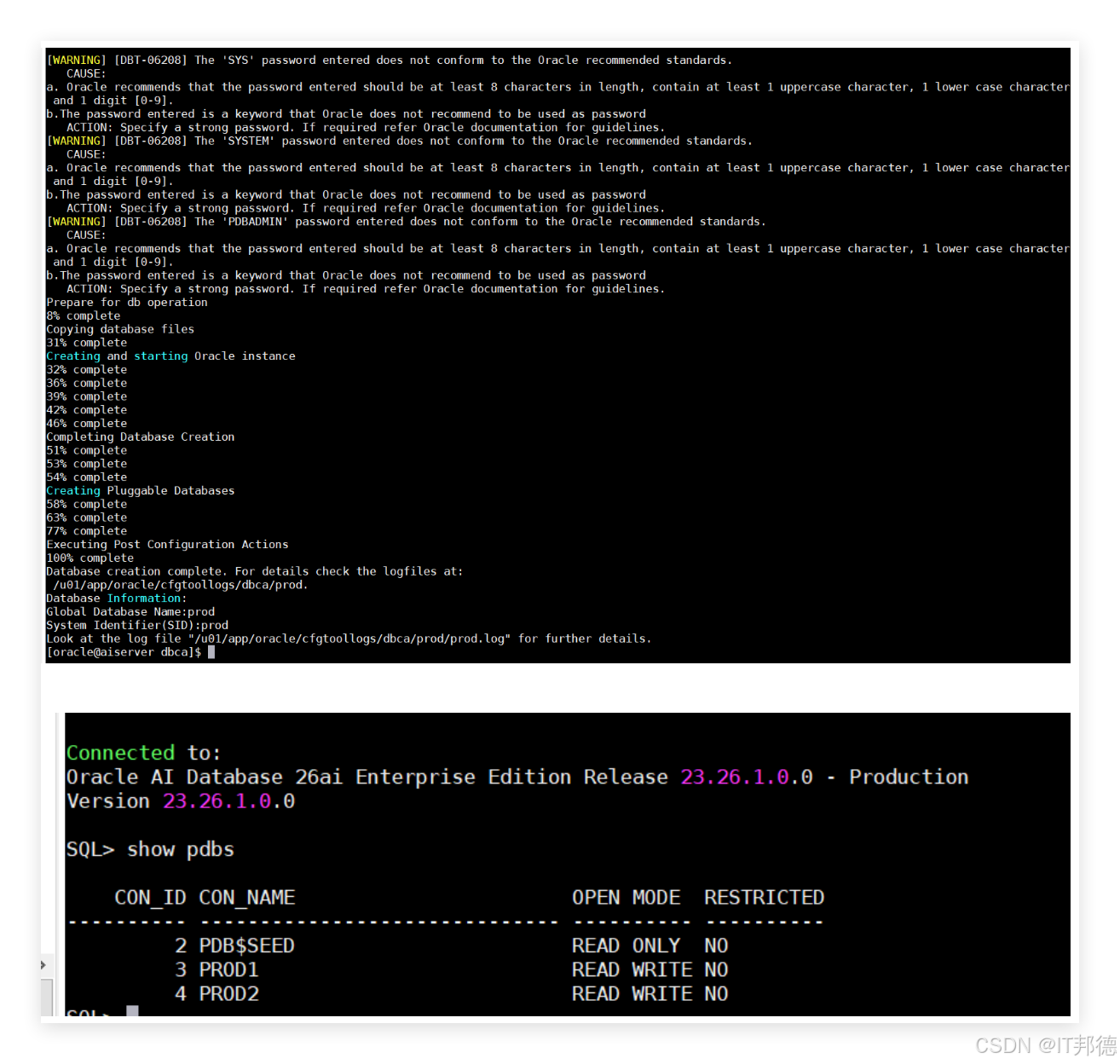
[oracle@aiserver ~]$ dbca -silent -createDatabase -responseFile /tmp/dbca.rsp