欢迎加入开源鸿蒙跨平台社区:开源鸿蒙跨平台开发者社区
Flutter for OpenHarmony 实战:记忆翻牌游戏完整开发指南
文章目录
- Flutter for OpenHarmony 实战:记忆翻牌游戏完整开发指南
-
- 摘要
- 一、项目背景与功能概述
-
- 1.1 记忆翻牌游戏介绍
- 1.2 应用功能规划
- 1.3 游戏配置
- 二、数据模型设计
-
- 2.1 卡片类
- 2.2 游戏状态
- 2.3 卡片图标定义
- 三、游戏初始化
-
- 3.1 初始化游戏
- 四、翻牌逻辑实现
-
- 4.1 翻牌处理
- 4.2 匹配检测
- 五、UI界面实现
-
- 5.1 卡片网格
- 5.2 卡片组件
- 5.3 卡片颜色映射
- 5.4 游戏信息面板
- 六、动画效果
-
- 6.1 翻牌动画
- 6.2 阴影效果
- 七、资源管理
-
- 7.1 定时器销毁
- 7.2 游戏重置
- 八、总结
摘要
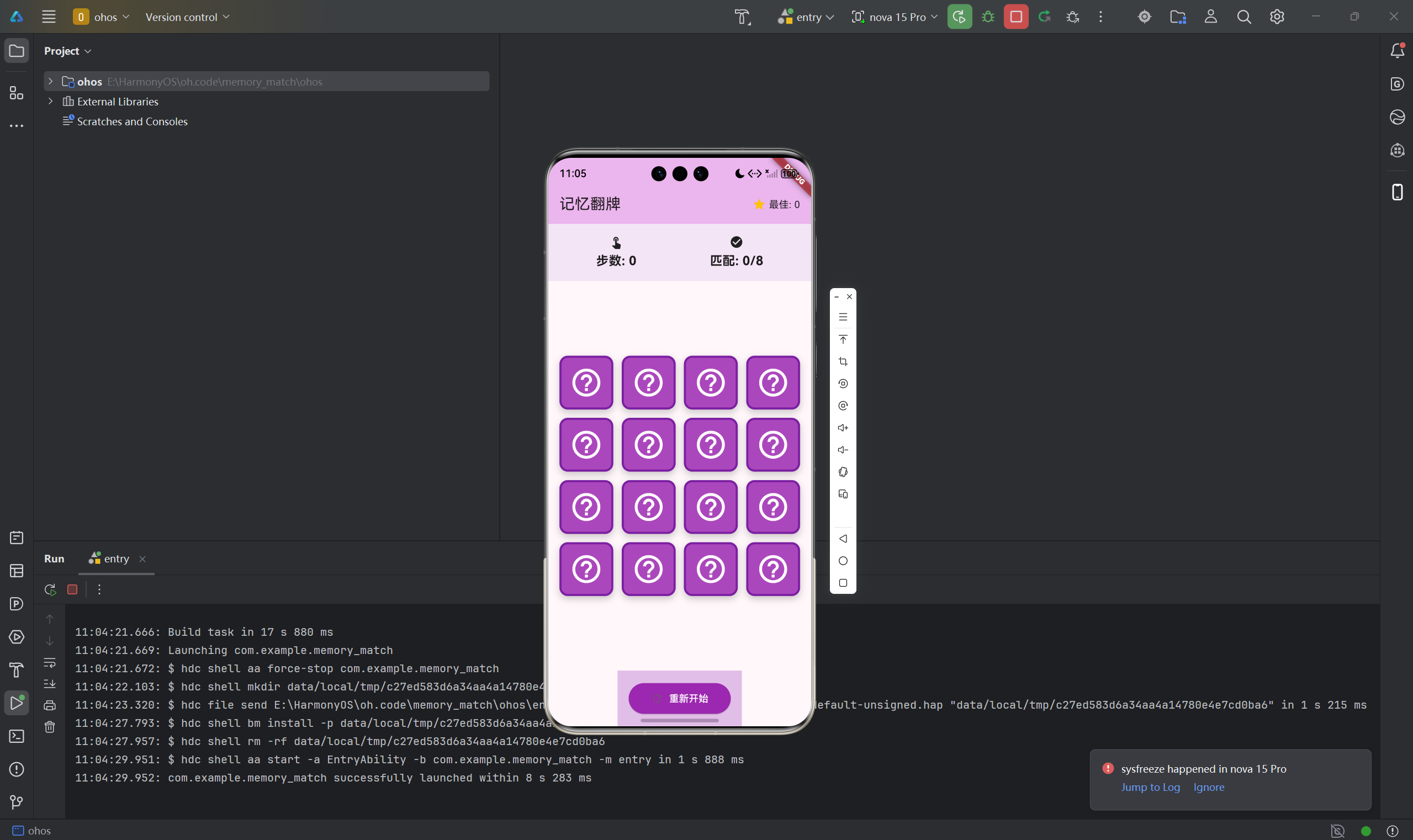
记忆翻牌(Memory Match)是一款经典的记忆训练游戏,玩家需要记住卡片位置并找出所有匹配的卡片对。本文将详细介绍如何使用Flutter for OpenHarmony框架开发一款功能完整的记忆翻牌游戏。文章涵盖了卡片状态管理、匹配检测算法、洗牌算法、动画实现等核心技术点。通过本文学习,读者将掌握Flutter在记忆类游戏开发中的完整流程,了解状态管理和定时器协调的应用。
一、项目背景与功能概述
1.1 记忆翻牌游戏介绍
记忆翻牌是一款训练记忆力的经典游戏:
- 目标:找出所有匹配的卡片对
- 规则:
- 每次翻开两张卡片
- 如果图案相同则保持翻开
- 如果图案不同则翻回背面
- 用最少步数完成游戏
1.2 应用功能规划
| 卡片网格 | 4×4布局,16张卡片 |
| 卡片翻转 | 点击翻牌动画 |
| 匹配检测 | 自动检测配对 |
| 步数统计 | 记录翻牌次数 |
| 最佳成绩 | 保存最少步数 |
| 胜利判断 | 全部配对成功 |
| 视觉反馈 | 匹配成功/失败效果 |
1.3 游戏配置
| 网格大小 | 4×4 | 卡片总数16张 |
| 配对数量 | 8 | 8对图案 |
| 翻牌延迟 | 1000ms | 不匹配时的等待时间 |
| 胜利标准 | 8对 | 全部匹配成功 |
二、数据模型设计
2.1 卡片类
class Card {
final int id; // 卡片唯一ID
final String value; // 卡片值(用于匹配)
final IconData icon; // 卡片图标
bool isFlipped = false; // 是否已翻开
bool isMatched = false; // 是否已匹配
Card({
required this.id,
required this.value,
required this.icon,
});
}
2.2 游戏状态
class _GamePageState extends State<GamePage> {
// 游戏配置
static const int _gridCols = 4;
// 游戏状态
List<Card> _cards = []; // 所有卡片
List<Card?> _flippedCards = []; // 当前翻开的卡片
bool _canFlip = true; // 是否允许翻牌
int _moves = 0; // 步数
int _matches = 0; // 已匹配数
int _bestScore = 0; // 最佳成绩
Timer? _flipTimer; // 翻牌延迟定时器
final Random _random = Random();
}
2.3 卡片图标定义
static const List<_CardIcon> _cardIcons = [
_CardIcon(Icons.star, 'star'),
_CardIcon(Icons.favorite, 'heart'),
_CardIcon(Icons.cloud, 'cloud'),
_CardIcon(Icons.pets, 'pet'),
_CardIcon(Icons.favorite_border, 'like'),
_CardIcon(Icons.thumb_up, 'thumbs'),
_CardIcon(Icons.face, 'smile'),
_CardIcon(Icons.local_florist, 'flower'),
];
三、游戏初始化
3.1 初始化游戏
void _initGame() {
_flipTimer?.cancel();
// 创建卡片对
final cardList = <Card>[];
for (int i = 0; i < _cardIcons.length; i++) {
final icon = _cardIcons[i];
cardList.add(Card(id: i * 2, value: icon.value, icon: icon.icon));
cardList.add(Card(id: i * 2 + 1, value: icon.value, icon: icon.icon));
}
// 洗牌
cardList.shuffle(_random);
_cards = cardList;
_flippedCards = [];
_canFlip = true;
_moves = 0;
_matches = 0;
setState(() {});
}
算法步骤:
四、翻牌逻辑实现
4.1 翻牌处理
void _flipCard(Card card) {
// 检查是否允许翻牌
if (!_canFlip) return;
if (card.isFlipped) return; // 已经翻开
if (card.isMatched) return; // 已经匹配
if (_flippedCards.length >= 2) return; // 已有两张
setState(() {
card.isFlipped = true;
_flippedCards.add(card);
});
// 当翻开两张卡片时检查匹配
if (_flippedCards.length == 2) {
_canFlip = false;
_moves++;
_checkMatch();
}
}
防护措施:
- 翻牌期间禁止继续翻牌
- 防止重复翻开同一张
- 防止翻开已匹配的卡片
4.2 匹配检测
void _checkMatch() {
final card1 = _flippedCards[0]!;
final card2 = _flippedCards[1]!];
if (card1.value == card2.value) {
// 匹配成功
setState(() {
card1.isMatched = true;
card2.isMatched = true;
_matches++;
_flippedCards = [];
_canFlip = true;
// 检查是否胜利
if (_matches == _cardIcons.length) {
if (_bestScore == 0 || _moves < _bestScore) {
_bestScore = _moves;
}
Future.delayed(const Duration(milliseconds: 500), () {
_showWinDialog();
});
}
});
} else {
// 匹配失败,延迟翻回
_flipTimer = Timer(const Duration(milliseconds: 1000), () {
setState(() {
card1.isFlipped = false;
card2.isFlipped = false;
_flippedCards = [];
_canFlip = true;
});
});
}
}
算法特点:
- 比较卡片的value值判断是否匹配
- 匹配成功保持翻开状态
- 匹配失败延迟1秒后翻回
- 全部匹配后显示胜利对话框
五、UI界面实现
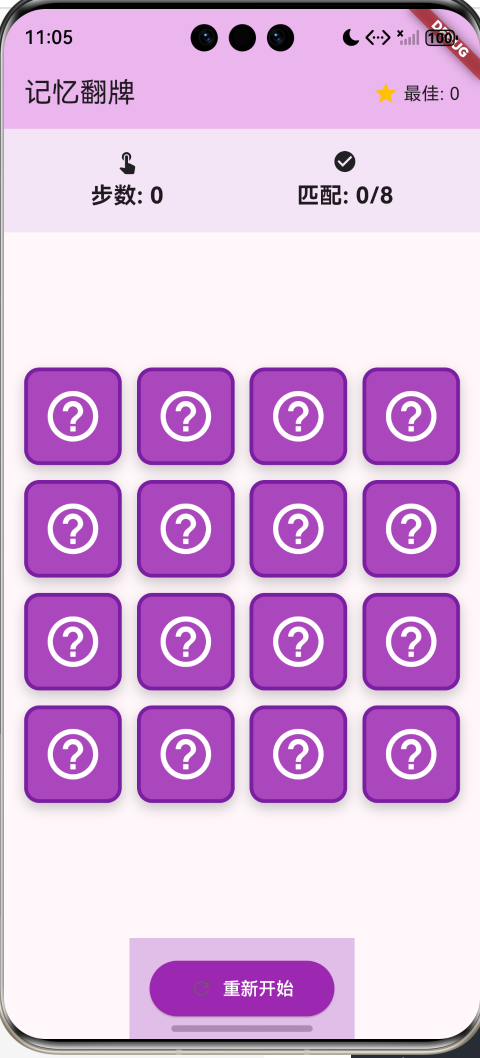
5.1 卡片网格
Widget _buildCardGrid() {
return GridView.builder(
primary: true,
padding: const EdgeInsets.all(16),
gridDelegate: const SliverGridDelegateWithFixedCrossAxisCount(
crossAxisCount: _gridCols,
crossAxisSpacing: 12,
mainAxisSpacing: 12,
childAspectRatio: 1.0,
),
itemCount: _cards.length,
itemBuilder: (context, index) {
return _buildCard(_cards[index]);
},
);
}
5.2 卡片组件
Widget _buildCard(Card card) {
return GestureDetector(
onTap: () => _flipCard(card),
child: AnimatedContainer(
duration: const Duration(milliseconds: 300),
decoration: BoxDecoration(
color: _getCardColor(card),
borderRadius: BorderRadius.circular(12),
border: Border.all(
color: card.isMatched
? Colors.green
: Colors.purple.shade700,
width: 3,
),
boxShadow: [
BoxShadow(
color: Colors.black.withValues(alpha: 0.2),
blurRadius: 8,
offset: const Offset(0, 4),
),
],
),
child: Center(
child: card.isFlipped || card.isMatched
? Icon(
card.icon,
size: 48,
color: card.isMatched ? Colors.green : Colors.purple,
)
: Icon(
Icons.help_outline,
size: 48,
color: Colors.white,
),
),
),
);
}
5.3 卡片颜色映射
Color _getCardColor(Card card) {
if (card.isMatched) {
return Colors.green.shade300; // 已匹配:绿色
} else if (card.isFlipped) {
return Colors.white; // 已翻开:白色
} else {
return Colors.purple.shade400; // 未翻开:紫色
}
}
5.4 游戏信息面板
Container(
padding: const EdgeInsets.all(16),
color: Colors.purple.shade50,
child: Row(
mainAxisAlignment: MainAxisAlignment.spaceAround,
children: [
Column(
children: [
const Icon(Icons.touch_app, size: 20),
const SizedBox(height: 4),
Text(
'步数: $_moves',
style: const TextStyle(
fontSize: 18,
fontWeight: FontWeight.bold,
),
),
],
),
Column(
children: [
const Icon(Icons.check_circle, size: 20),
const SizedBox(height: 4),
Text(
'匹配: $_matches/8',
style: const TextStyle(
fontSize: 18,
fontWeight: FontWeight.bold,
),
),
],
),
],
),
)
六、动画效果
6.1 翻牌动画
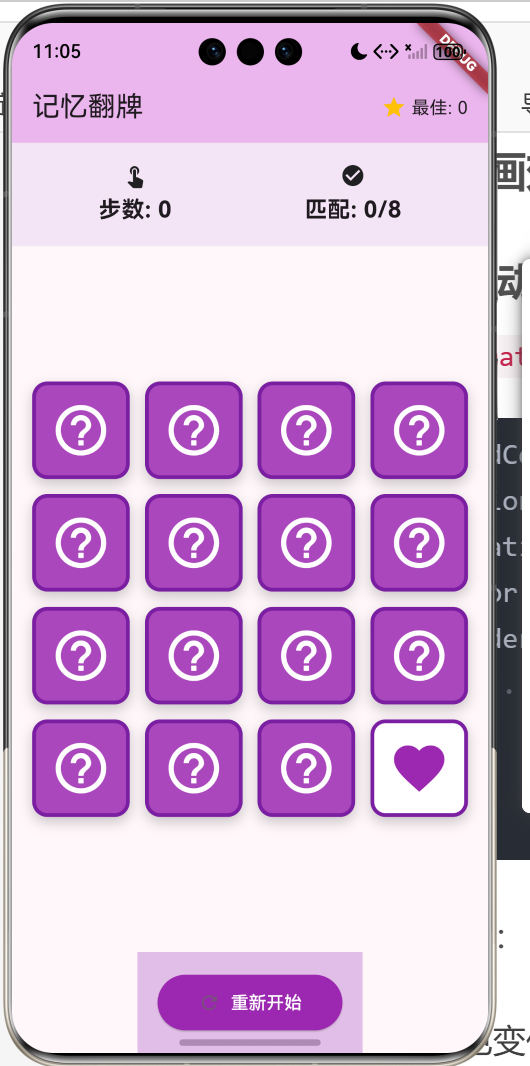
使用AnimatedContainer实现平滑的翻牌效果:
AnimatedContainer(
duration: const Duration(milliseconds: 300),
decoration: BoxDecoration(
color: _getCardColor(card),
borderRadius: BorderRadius.circular(12),
// …
),
// …
)
动画属性:
- 颜色变化
- 边框颜色变化
- 300ms过渡时间
6.2 阴影效果
boxShadow: [
BoxShadow(
color: Colors.black.withValues(alpha: 0.2),
blurRadius: 8,
offset: const Offset(0, 4),
),
],
七、资源管理
7.1 定时器销毁
void dispose() {
_flipTimer?.cancel();
super.dispose();
}
重要:在dispose方法中取消定时器,防止内存泄漏。
7.2 游戏重置
void _initGame() {
_flipTimer?.cancel(); // 先取消旧定时器
// … 初始化逻辑 …
setState(() {});
}
八、总结
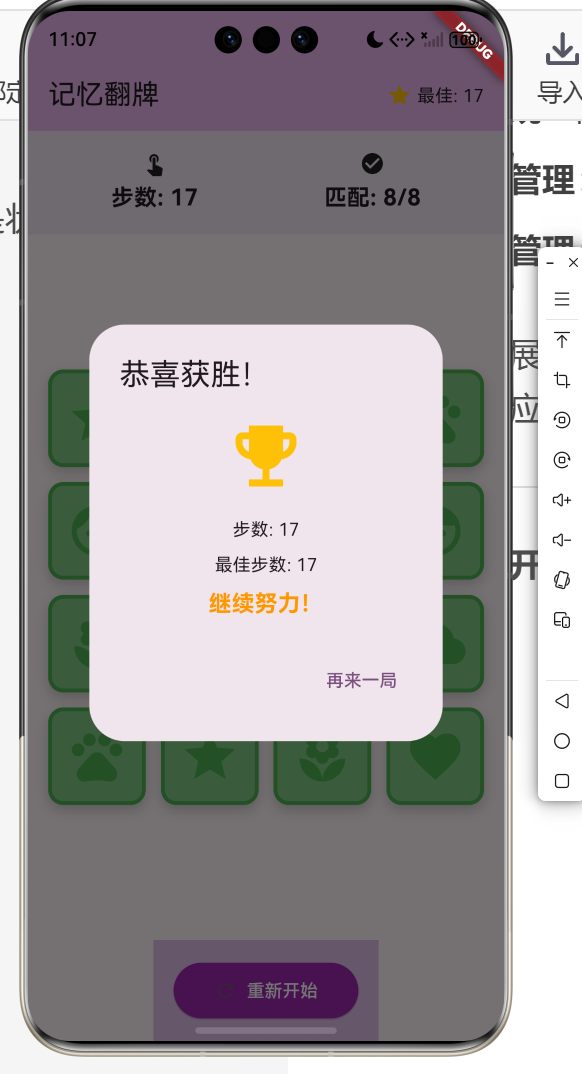
本文详细介绍了使用Flutter for OpenHarmony开发记忆翻牌游戏的完整过程,涵盖了以下核心技术点:
这个项目展示了Flutter在记忆类游戏开发中的完整流程,特别是状态管理和动画效果的应用。
欢迎加入开源鸿蒙跨平台社区: 开源鸿蒙跨平台开发者社区