欢迎加入开源鸿蒙跨平台社区:https://openharmonycrossplatform.csdn.net
🎯 前言:为什么需要 Native Device Orientation?
在移动应用开发中,获取设备方向是一个常见需求。Flutter 提供了 MediaQuery.of(context).orientation,但它只能区分竖屏和横屏,无法区分横屏左转和横屏右转。
Flutter 内置方法的局限性:
- ❌ 只能判断屏幕是横向还是纵向
- ❌ 无法区分 landscapeLeft 和 landscapeRight
- ❌ 无法区分 portraitUp 和 portraitDown
- ❌ 基于屏幕尺寸判断,不够精确
实际场景需求:
- 场景一:相机应用需要根据设备方向正确旋转照片
- 场景二:视频播放器需要根据设备方向调整UI布局
- 场景三:游戏应用需要精确的设备方向控制
- 场景四:AR应用需要根据设备方向渲染3D场景
- 场景五:地图导航需要根据设备方向调整指南针
native_device_orientation 是解决这些问题的完美方案!它提供了:
- 📱 精确的方向检测:区分4个方向(portraitUp、portraitDown、landscapeLeft、landscapeRight)
- 🎯 传感器支持:可选择使用设备传感器获取更精确的方向
- 🔄 实时监听:支持方向变化的实时监听
- 🎨 便捷的Widget:提供开箱即用的方向感知Widget
- ⚡ 高性能:直接调用原生API,性能优异
🚀 核心能力一览
| 精确方向检测 | 区分4个精确方向 | ✅ |
| 传感器模式 | 使用设备传感器获取方向 | ✅ |
| UI模式 | 基于窗口方向获取 | ✅ |
| 实时监听 | 监听方向变化事件 | ✅ |
| 异步获取 | 异步获取当前方向 | ✅ |
| Widget封装 | 提供便捷的方向感知Widget | ✅ |
| 默认方向设置 | 可设置默认方向 | ✅ |
| 跨平台一致 | 所有平台行为一致 | ✅ |
方向类型说明
| portraitUp | 竖屏正向(正常握持) | ⬆️ |
| portraitDown | 竖屏倒置(上下颠倒) | ⬇️ |
| landscapeLeft | 横屏左转(Home键在左) | ⬅️ |
| landscapeRight | 横屏右转(Home键在右) | ➡️ |
| unknown | 未知方向 | ❓ |
检测模式对比
| UI模式 | 中 | ⭐⭐⭐⭐⭐ | 低 | 普通UI适配 |
| 传感器模式 | 高 | ⭐⭐⭐⭐ | 中 | 相机、AR、游戏等 |
⚠️ 重要提示
关于模拟器的限制:
- 🚨 鸿蒙模拟器可能无法正确检测方向变化:模拟器的方向检测功能可能受限,建议在真实设备上测试
- 📱 真机测试:为了获得最佳体验和准确的方向检测,强烈建议在真实的OpenHarmony设备上运行
- 🔄 传感器模式:在模拟器上,传感器模式可能无法正常工作
⚠️ 常见问题
-
问题:方向检测不准确或始终显示竖直
- 解决:这是模拟器的限制,请在真实设备上测试
-
问题:方向变化不及时
- 解决:使用 Stream 监听方式,而不是一次性获取
-
问题:安装时报错 9568289
- 解决:需要修改应用等级为 system_basic(见权限配置部分)
⚙️ 环境准备
第一步:添加依赖
📄 pubspec.yaml:
dependencies:
flutter:
sdk: flutter
# 添加 native_device_orientation 依赖(OpenHarmony 适配版本)
native_device_orientation:
git:
url: https://atomgit.com/openharmony–sig/fluttertpc_native_device_orientation.git
ref: master
执行命令:
flutter pub get
第二步:配置权限
由于该插件需要访问设备传感器,需要配置相应权限。
2.1 在 entry 目录下的 module.json5 中添加权限
打开 ohos/entry/src/main/module.json5,在 module 对象中添加:
"requestPermissions": [
{
"name": "ohos.permission.INTERNET",
"reason": "$string:network_reason",
"usedScene": {
"abilities": [
"EntryAbility"
],
"when": "inuse"
}
}
]
2.2 在 entry 目录下添加权限说明
打开 ohos/entry/src/main/resources/base/element/string.json,添加:
{
"string": [
{
"name": "network_reason",
"value": "使用网络"
}
]
}
2.3 应用等级配置(可选)
如果安装时遇到错误 9568289,需要修改应用等级为 system_basic。参考 官方文档。
第三步:导入包
在 Dart 文件中导入:
import 'package:flutter/material.dart';
import 'package:native_device_orientation/native_device_orientation.dart';
📚 基础用法:三种使用方式
方式1:使用 NativeDeviceOrientedWidget(推荐)
最简单的方式,自动处理方向变化:
NativeDeviceOrientedWidget(
portraitUp: (context) {
return const Center(
child: Text(
'竖屏正向 ⬆️',
style: TextStyle(fontSize: 24),
),
);
},
portraitDown: (context) {
return const Center(
child: Text(
'竖屏倒置 ⬇️',
style: TextStyle(fontSize: 24),
),
);
},
landscapeLeft: (context) {
return const Center(
child: Text(
'横屏左转 ⬅️',
style: TextStyle(fontSize: 24),
),
);
},
landscapeRight: (context) {
return const Center(
child: Text(
'横屏右转 ➡️',
style: TextStyle(fontSize: 24),
),
);
},
fallback: (context) {
return const Center(
child: Text(
'未知方向 ❓',
style: TextStyle(fontSize: 24),
),
);
},
)
核心要点:
- 为每个方向提供不同的UI构建器
- fallback 是必需的,用于处理未知方向
- 自动监听方向变化并更新UI
方式2:使用 NativeDeviceOrientationReader
更灵活的方式,手动读取方向:
NativeDeviceOrientationReader(
builder: (context) {
final orientation = NativeDeviceOrientationReader.orientation(context);
return Center(
child: Text(
'当前方向: ${_getOrientationText(orientation)}',
style: const TextStyle(fontSize: 24),
),
);
},
)
String _getOrientationText(NativeDeviceOrientation orientation) {
switch (orientation) {
case NativeDeviceOrientation.portraitUp:
return '竖屏正向 ⬆️';
case NativeDeviceOrientation.portraitDown:
return '竖屏倒置 ⬇️';
case NativeDeviceOrientation.landscapeLeft:
return '横屏左转 ⬅️';
case NativeDeviceOrientation.landscapeRight:
return '横屏右转 ➡️';
default:
return '未知方向 ❓';
}
}
方式3:直接使用 API
最灵活的方式,完全控制:
// 异步获取当前方向
final orientation = await NativeDeviceOrientationCommunicator()
.orientation(useSensor: false);
print('当前方向: $orientation');
// 监听方向变化
NativeDeviceOrientationCommunicator()
.onOrientationChanged(useSensor: false)
.listen((orientation) {
print('方向变化: $orientation');
});
🎨 进阶用法:传感器模式
示例4:使用传感器模式
传感器模式可以提供更精确的方向检测:
class SensorOrientationDemo extends StatefulWidget {
const SensorOrientationDemo({super.key});
State<SensorOrientationDemo> createState() => _SensorOrientationDemoState();
}
class _SensorOrientationDemoState extends State<SensorOrientationDemo> {
bool useSensor = false;
Widget build(BuildContext context) {
return Scaffold(
appBar: AppBar(
title: const Text('传感器模式演示'),
actions: [
const Center(child: Text('传感器模式:')),
Switch(
value: useSensor,
onChanged: (val) => setState(() => useSensor = val),
),
],
),
body: NativeDeviceOrientedWidget(
useSensor: useSensor, // 启用传感器模式
portraitUp: (context) => _buildOrientationCard(
'竖屏正向 ⬆️',
Colors.blue,
useSensor ? '使用传感器检测' : '使用UI检测',
),
landscapeLeft: (context) => _buildOrientationCard(
'横屏左转 ⬅️',
Colors.green,
useSensor ? '使用传感器检测' : '使用UI检测',
),
landscapeRight: (context) => _buildOrientationCard(
'横屏右转 ➡️',
Colors.orange,
useSensor ? '使用传感器检测' : '使用UI检测',
),
fallback: (context) => _buildOrientationCard(
'未知方向 ❓',
Colors.grey,
'无法检测',
),
),
);
}
Widget _buildOrientationCard(String title, Color color, String subtitle) {
return Container(
color: color.withOpacity(0.2),
child: Center(
child: Column(
mainAxisAlignment: MainAxisAlignment.center,
children: [
Text(
title,
style: TextStyle(
fontSize: 32,
fontWeight: FontWeight.bold,
color: color,
),
),
const SizedBox(height: 16),
Text(
subtitle,
style: TextStyle(
fontSize: 16,
color: color.withOpacity(0.7),
),
),
],
),
),
);
}
}
传感器模式优势:
- 更精确的方向检测
- 可以检测到微小的角度变化
- 适合相机、AR等对方向敏感的应用
注意事项:
- 传感器模式会增加电量消耗
- 某些设备可能不支持传感器模式
- 建议根据实际需求选择模式
示例5:实时监听方向变化
使用 Stream 实时监听方向变化:
class OrientationStreamDemo extends StatefulWidget {
const OrientationStreamDemo({super.key});
State<OrientationStreamDemo> createState() => _OrientationStreamDemoState();
}
class _OrientationStreamDemoState extends State<OrientationStreamDemo> {
NativeDeviceOrientation _currentOrientation = NativeDeviceOrientation.portraitUp;
final List<String> _orientationHistory = [];
void initState() {
super.initState();
_listenToOrientationChanges();
}
void _listenToOrientationChanges() {
NativeDeviceOrientationCommunicator()
.onOrientationChanged(useSensor: false)
.listen((orientation) {
setState(() {
_currentOrientation = orientation;
_orientationHistory.insert(
0,
'${DateTime.now().toString().substring(11, 19)}: ${_getOrientationName(orientation)}',
);
if (_orientationHistory.length > 10) {
_orientationHistory.removeLast();
}
});
});
}
String _getOrientationName(NativeDeviceOrientation orientation) {
switch (orientation) {
case NativeDeviceOrientation.portraitUp:
return '竖屏正向';
case NativeDeviceOrientation.portraitDown:
return '竖屏倒置';
case NativeDeviceOrientation.landscapeLeft:
return '横屏左转';
case NativeDeviceOrientation.landscapeRight:
return '横屏右转';
default:
return '未知';
}
}
Widget build(BuildContext context) {
return Scaffold(
appBar: AppBar(
title: const Text('方向变化监听'),
),
body: Column(
children: [
Container(
padding: const EdgeInsets.all(24),
color: Colors.blue.withOpacity(0.1),
child: Column(
children: [
const Text(
'当前方向',
style: TextStyle(fontSize: 16, color: Colors.grey),
),
const SizedBox(height: 8),
Text(
_getOrientationName(_currentOrientation),
style: const TextStyle(
fontSize: 32,
fontWeight: FontWeight.bold,
),
),
],
),
),
const Padding(
padding: EdgeInsets.all(16),
child: Text(
'方向变化历史',
style: TextStyle(fontSize: 18, fontWeight: FontWeight.bold),
),
),
Expanded(
child: ListView.builder(
itemCount: _orientationHistory.length,
itemBuilder: (context, index) {
return ListTile(
leading: CircleAvatar(
child: Text('${index + 1}'),
),
title: Text(_orientationHistory[index]),
);
},
),
),
],
),
);
}
}
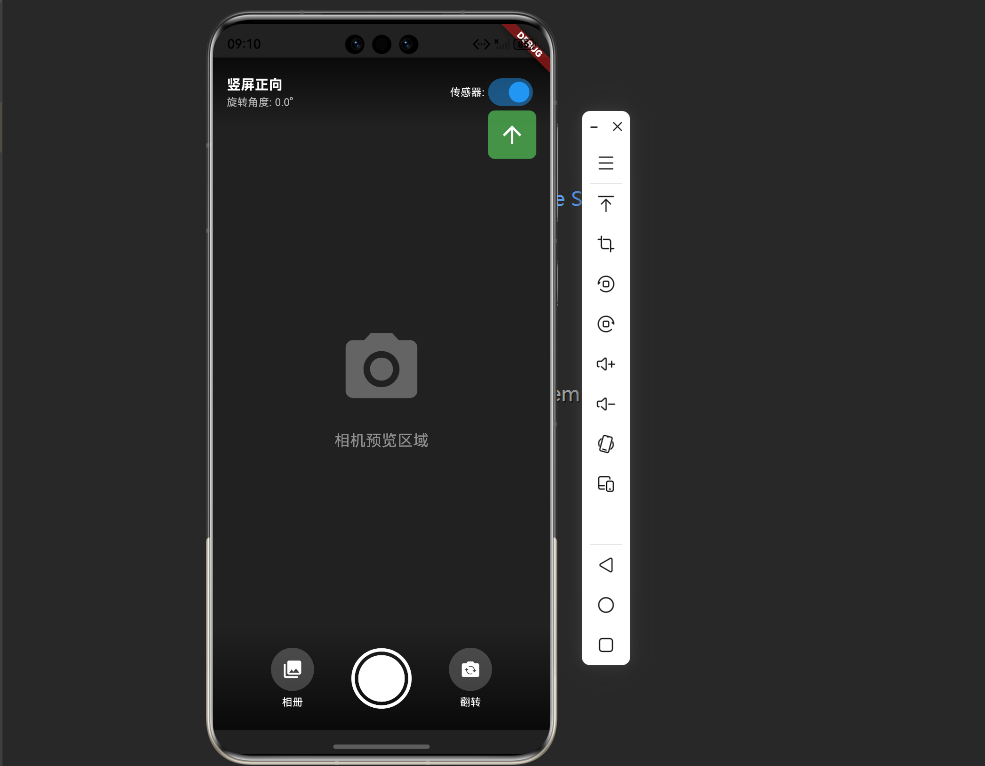
🎯 完整示例:方向感知相机界面
下面是一个完整的示例,展示如何在相机应用中使用方向检测:
import 'package:flutter/material.dart';
import 'package:native_device_orientation/native_device_orientation.dart';
void main() {
runApp(const MyApp());
}
class MyApp extends StatelessWidget {
const MyApp({super.key});
Widget build(BuildContext context) {
return MaterialApp(
title: '方向感知相机',
theme: ThemeData(
colorScheme: ColorScheme.fromSeed(seedColor: Colors.blue),
useMaterial3: true,
),
home: const OrientationAwareCameraPage(),
);
}
}
class OrientationAwareCameraPage extends StatefulWidget {
const OrientationAwareCameraPage({super.key});
State<OrientationAwareCameraPage> createState() =>
_OrientationAwareCameraPageState();
}
class _OrientationAwareCameraPageState
extends State<OrientationAwareCameraPage> {
bool useSensor = true;
NativeDeviceOrientation? _lastOrientation;
Widget build(BuildContext context) {
return Scaffold(
backgroundColor: Colors.black,
body: NativeDeviceOrientedWidget(
useSensor: useSensor,
portraitUp: (context) => _buildCameraUI(
NativeDeviceOrientation.portraitUp,
'竖屏正向',
0,
),
portraitDown: (context) => _buildCameraUI(
NativeDeviceOrientation.portraitDown,
'竖屏倒置',
180,
),
landscapeLeft: (context) => _buildCameraUI(
NativeDeviceOrientation.landscapeLeft,
'横屏左转',
270,
),
landscapeRight: (context) => _buildCameraUI(
NativeDeviceOrientation.landscapeRight,
'横屏右转',
90,
),
fallback: (context) => _buildCameraUI(
NativeDeviceOrientation.unknown,
'未知方向',
0,
),
),
);
}
Widget _buildCameraUI(
NativeDeviceOrientation orientation,
String orientationName,
double rotation,
) {
// 记录方向变化
if (_lastOrientation != orientation) {
_lastOrientation = orientation;
print('方向变化: $orientationName (旋转角度: $rotation°)');
}
return Stack(
children: [
// 模拟相机预览
Container(
color: Colors.grey[900],
child: Center(
child: Column(
mainAxisAlignment: MainAxisAlignment.center,
children: [
Icon(
Icons.camera_alt,
size: 100,
color: Colors.white.withOpacity(0.3),
),
const SizedBox(height: 20),
Text(
'相机预览区域',
style: TextStyle(
color: Colors.white.withOpacity(0.5),
fontSize: 18,
),
),
],
),
),
),
// 顶部信息栏
Positioned(
top: 0,
left: 0,
right: 0,
child: SafeArea(
child: Container(
padding: const EdgeInsets.all(16),
decoration: BoxDecoration(
gradient: LinearGradient(
begin: Alignment.topCenter,
end: Alignment.bottomCenter,
colors: [
Colors.black.withOpacity(0.7),
Colors.transparent,
],
),
),
child: Row(
mainAxisAlignment: MainAxisAlignment.spaceBetween,
children: [
Column(
crossAxisAlignment: CrossAxisAlignment.start,
children: [
Text(
orientationName,
style: const TextStyle(
color: Colors.white,
fontSize: 16,
fontWeight: FontWeight.bold,
),
),
Text(
'旋转角度: $rotation°',
style: TextStyle(
color: Colors.white.withOpacity(0.7),
fontSize: 12,
),
),
],
),
Row(
children: [
const Text(
'传感器:',
style: TextStyle(color: Colors.white, fontSize: 12),
),
Switch(
value: useSensor,
onChanged: (val) => setState(() => useSensor = val),
activeColor: Colors.blue,
),
],
),
],
),
),
),
),
// 底部控制栏(始终保持正向)
Positioned(
bottom: 0,
left: 0,
right: 0,
child: SafeArea(
child: Transform.rotate(
angle: –rotation * 3.14159 / 180, // 保持控制栏正向
child: Container(
padding: const EdgeInsets.all(24),
decoration: BoxDecoration(
gradient: LinearGradient(
begin: Alignment.bottomCenter,
end: Alignment.topCenter,
colors: [
Colors.black.withOpacity(0.7),
Colors.transparent,
],
),
),
child: Row(
mainAxisAlignment: MainAxisAlignment.spaceEvenly,
children: [
_buildControlButton(Icons.photo_library, '相册'),
_buildCaptureButton(),
_buildControlButton(Icons.flip_camera_ios, '翻转'),
],
),
),
),
),
),
// 方向指示器
Positioned(
right: 16,
top: 100,
child: _buildOrientationIndicator(orientation),
),
],
);
}
Widget _buildControlButton(IconData icon, String label) {
return Column(
mainAxisSize: MainAxisSize.min,
children: [
Container(
width: 50,
height: 50,
decoration: BoxDecoration(
color: Colors.white.withOpacity(0.2),
shape: BoxShape.circle,
),
child: Icon(icon, color: Colors.white),
),
const SizedBox(height: 4),
Text(
label,
style: const TextStyle(color: Colors.white, fontSize: 12),
),
],
);
}
Widget _buildCaptureButton() {
return Container(
width: 70,
height: 70,
decoration: BoxDecoration(
shape: BoxShape.circle,
border: Border.all(color: Colors.white, width: 4),
),
child: Container(
margin: const EdgeInsets.all(4),
decoration: const BoxDecoration(
color: Colors.white,
shape: BoxShape.circle,
),
),
);
}
Widget _buildOrientationIndicator(NativeDeviceOrientation orientation) {
IconData icon;
Color color;
switch (orientation) {
case NativeDeviceOrientation.portraitUp:
icon = Icons.arrow_upward;
color = Colors.green;
break;
case NativeDeviceOrientation.portraitDown:
icon = Icons.arrow_downward;
color = Colors.red;
break;
case NativeDeviceOrientation.landscapeLeft:
icon = Icons.arrow_back;
color = Colors.blue;
break;
case NativeDeviceOrientation.landscapeRight:
icon = Icons.arrow_forward;
color = Colors.orange;
break;
default:
icon = Icons.help_outline;
color = Colors.grey;
}
return Container(
padding: const EdgeInsets.all(12),
decoration: BoxDecoration(
color: color.withOpacity(0.8),
borderRadius: BorderRadius.circular(8),
),
child: Icon(icon, color: Colors.white, size: 32),
);
}
}
完整示例说明:
📊 API 详解
NativeDeviceOrientationCommunicator
1. orientation() – 异步获取方向
Future<NativeDeviceOrientation> orientation({
bool useSensor = false,
NativeDeviceOrientation defaultOrientation = NativeDeviceOrientation.portraitUp,
}) async
参数说明:
- useSensor:是否使用传感器模式(默认 false)
- defaultOrientation:无法获取方向时的默认值
使用示例:
// UI模式
final orientation = await NativeDeviceOrientationCommunicator()
.orientation(useSensor: false);
// 传感器模式
final orientation = await NativeDeviceOrientationCommunicator()
.orientation(useSensor: true);
// 设置默认方向
final orientation = await NativeDeviceOrientationCommunicator()
.orientation(
useSensor: false,
defaultOrientation: NativeDeviceOrientation.landscapeLeft,
);
2. onOrientationChanged() – 监听方向变化
Stream<NativeDeviceOrientation> onOrientationChanged({
bool useSensor = false,
})
使用示例:
// 监听方向变化
NativeDeviceOrientationCommunicator()
.onOrientationChanged(useSensor: false)
.listen((orientation) {
print('方向变化: $orientation');
});
// 使用 StreamBuilder
StreamBuilder<NativeDeviceOrientation>(
stream: NativeDeviceOrientationCommunicator()
.onOrientationChanged(useSensor: false),
builder: (context, snapshot) {
if (!snapshot.hasData) {
return const CircularProgressIndicator();
}
final orientation = snapshot.data!;
return Text('当前方向: $orientation');
},
)
🎨 Widget API
NativeDeviceOrientedWidget
自动处理方向变化的便捷Widget:
NativeDeviceOrientedWidget({
required WidgetBuilder fallback, // 必需:默认构建器
WidgetBuilder? landscape, // 横屏(不区分左右)
WidgetBuilder? landscapeLeft, // 横屏左转
WidgetBuilder? landscapeRight, // 横屏右转
WidgetBuilder? portrait, // 竖屏(不区分上下)
WidgetBuilder? portraitUp, // 竖屏正向
WidgetBuilder? portraitDown, // 竖屏倒置
bool useSensor = false, // 是否使用传感器
})
优先级规则:
NativeDeviceOrientationReader
手动读取方向的Widget:
NativeDeviceOrientationReader({
required WidgetBuilder builder,
bool useSensor = false,
})
// 在 builder 中读取方向
final orientation = NativeDeviceOrientationReader.orientation(context);
💡 最佳实践
1. 根据场景选择模式
// ✅ 普通UI适配:使用UI模式
NativeDeviceOrientedWidget(
useSensor: false, // UI模式,性能好,电量消耗低
// …
)
// ✅ 相机/AR应用:使用传感器模式
NativeDeviceOrientedWidget(
useSensor: true, // 传感器模式,更精确
// …
)
2. 合理使用 fallback
// ✅ 始终提供 fallback
NativeDeviceOrientedWidget(
portraitUp: (context) => const PortraitUI(),
landscapeLeft: (context) => const LandscapeUI(),
fallback: (context) => const DefaultUI(), // 必需
)
3. 避免频繁重建
// ❌ 错误:每次都创建新Widget
NativeDeviceOrientedWidget(
portraitUp: (context) => MyComplexWidget(), // 每次重建
)
// ✅ 正确:使用 const 或缓存
NativeDeviceOrientedWidget(
portraitUp: (context) => const MyComplexWidget(), // 复用
)
4. 处理方向转换动画
AnimatedSwitcher(
duration: const Duration(milliseconds: 300),
child: NativeDeviceOrientedWidget(
key: ValueKey(orientation), // 触发动画
portraitUp: (context) => const PortraitUI(),
landscapeLeft: (context) => const LandscapeUI(),
fallback: (context) => const DefaultUI(),
),
)
5. 及时取消监听
class MyWidget extends StatefulWidget {
State<MyWidget> createState() => _MyWidgetState();
}
class _MyWidgetState extends State<MyWidget> {
late StreamSubscription<NativeDeviceOrientation> _subscription;
void initState() {
super.initState();
_subscription = NativeDeviceOrientationCommunicator()
.onOrientationChanged()
.listen((orientation) {
// 处理方向变化
});
}
void dispose() {
_subscription.cancel(); // 取消监听
super.dispose();
}
Widget build(BuildContext context) {
return Container();
}
}
🐛 常见问题与解决方案
问题1:方向检测不准确或始终显示竖直
现象:
- 方向显示错误
- 无论如何旋转设备都显示竖直
- 横屏左右识别不准
原因:
- 在鸿蒙模拟器上,方向检测功能可能受限
- 模拟器无法完全模拟真实设备的传感器行为
解决方案:
// 1. 在真实设备上测试(推荐)
// 模拟器的方向检测功能有限,建议使用真机测试
// 2. 尝试使用传感器模式
NativeDeviceOrientedWidget(
useSensor: true, // 启用传感器
// …
)
// 3. 检查权限配置是否正确
// 确保已按照上述步骤配置了所需权限
问题2:方向变化延迟
现象:
- 旋转设备后UI更新慢
- 方向变化不及时
解决方案:
// 使用 Stream 监听而不是一次性获取
NativeDeviceOrientationCommunicator()
.onOrientationChanged(useSensor: false)
.listen((orientation) {
// 实时更新
});
问题3:某些方向无法检测
现象:
- portraitDown 无法检测
- 某些方向始终返回 unknown
解决方案:
// 1. 检查设备是否支持该方向
// 2. 使用传感器模式
// 3. 提供 fallback 处理
NativeDeviceOrientedWidget(
useSensor: true,
portraitDown: (context) => const PortraitDownUI(),
fallback: (context) => const DefaultUI(), // 兜底方案
)
问题4:电量消耗过高
现象:
- 使用传感器模式后电量消耗明显增加
解决方案:
// 1. 仅在需要时启用传感器模式
// 2. 页面不可见时停止监听
class MyWidget extends StatefulWidget {
State<MyWidget> createState() => _MyWidgetState();
}
class _MyWidgetState extends State<MyWidget> with WidgetsBindingObserver {
bool _useSensor = false;
void initState() {
super.initState();
WidgetsBinding.instance.addObserver(this);
}
void dispose() {
WidgetsBinding.instance.removeObserver(this);
super.dispose();
}
void didChangeAppLifecycleState(AppLifecycleState state) {
setState(() {
// 应用在后台时关闭传感器
_useSensor = state == AppLifecycleState.resumed;
});
}
Widget build(BuildContext context) {
return NativeDeviceOrientedWidget(
useSensor: _useSensor,
// …
);
}
}
📈 与 MediaQuery 对比
| 区分横竖屏 | ✅ | ✅ |
| 区分横屏左右 | ❌ | ✅ |
| 区分竖屏上下 | ❌ | ✅ |
| 传感器支持 | ❌ | ✅ |
| 实时监听 | ✅ | ✅ |
| 性能 | ⭐⭐⭐⭐⭐ | ⭐⭐⭐⭐ |
| 精确度 | 低 | 高 |
| 适用场景 | 普通UI适配 | 相机、AR、游戏等 |
🎓 总结
通过本文,你已经掌握了:
✅ native_device_orientation 的核心概念和优势 ✅ 三种使用方式(Widget、Reader、直接API) ✅ UI模式和传感器模式的区别 ✅ 实时监听方向变化的方法 ✅ 完整的方向感知相机界面实现 ✅ 最佳实践和常见问题解决方案
native_device_orientation 让设备方向检测变得精确而简单!通过区分4个精确方向,可以实现更专业的UI适配和交互体验。无论是相机应用、AR应用还是游戏应用,都能满足你的需求。
🔗 相关资源
- native_device_orientation 官方文档
- OpenHarmony 仓库
- Flutter 屏幕方向文档