Android UI 基础布局与约束实战:LinearLayout、RelativeLayout、ConstraintLayout
目录
- Android UI 基础布局与约束实战:LinearLayout、RelativeLayout、ConstraintLayout
- 1. 前言
- 1.1 开发环境与系统认知
- 1.2 View 与 ViewGroup 关系
- 2. 三类布局的定位与选型
- 3. LinearLayout:线性排布与权重分配
- 3.1 核心能力与基础写法
- 3.2 权重机制(layout_weight)
- 3.3 内外边距与重力属性
- 3.4 常用属性速查
- 4. LayoutParams:Java 动态布局参数
- 4.1 新增控件并设置布局参数
- 4.2 获取并修改已有控件参数
- 5. RelativeLayout:相对关系布局
- 5.1 核心属性与语义说明
- 5.2 示例代码
- 6. ConstraintLayout:复杂界面的主力方案
- 6.1 约束模型与基本规则
- 6.2 示例代码
- 6.3 相对定位属性映射
- 6.4 Baseline、角度约束、Bias 偏移
- 6.5 可见性与 goneMargin
- 6.6 宽高策略:0dp、match_parent、wrap_content
- 6.7 DimensionRatio 与 Chains
- 6.8 Guideline、Barrier、Group 辅助组件
- 7. 布局选型对照表
- 8. 常见问题与避坑清单
- 9. 小结
1. 前言
Android 页面开发的核心,是在可维护性、适配性、开发效率之间找到平衡。本文围绕三类高频布局 LinearLayout、RelativeLayout、ConstraintLayout 展开,并结合 LayoutParams 的动态控制方式,给出可直接落地的属性说明与代码示例。
1.1 开发环境与系统认知
Android UI 开发依赖完整工具链(Android Studio、Gradle、模拟器/真机调试)。先建立对系统分层和构建链路的认识,再进入布局实践,效率更高。
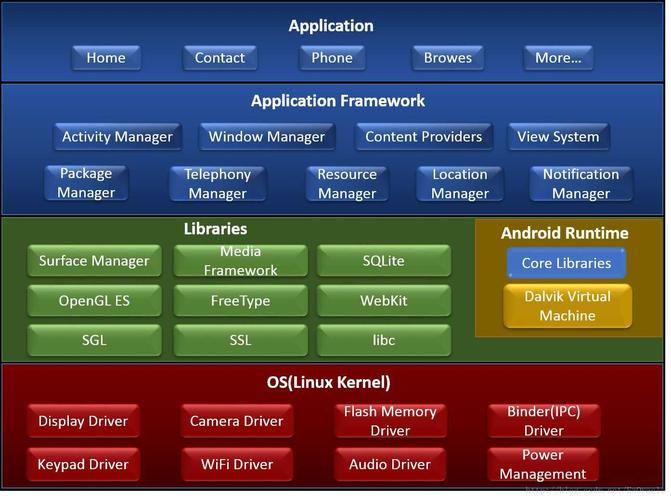
Android 系统架构示意:
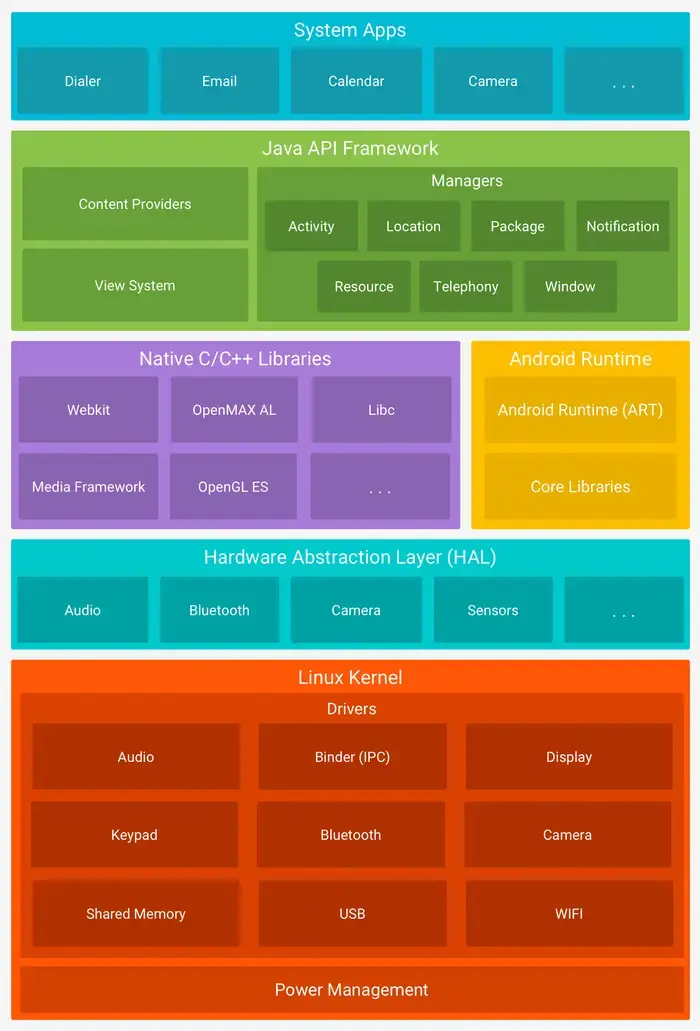
简化系统架构示意(隐藏 HAL):
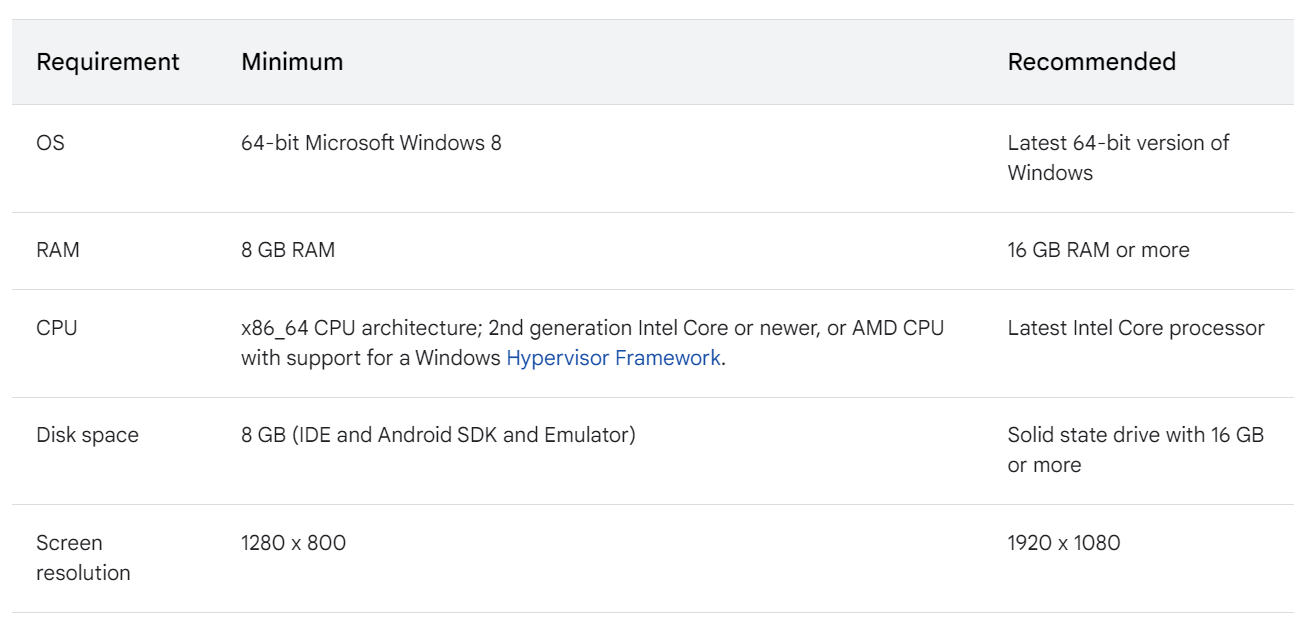
开发机配置建议示意:
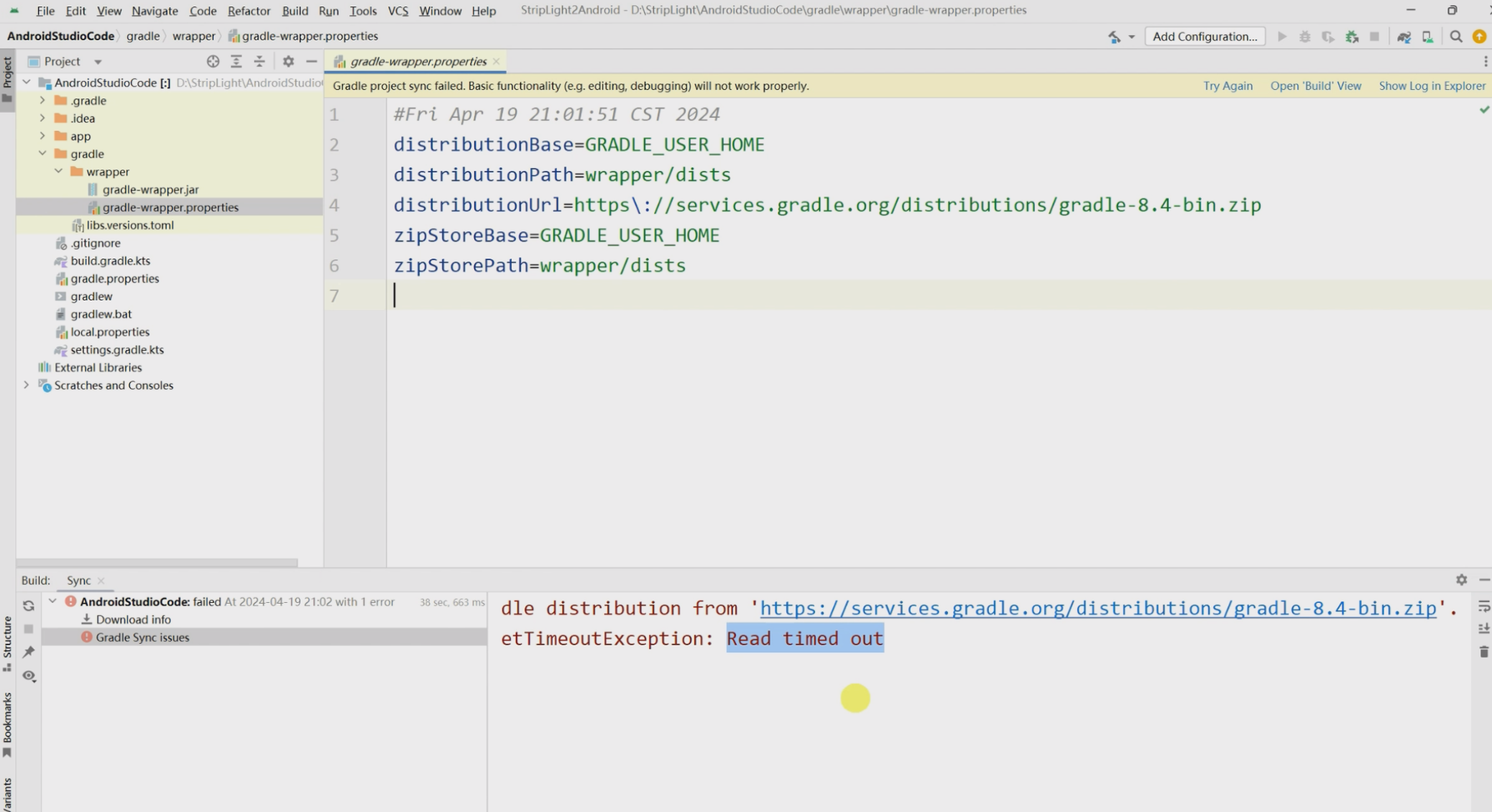
Gradle 手动配置流程示意:
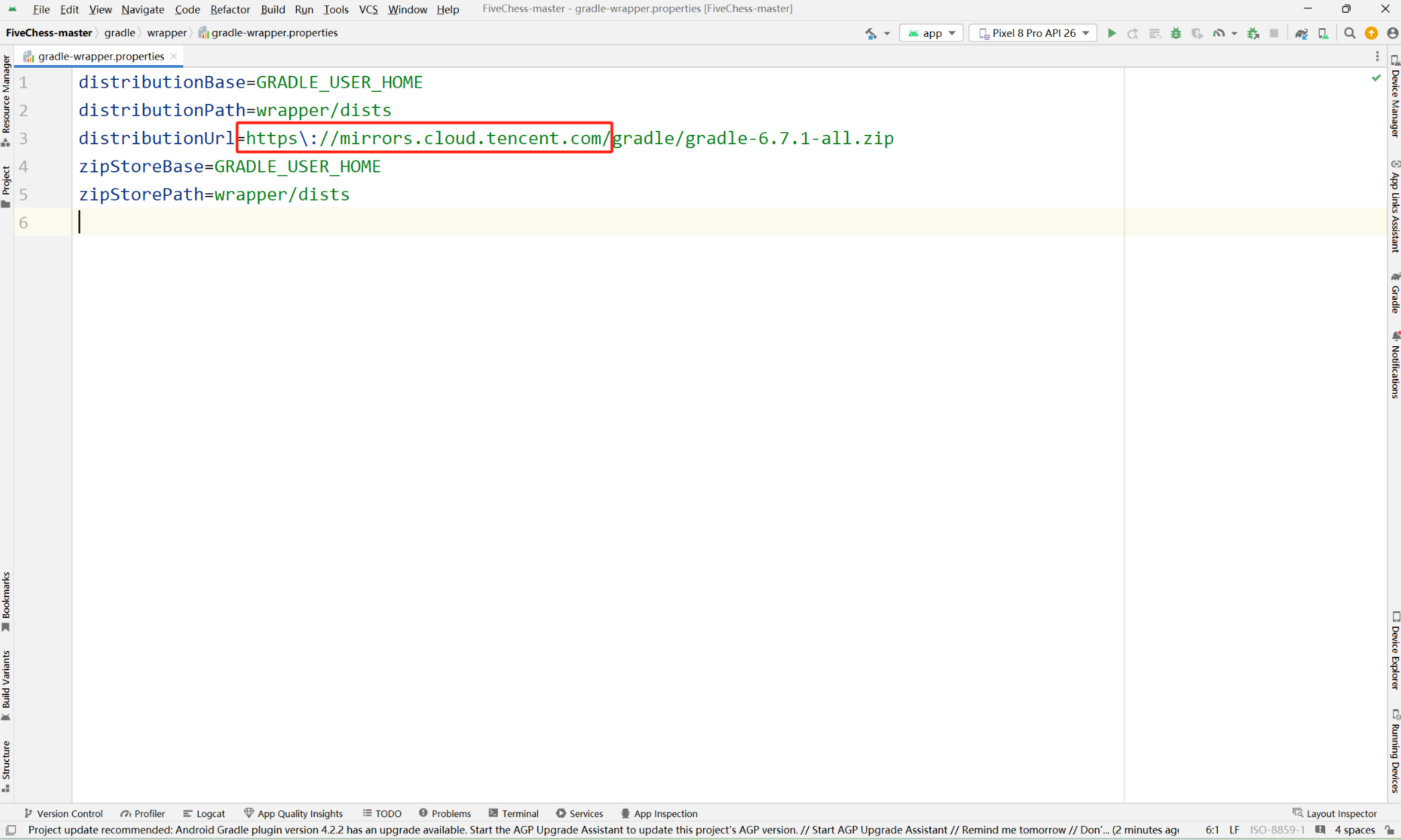
Gradle 镜像替换位置示意:
Android Studio 模拟器创建与运行示意:
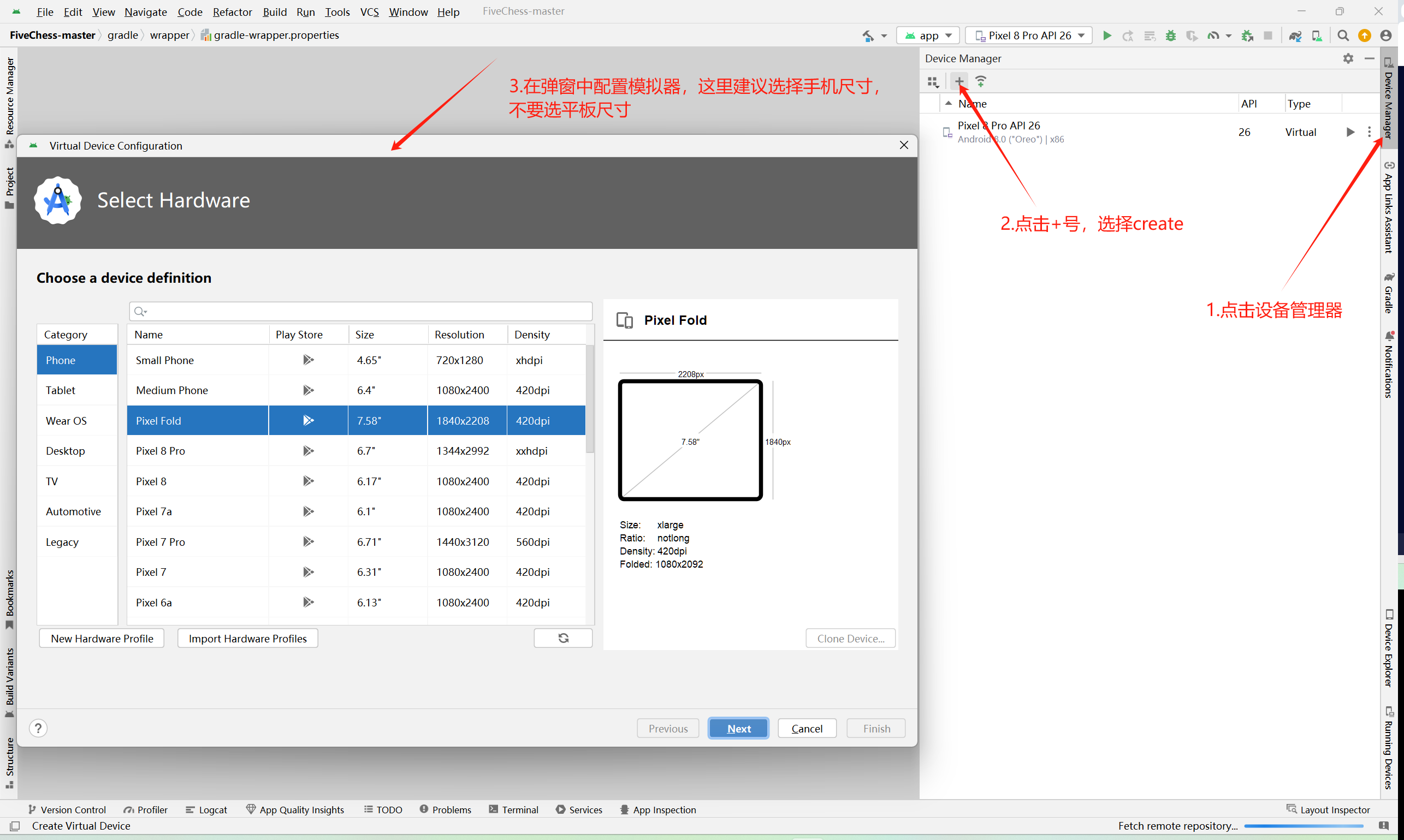
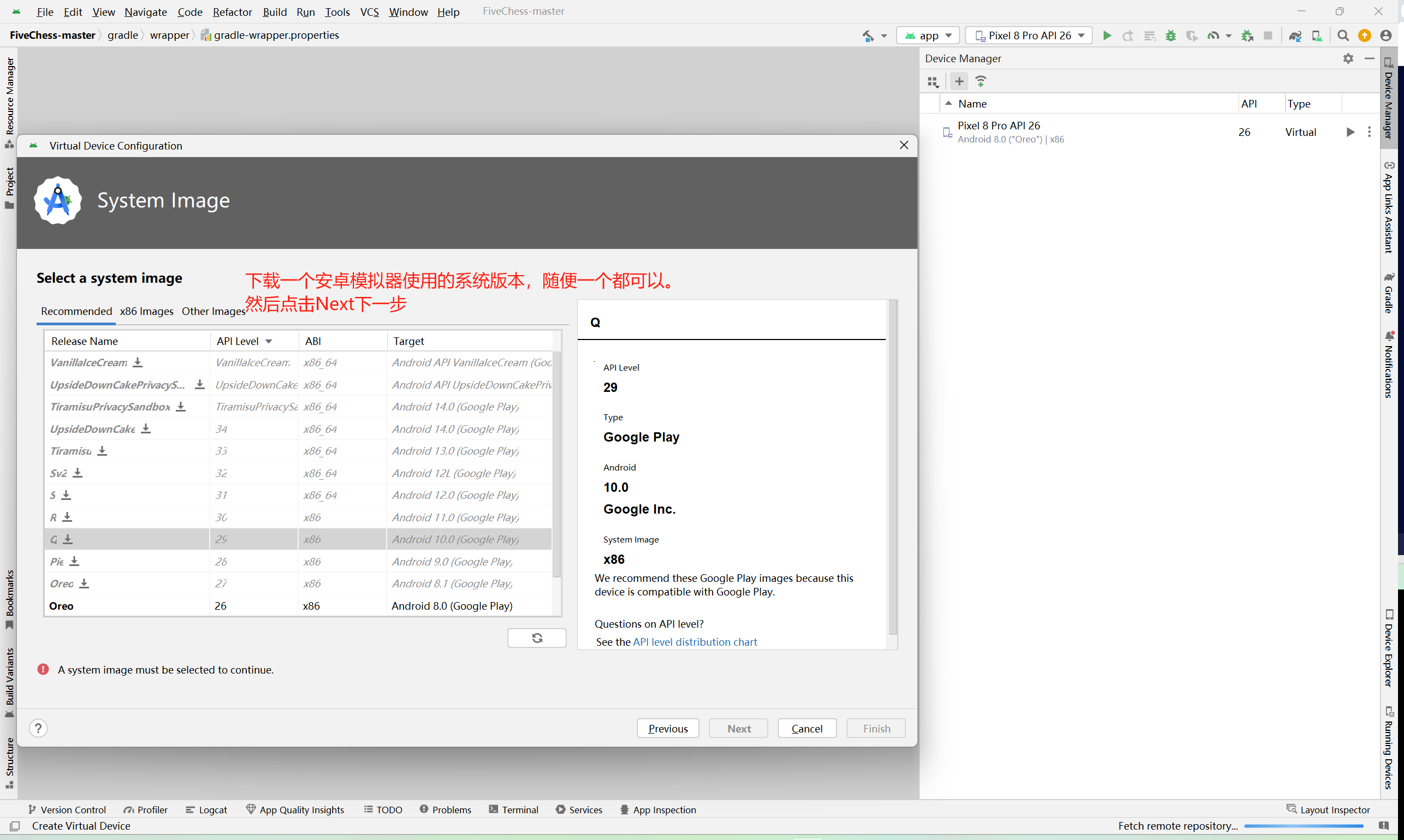
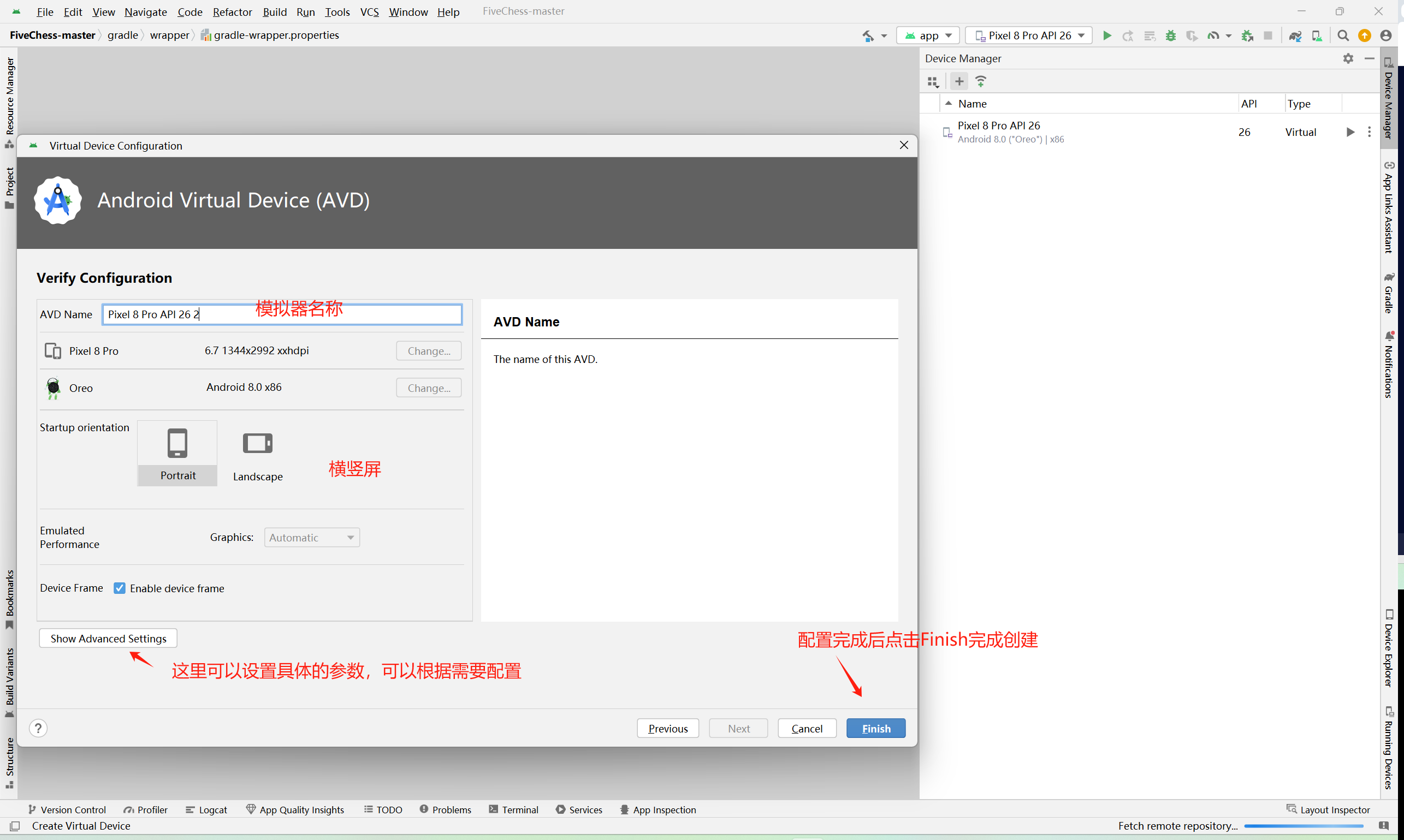
1.2 View 与 ViewGroup 关系
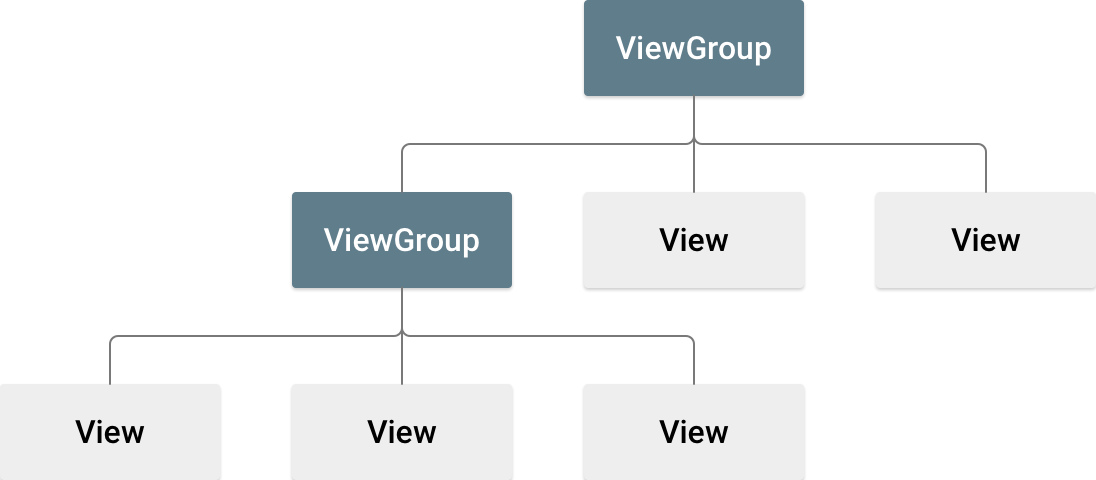
View 负责绘制和交互,ViewGroup 是承载子视图的容器。日常开发直接使用 ViewGroup 的子类完成布局管理,例如 LinearLayout、RelativeLayout、ConstraintLayout。
典型页面层级结构示意:
2. 三类布局的定位与选型
| LinearLayout | 表单、按钮列、简单横纵排布 | 语义直观、开发速度快 | 层级复杂时易嵌套过深 |
| RelativeLayout | 中等复杂度相对定位 | 相对关系表达直接 | 多分辨率下位置稳定性弱于约束布局 |
| ConstraintLayout | 复杂页面、适配优先项目 | 扁平层级、适配能力强 | 需要理解约束规则与受力平衡 |
#mermaid-svg-ZSRGCv5PTo23dn4x{font-family:\”trebuchet ms\”,verdana,arial,sans-serif;font-size:16px;fill:#333;}@keyframes edge-animation-frame{from{stroke-dashoffset:0;}}@keyframes dash{to{stroke-dashoffset:0;}}#mermaid-svg-ZSRGCv5PTo23dn4x .edge-animation-slow{stroke-dasharray:9,5!important;stroke-dashoffset:900;animation:dash 50s linear infinite;stroke-linecap:round;}#mermaid-svg-ZSRGCv5PTo23dn4x .edge-animation-fast{stroke-dasharray:9,5!important;stroke-dashoffset:900;animation:dash 20s linear infinite;stroke-linecap:round;}#mermaid-svg-ZSRGCv5PTo23dn4x .error-icon{fill:#552222;}#mermaid-svg-ZSRGCv5PTo23dn4x .error-text{fill:#552222;stroke:#552222;}#mermaid-svg-ZSRGCv5PTo23dn4x .edge-thickness-normal{stroke-width:1px;}#mermaid-svg-ZSRGCv5PTo23dn4x .edge-thickness-thick{stroke-width:3.5px;}#mermaid-svg-ZSRGCv5PTo23dn4x .edge-pattern-solid{stroke-dasharray:0;}#mermaid-svg-ZSRGCv5PTo23dn4x .edge-thickness-invisible{stroke-width:0;fill:none;}#mermaid-svg-ZSRGCv5PTo23dn4x .edge-pattern-dashed{stroke-dasharray:3;}#mermaid-svg-ZSRGCv5PTo23dn4x .edge-pattern-dotted{stroke-dasharray:2;}#mermaid-svg-ZSRGCv5PTo23dn4x .marker{fill:#333333;stroke:#333333;}#mermaid-svg-ZSRGCv5PTo23dn4x .marker.cross{stroke:#333333;}#mermaid-svg-ZSRGCv5PTo23dn4x svg{font-family:\”trebuchet ms\”,verdana,arial,sans-serif;font-size:16px;}#mermaid-svg-ZSRGCv5PTo23dn4x p{margin:0;}#mermaid-svg-ZSRGCv5PTo23dn4x .label{font-family:\”trebuchet ms\”,verdana,arial,sans-serif;color:#333;}#mermaid-svg-ZSRGCv5PTo23dn4x .cluster-label text{fill:#333;}#mermaid-svg-ZSRGCv5PTo23dn4x .cluster-label span{color:#333;}#mermaid-svg-ZSRGCv5PTo23dn4x .cluster-label span p{background-color:transparent;}#mermaid-svg-ZSRGCv5PTo23dn4x .label text,#mermaid-svg-ZSRGCv5PTo23dn4x span{fill:#333;color:#333;}#mermaid-svg-ZSRGCv5PTo23dn4x .node rect,#mermaid-svg-ZSRGCv5PTo23dn4x .node circle,#mermaid-svg-ZSRGCv5PTo23dn4x .node ellipse,#mermaid-svg-ZSRGCv5PTo23dn4x .node polygon,#mermaid-svg-ZSRGCv5PTo23dn4x .node path{fill:#ECECFF;stroke:#9370DB;stroke-width:1px;}#mermaid-svg-ZSRGCv5PTo23dn4x .rough-node .label text,#mermaid-svg-ZSRGCv5PTo23dn4x .node .label text,#mermaid-svg-ZSRGCv5PTo23dn4x .image-shape .label,#mermaid-svg-ZSRGCv5PTo23dn4x .icon-shape .label{text-anchor:middle;}#mermaid-svg-ZSRGCv5PTo23dn4x .node .katex path{fill:#000;stroke:#000;stroke-width:1px;}#mermaid-svg-ZSRGCv5PTo23dn4x .rough-node .label,#mermaid-svg-ZSRGCv5PTo23dn4x .node .label,#mermaid-svg-ZSRGCv5PTo23dn4x .image-shape .label,#mermaid-svg-ZSRGCv5PTo23dn4x .icon-shape .label{text-align:center;}#mermaid-svg-ZSRGCv5PTo23dn4x .node.clickable{cursor:pointer;}#mermaid-svg-ZSRGCv5PTo23dn4x .root .anchor path{fill:#333333!important;stroke-width:0;stroke:#333333;}#mermaid-svg-ZSRGCv5PTo23dn4x .arrowheadPath{fill:#333333;}#mermaid-svg-ZSRGCv5PTo23dn4x .edgePath .path{stroke:#333333;stroke-width:2.0px;}#mermaid-svg-ZSRGCv5PTo23dn4x .flowchart-link{stroke:#333333;fill:none;}#mermaid-svg-ZSRGCv5PTo23dn4x .edgeLabel{background-color:rgba(232,232,232, 0.8);text-align:center;}#mermaid-svg-ZSRGCv5PTo23dn4x .edgeLabel p{background-color:rgba(232,232,232, 0.8);}#mermaid-svg-ZSRGCv5PTo23dn4x .edgeLabel rect{opacity:0.5;background-color:rgba(232,232,232, 0.8);fill:rgba(232,232,232, 0.8);}#mermaid-svg-ZSRGCv5PTo23dn4x .labelBkg{background-color:rgba(232, 232, 232, 0.5);}#mermaid-svg-ZSRGCv5PTo23dn4x .cluster rect{fill:#ffffde;stroke:#aaaa33;stroke-width:1px;}#mermaid-svg-ZSRGCv5PTo23dn4x .cluster text{fill:#333;}#mermaid-svg-ZSRGCv5PTo23dn4x .cluster span{color:#333;}#mermaid-svg-ZSRGCv5PTo23dn4x div.mermaidTooltip{position:absolute;text-align:center;max-width:200px;padding:2px;font-family:\”trebuchet ms\”,verdana,arial,sans-serif;font-size:12px;background:hsl(80, 100%, 96.2745098039%);border:1px solid #aaaa33;border-radius:2px;pointer-events:none;z-index:100;}#mermaid-svg-ZSRGCv5PTo23dn4x .flowchartTitleText{text-anchor:middle;font-size:18px;fill:#333;}#mermaid-svg-ZSRGCv5PTo23dn4x rect.text{fill:none;stroke-width:0;}#mermaid-svg-ZSRGCv5PTo23dn4x .icon-shape,#mermaid-svg-ZSRGCv5PTo23dn4x .image-shape{background-color:rgba(232,232,232, 0.8);text-align:center;}#mermaid-svg-ZSRGCv5PTo23dn4x .icon-shape p,#mermaid-svg-ZSRGCv5PTo23dn4x .image-shape p{background-color:rgba(232,232,232, 0.8);padding:2px;}#mermaid-svg-ZSRGCv5PTo23dn4x .icon-shape rect,#mermaid-svg-ZSRGCv5PTo23dn4x .image-shape rect{opacity:0.5;background-color:rgba(232,232,232, 0.8);fill:rgba(232,232,232, 0.8);}#mermaid-svg-ZSRGCv5PTo23dn4x .label-icon{display:inline-block;height:1em;overflow:visible;vertical-align:-0.125em;}#mermaid-svg-ZSRGCv5PTo23dn4x .node .label-icon path{fill:currentColor;stroke:revert;stroke-width:revert;}#mermaid-svg-ZSRGCv5PTo23dn4x :root{–mermaid-font-family:\”trebuchet ms\”,verdana,arial,sans-serif;}
是
否
是
否
开始布局设计
界面是否简单线性排布?
LinearLayout
是否主要依赖相对关系且页面中等复杂?
RelativeLayout
ConstraintLayout
使用0dp、Chain、Guideline等进行精细控制
3. LinearLayout:线性排布与权重分配
3.1 核心能力与基础写法
LinearLayout 通过 android:orientation 指定主轴方向(水平或垂直),子控件沿主轴顺序排列。
<LinearLayout
android:layout_width="match_parent"
android:layout_height="match_parent"
android:orientation="vertical" ><!–指定布局方向–>
<!–这里面可以定义子控件–>
<EditText
android:id="@+id/et_cont"
android:layout_width="match_parent"
android:layout_height="wrap_content"
android:hint="请输入联系人" />
<EditText
android:id="@+id/et_subject"
android:layout_width="match_parent"
android:layout_height="wrap_content"
android:hint="请输入主题" />
<!–因为当前LinearLayout指定的是竖向,所以这里使用权重,控制的就是et_content的高度–>
<EditText
android:id="@+id/et_content"
android:layout_width="match_parent"
android:layout_height="0dp"
android:layout_weight="1"
android:gravity="top"
android:hint="输入内容" />
<Button
android:id="@+id/btn_send"
android:layout_width="wrap_content"
android:layout_height="wrap_content"
android:layout_gravity="right"
android:text="发送" />
</LinearLayout>
3.2 权重机制(layout_weight)
当子控件设置 android:layout_weight 后,会按比例分配父容器剩余空间。最佳实践是将受权重控制方向的尺寸设置为 0dp,避免“内容尺寸 + 权重尺寸”叠加带来的不可控效果。
<!–因为当前LinearLayout指定的是竖向,所以这里使用权重,控制的就是et_content的高度–>
<EditText
android:id="@+id/et_content"
android:layout_width="match_parent"
android:layout_height="0dp"
android:layout_weight="1"
android:gravity="top"
android:hint="输入内容" />
<!–LinearLayout中如果有指定权重总和,那么子控件也可以根据需要来分配权重–>
android:weightSum="5"
3.3 内外边距与重力属性
- padding* 控制控件内部内容与边界的距离。
- layout_margin* 控制控件与外部兄弟/父容器的距离。
- gravity 控制控件内部内容(或容器内子项)的对齐。
- layout_gravity 控制当前控件在父容器中的对齐。
优先使用 start/end 语义属性替代 left/right,以适配 RTL(从右到左)语言环境。
3.4 常用属性速查
| 设置排布方向 | android:orientation | android:orientation="vertical" |
| 分配剩余空间 | android:layout_weight | android:layout_weight="1" |
| 设置内边距 | android:padding | android:padding="10dp" |
| 设置外边距 | android:layout_margin | android:layout_margin="10dp" |
| 子控件内部对齐 | android:gravity | android:gravity="top" |
| 控件在父布局对齐 | android:layout_gravity | android:layout_gravity="right" |
4. LayoutParams:Java 动态布局参数
控件自身不能决定“在父布局里的摆放规则”。动态添加或修改 UI 时,必须使用与父布局匹配的 LayoutParams 类型。
4.1 新增控件并设置布局参数
//为新添加的控件设置布局管理参数对象
Button button = new Button(this);
button.setText("test");
//为button创建一个新的布局参数管理对象
LinearLayout.LayoutParams layoutParams = new LinearLayout
.LayoutParams(LinearLayout.LayoutParams.WRAP_CONTENT, 0);
layoutParams.weight = 0.3f;//LinearLayout类型的布局管理参数可以额外设置weight权重
layoutParams.leftMargin = 30;
button.setLayoutParams(layoutParams);
//将控件添加到父布局
root.addView(button);
4.2 获取并修改已有控件参数
若控件尚未附着到父布局,getLayoutParams() 可能返回 null,直接强转会触发空指针异常。
EditText etCont = findViewById(R.id.et_cont);
//获取etcont的布局参数管理对象
////注意:如果控件还没有被添加到布局,或者没有单独设置过layoutParams,这时候getLayoutParams会返回空指针异常
LinearLayout.LayoutParams layoutParams = (LinearLayout.LayoutParams) etCont.getLayoutParams();
//权重
layoutParams.weight = 1f;
//将layoutParams重新设置到控件(某些属性变更需要重写设置一次)
etCont.setLayoutParams(layoutParams);
5. RelativeLayout:相对关系布局
5.1 核心属性与语义说明
RelativeLayout 通过“相对父容器/兄弟视图”的关系确定位置,适合中等复杂度页面。典型属性包括:
- 相对父容器:layout_centerInParent、layout_alignParentTop、layout_alignParentEnd
- 相对兄弟视图:layout_below、layout_above、layout_toEndOf、layout_alignBottom
关键说明:
- 在国际化场景下优先 start/end,减少 RTL 兼容问题。
- 运行时通过 Java 设置参数时,需要使用 RelativeLayout.LayoutParams。
5.2 示例代码
<?xml version="1.0" encoding="utf-8"?>
<RelativeLayout xmlns:android="http://schemas.android.com/apk/res/android"
xmlns:app="http://schemas.android.com/apk/res-auto"
xmlns:tools="http://schemas.android.com/tools"
android:id="@+id/main"
android:layout_width="match_parent"
android:layout_height="match_parent"
android:padding="16dp"
tools:context=".layout.RelativeLayoutActivity">
<TextView
android:layout_width="wrap_content"
android:layout_height="wrap_content"
android:layout_alignParentEnd="true"
android:text="跳过" />
<ImageView
android:id="@+id/iv_logo"
android:layout_width="wrap_content"
android:layout_height="wrap_content"
android:layout_centerHorizontal="true"
android:layout_marginTop="30dp"
android:layout_marginBottom="30dp"
android:src="@drawable/icon_logo" />
<TextView
android:id="@+id/tv_user_name"
android:layout_width="wrap_content"
android:layout_height="wrap_content"
android:layout_below="@+id/iv_logo"
android:gravity="center"
android:text="用户名:" />
<EditText
android:id="@+id/et_user_name"
android:layout_width="match_parent"
android:layout_height="wrap_content"
android:layout_below="@id/tv_user_name"
android:hint="请输入用户名"
android:inputType="textPersonName" />
<TextView
android:id="@+id/tv_password"
android:layout_width="wrap_content"
android:layout_height="wrap_content"
android:layout_below="@+id/et_user_name"
android:layout_marginTop="8dp"
android:text="密码:" />
<EditText
android:id="@+id/et_password"
android:layout_width="match_parent"
android:layout_height="wrap_content"
android:layout_below="@id/tv_password"
android:hint="请输入密码"
android:inputType="textPersonName" />
<Button
android:id="@+id/btn_login"
android:layout_width="match_parent"
android:layout_height="wrap_content"
android:layout_below="@+id/et_password"
android:layout_marginTop="16dp"
android:text="登录" />
<TextView
android:id="@+id/tv_other"
android:layout_width="wrap_content"
android:layout_height="wrap_content"
android:layout_below="@+id/btn_login"
android:layout_marginTop="36dp"
android:text="其他登录方式" />
<ImageView
android:id="@+id/iv_wechat"
android:layout_width="60dp"
android:layout_height="60dp"
android:layout_alignBottom="@id/iv_qq"
android:layout_marginLeft="16dp"
android:src="@drawable/icon_wechat" />
<ImageView
android:id="@+id/iv_qq"
android:layout_width="60dp"
android:layout_height="60dp"
android:layout_below="@id/tv_other"
android:layout_centerHorizontal="true"
android:layout_marginTop="16dp"
android:src="@drawable/icon_qq" />
<ImageView
android:id="@+id/iv_weibo"
android:layout_width="60dp"
android:layout_height="60dp"
android:layout_alignBottom="@id/iv_qq"
android:layout_alignParentEnd="true"
android:layout_marginRight="16dp"
android:src="@drawable/icon_weibo" />
</RelativeLayout>
6. ConstraintLayout:复杂界面的主力方案
6.1 约束模型与基本规则
ConstraintLayout 通过“约束关系网络”确定控件位置,目标是减少嵌套并提升适配一致性。
基本规则:
- 子控件至少要有一个水平方向约束和一个垂直方向约束。
- 通常两条约束可定角,三条可贴边,四条可居中。
- tools:* 仅影响预览,不影响运行时。
#mermaid-svg-X0rbm7BRjQZURc9C{font-family:\”trebuchet ms\”,verdana,arial,sans-serif;font-size:16px;fill:#333;}@keyframes edge-animation-frame{from{stroke-dashoffset:0;}}@keyframes dash{to{stroke-dashoffset:0;}}#mermaid-svg-X0rbm7BRjQZURc9C .edge-animation-slow{stroke-dasharray:9,5!important;stroke-dashoffset:900;animation:dash 50s linear infinite;stroke-linecap:round;}#mermaid-svg-X0rbm7BRjQZURc9C .edge-animation-fast{stroke-dasharray:9,5!important;stroke-dashoffset:900;animation:dash 20s linear infinite;stroke-linecap:round;}#mermaid-svg-X0rbm7BRjQZURc9C .error-icon{fill:#552222;}#mermaid-svg-X0rbm7BRjQZURc9C .error-text{fill:#552222;stroke:#552222;}#mermaid-svg-X0rbm7BRjQZURc9C .edge-thickness-normal{stroke-width:1px;}#mermaid-svg-X0rbm7BRjQZURc9C .edge-thickness-thick{stroke-width:3.5px;}#mermaid-svg-X0rbm7BRjQZURc9C .edge-pattern-solid{stroke-dasharray:0;}#mermaid-svg-X0rbm7BRjQZURc9C .edge-thickness-invisible{stroke-width:0;fill:none;}#mermaid-svg-X0rbm7BRjQZURc9C .edge-pattern-dashed{stroke-dasharray:3;}#mermaid-svg-X0rbm7BRjQZURc9C .edge-pattern-dotted{stroke-dasharray:2;}#mermaid-svg-X0rbm7BRjQZURc9C .marker{fill:#333333;stroke:#333333;}#mermaid-svg-X0rbm7BRjQZURc9C .marker.cross{stroke:#333333;}#mermaid-svg-X0rbm7BRjQZURc9C svg{font-family:\”trebuchet ms\”,verdana,arial,sans-serif;font-size:16px;}#mermaid-svg-X0rbm7BRjQZURc9C p{margin:0;}#mermaid-svg-X0rbm7BRjQZURc9C .label{font-family:\”trebuchet ms\”,verdana,arial,sans-serif;color:#333;}#mermaid-svg-X0rbm7BRjQZURc9C .cluster-label text{fill:#333;}#mermaid-svg-X0rbm7BRjQZURc9C .cluster-label span{color:#333;}#mermaid-svg-X0rbm7BRjQZURc9C .cluster-label span p{background-color:transparent;}#mermaid-svg-X0rbm7BRjQZURc9C .label text,#mermaid-svg-X0rbm7BRjQZURc9C span{fill:#333;color:#333;}#mermaid-svg-X0rbm7BRjQZURc9C .node rect,#mermaid-svg-X0rbm7BRjQZURc9C .node circle,#mermaid-svg-X0rbm7BRjQZURc9C .node ellipse,#mermaid-svg-X0rbm7BRjQZURc9C .node polygon,#mermaid-svg-X0rbm7BRjQZURc9C .node path{fill:#ECECFF;stroke:#9370DB;stroke-width:1px;}#mermaid-svg-X0rbm7BRjQZURc9C .rough-node .label text,#mermaid-svg-X0rbm7BRjQZURc9C .node .label text,#mermaid-svg-X0rbm7BRjQZURc9C .image-shape .label,#mermaid-svg-X0rbm7BRjQZURc9C .icon-shape .label{text-anchor:middle;}#mermaid-svg-X0rbm7BRjQZURc9C .node .katex path{fill:#000;stroke:#000;stroke-width:1px;}#mermaid-svg-X0rbm7BRjQZURc9C .rough-node .label,#mermaid-svg-X0rbm7BRjQZURc9C .node .label,#mermaid-svg-X0rbm7BRjQZURc9C .image-shape .label,#mermaid-svg-X0rbm7BRjQZURc9C .icon-shape .label{text-align:center;}#mermaid-svg-X0rbm7BRjQZURc9C .node.clickable{cursor:pointer;}#mermaid-svg-X0rbm7BRjQZURc9C .root .anchor path{fill:#333333!important;stroke-width:0;stroke:#333333;}#mermaid-svg-X0rbm7BRjQZURc9C .arrowheadPath{fill:#333333;}#mermaid-svg-X0rbm7BRjQZURc9C .edgePath .path{stroke:#333333;stroke-width:2.0px;}#mermaid-svg-X0rbm7BRjQZURc9C .flowchart-link{stroke:#333333;fill:none;}#mermaid-svg-X0rbm7BRjQZURc9C .edgeLabel{background-color:rgba(232,232,232, 0.8);text-align:center;}#mermaid-svg-X0rbm7BRjQZURc9C .edgeLabel p{background-color:rgba(232,232,232, 0.8);}#mermaid-svg-X0rbm7BRjQZURc9C .edgeLabel rect{opacity:0.5;background-color:rgba(232,232,232, 0.8);fill:rgba(232,232,232, 0.8);}#mermaid-svg-X0rbm7BRjQZURc9C .labelBkg{background-color:rgba(232, 232, 232, 0.5);}#mermaid-svg-X0rbm7BRjQZURc9C .cluster rect{fill:#ffffde;stroke:#aaaa33;stroke-width:1px;}#mermaid-svg-X0rbm7BRjQZURc9C .cluster text{fill:#333;}#mermaid-svg-X0rbm7BRjQZURc9C .cluster span{color:#333;}#mermaid-svg-X0rbm7BRjQZURc9C div.mermaidTooltip{position:absolute;text-align:center;max-width:200px;padding:2px;font-family:\”trebuchet ms\”,verdana,arial,sans-serif;font-size:12px;background:hsl(80, 100%, 96.2745098039%);border:1px solid #aaaa33;border-radius:2px;pointer-events:none;z-index:100;}#mermaid-svg-X0rbm7BRjQZURc9C .flowchartTitleText{text-anchor:middle;font-size:18px;fill:#333;}#mermaid-svg-X0rbm7BRjQZURc9C rect.text{fill:none;stroke-width:0;}#mermaid-svg-X0rbm7BRjQZURc9C .icon-shape,#mermaid-svg-X0rbm7BRjQZURc9C .image-shape{background-color:rgba(232,232,232, 0.8);text-align:center;}#mermaid-svg-X0rbm7BRjQZURc9C .icon-shape p,#mermaid-svg-X0rbm7BRjQZURc9C .image-shape p{background-color:rgba(232,232,232, 0.8);padding:2px;}#mermaid-svg-X0rbm7BRjQZURc9C .icon-shape rect,#mermaid-svg-X0rbm7BRjQZURc9C .image-shape rect{opacity:0.5;background-color:rgba(232,232,232, 0.8);fill:rgba(232,232,232, 0.8);}#mermaid-svg-X0rbm7BRjQZURc9C .label-icon{display:inline-block;height:1em;overflow:visible;vertical-align:-0.125em;}#mermaid-svg-X0rbm7BRjQZURc9C .node .label-icon path{fill:currentColor;stroke:revert;stroke-width:revert;}#mermaid-svg-X0rbm7BRjQZURc9C :root{–mermaid-font-family:\”trebuchet ms\”,verdana,arial,sans-serif;}
子控件
水平约束: Start/End
垂直约束: Top/Bottom
位置可解
可叠加 Bias/Chain/Ratio
6.2 示例代码
<?xml version="1.0" encoding="utf-8"?>
<androidx.constraintlayout.widget.ConstraintLayout xmlns:android="http://schemas.android.com/apk/res/android"
xmlns:app="http://schemas.android.com/apk/res-auto"
xmlns:tools="http://schemas.android.com/tools"
android:id="@+id/root"
android:layout_width="match_parent"
android:layout_height="match_parent">
<!–constraintlayout和relativeLayout的相似用法案例–>
<TextView
android:id="@+id/textView2"
android:layout_width="wrap_content"
android:layout_height="wrap_content"
android:text="TextView"
app:layout_constraintEnd_toEndOf="@+id/root"
app:layout_constraintTop_toTopOf="parent" />
<TextView
android:id="@+id/textView1"
android:layout_width="wrap_content"
android:layout_height="wrap_content"
android:text="TextView"
app:layout_constraintStart_toStartOf="parent"
app:layout_constraintTop_toTopOf="parent" />
<TextView
android:id="@+id/textView3"
android:layout_width="wrap_content"
android:layout_height="wrap_content"
android:text="TextView"
app:layout_constraintBottom_toBottomOf="parent"
app:layout_constraintStart_toStartOf="parent" />
<TextView
android:id="@+id/textView4"
android:layout_width="wrap_content"
android:layout_height="wrap_content"
android:text="TextView"
app:layout_constraintBottom_toBottomOf="parent"
app:layout_constraintEnd_toEndOf="parent" />
<TextView
android:id="@+id/textView5"
android:layout_width="wrap_content"
android:layout_height="wrap_content"
android:text="TextView"
app:layout_constraintBottom_toBottomOf="parent"
app:layout_constraintEnd_toEndOf="parent"
app:layout_constraintStart_toStartOf="parent"
app:layout_constraintTop_toTopOf="parent" />
<TextView
android:id="@+id/textView6"
android:layout_width="wrap_content"
android:layout_height="100dp"
android:background="#ffb6cb"
android:text="TextView6"
app:layout_constraintLeft_toRightOf="@id/textView5"
app:layout_constraintTop_toBottomOf="@id/textView5" />
<TextView
android:id="@+id/textView7"
android:layout_width="wrap_content"
android:layout_height="wrap_content"
android:text="TextView7"
app:layout_constraintRight_toLeftOf="@id/textView5"
app:layout_constraintTop_toBottomOf="@id/textView5" />
<TextView
android:id="@+id/textView8"
android:layout_width="wrap_content"
android:layout_height="wrap_content"
android:text="TextView8"
app:layout_constraintBottom_toBottomOf="@id/textView6"
app:layout_constraintLeft_toRightOf="@id/textView6"
app:layout_constraintTop_toTopOf="@id/textView6" />
<TextView
android:id="@+id/textView9"
android:layout_width="wrap_content"
android:layout_height="wrap_content"
android:text="TextView9"
app:layout_constraintBottom_toBottomOf="@id/textView6"
app:layout_constraintLeft_toLeftOf="@id/textView6"
app:layout_constraintRight_toRightOf="@id/textView6"
app:layout_constraintTop_toBottomOf="@id/textView6" />
</androidx.constraintlayout.widget.ConstraintLayout>
6.3 相对定位属性映射
| 对齐父容器左/起始 | layout_alignParentStart | layout_constraintStart_toStartOf="parent" |
| 对齐父容器右/结束 | layout_alignParentEnd | layout_constraintEnd_toEndOf="parent" |
| 在某控件下方 | layout_below | layout_constraintTop_toBottomOf |
| 在某控件上方 | layout_above | layout_constraintBottom_toTopOf |
| 文本基线对齐 | 无直接等价 | layout_constraintBaseline_toBaselineOf |
6.4 Baseline、角度约束、Bias 偏移
- Baseline 对齐:用于不同字号文本的视觉对齐。
- 角度约束:layout_constraintCircle + layout_constraintCircleAngle + layout_constraintCircleRadius。
- 百分比偏移:layout_constraintHorizontal_bias、layout_constraintVertical_bias,需要对应方向“两侧受约束”才能稳定生效。
6.5 可见性与 goneMargin
visibility 语义:
- visible:可见并参与布局。
- invisible:不可见但仍占位。
- gone:不可见且不占位。
ConstraintLayout 提供 layout_goneMargin*,当目标控件变为 gone 时,依赖控件可使用备用间距,避免界面塌陷。
6.6 宽高策略:0dp、match_parent、wrap_content
约束布局中建议优先使用 0dp(match constraints)+ 双向约束来获得可预期适配。
<!–在ConstraintLayout中使用match_parent的正确姿势–>
<TextView
android:id="@+id/tv_a"
android:layout_width="0dp"
android:layout_height="0dp"
android:background="@color/my_blue"
android:gravity="center"
android:text="AAAAAAAAAAAAAAAAAAAAAAAAAAAAAAA"
android:textColor="@color/white"
android:textSize="28sp"
android:textStyle="bold"
app:layout_constraintBottom_toBottomOf="parent"
app:layout_constraintEnd_toEndOf="parent"
app:layout_constraintStart_toStartOf="parent"
app:layout_constraintTop_toTopOf="parent" />
wrap_content 在约束布局中可能忽略边界约束,可通过 layout_constrainedWidth 强制参与约束计算:
<TextView
android:id="@+id/tv_a"
android:layout_width="wrap_content"
android:layout_height="wrap_content"
android:layout_marginLeft="100dp"
android:layout_marginRight="100dp"
app:layout_constrainedWidth="true"
android:background="@color/my_blue"
android:gravity="center"
android:text="AAAAAAAAAAAAAAAAAAAAAAAAAAAAAAA"
android:textColor="@color/white"
android:textSize="28sp"
android:textStyle="bold"
app:layout_constraintBottom_toBottomOf="parent"
app:layout_constraintEnd_toEndOf="parent"
app:layout_constraintStart_toStartOf="parent"
app:layout_constraintTop_toTopOf="parent" />
6.7 DimensionRatio 与 Chains
比例控制:app:layout_constraintDimensionRatio
- "19:6":按宽高比控制。
- "W,3:1" 或 "H,3:1":显式指定基准方向(实际项目推荐写法)。
- "1:1":正方形视图。
链(Chain)用于一组控件在水平或垂直方向整体分布控制:
<TextView
android:id="@+id/tv_a"
android:layout_width="80dp"
android:layout_height="80dp"
android:background="@color/my_blue"
android:gravity="center"
android:text="A"
android:textColor="@color/white"
android:textSize="28sp"
android:textStyle="bold"
app:layout_constraintEnd_toStartOf="@id/tv_b"
app:layout_constraintHorizontal_chainStyle="packed"
app:layout_constraintStart_toStartOf="parent"
app:layout_constraintTop_toTopOf="parent" />
<TextView
android:id="@+id/tv_b"
android:layout_width="80dp"
android:layout_height="80dp"
android:background="@color/my_blue"
android:gravity="center"
android:text="B"
android:textColor="@color/white"
android:textSize="28sp"
android:textStyle="bold"
app:layout_constraintEnd_toStartOf="@id/tv_c"
app:layout_constraintStart_toEndOf="@id/tv_a"
app:layout_constraintTop_toTopOf="parent" />
<TextView
android:id="@+id/tv_c"
android:layout_width="80dp"
android:layout_height="80dp"
android:background="@color/my_blue"
android:gravity="center"
android:text="C"
android:textColor="@color/white"
android:textSize="28sp"
android:textStyle="bold"
app:layout_constraintEnd_toEndOf="parent"
app:layout_constraintStart_toEndOf="@id/tv_b"
app:layout_constraintTop_toTopOf="parent" />
链样式:
- spread:默认均分剩余空间。
- spread_inside:两端贴边,中间均分。
- packed:控件聚拢后整体居中。
链权重示例:
app:layout_constraintHorizontal_weight="1"
6.8 Guideline、Barrier、Group 辅助组件
Guideline:虚拟参考线,常用于分割区域与统一对齐。
<androidx.constraintlayout.widget.Guideline
android:id="@+id/view"
android:layout_width="0dp"
android:layout_height="0dp"
android:orientation="horizontal"
app:layout_constraintGuide_percent="0.5" />
Barrier:动态边界,基于一组控件的最外侧位置生成约束边。
<androidx.constraintlayout.widget.Barrier
android:id="@+id/barrier"
android:layout_width="wrap_content"
android:layout_height="wrap_content"
app:barrierDirection="right"
app:constraint_referenced_ids="tv_adress,tv_user_name" />
Group:批量控制多个 View 的可见性等属性。
<androidx.constraintlayout.widget.Group
android:layout_width="wrap_content"
android:layout_height="wrap_content"
android:visibility="invisible"
app:constraint_referenced_ids="tv_user_name,tv_adress,tv_user_desc" />
7. 布局选型对照表
| 布局复杂度 | 低 | 中 | 中高 |
| 层级深度控制 | 一般 | 一般 | 强 |
| 多分辨率适配 | 一般 | 中 | 强 |
| 学习成本 | 低 | 低 | 中 |
| 推荐场景 | 简单表单/列表块 | 传统登录页等相对定位界面 | 主流复杂页面 |
8. 常见问题与避坑清单
9. 小结
Android 布局开发可以遵循一条清晰路径:简单线性结构优先 LinearLayout,中等关系布局可用 RelativeLayout,复杂且强调适配一致性的页面首选 ConstraintLayout。在此基础上,结合 LayoutParams 动态调整与 Guideline/Barrier/Group 等辅助能力,可以在保持代码可维护性的同时,构建稳定、可扩展的 UI。