前言
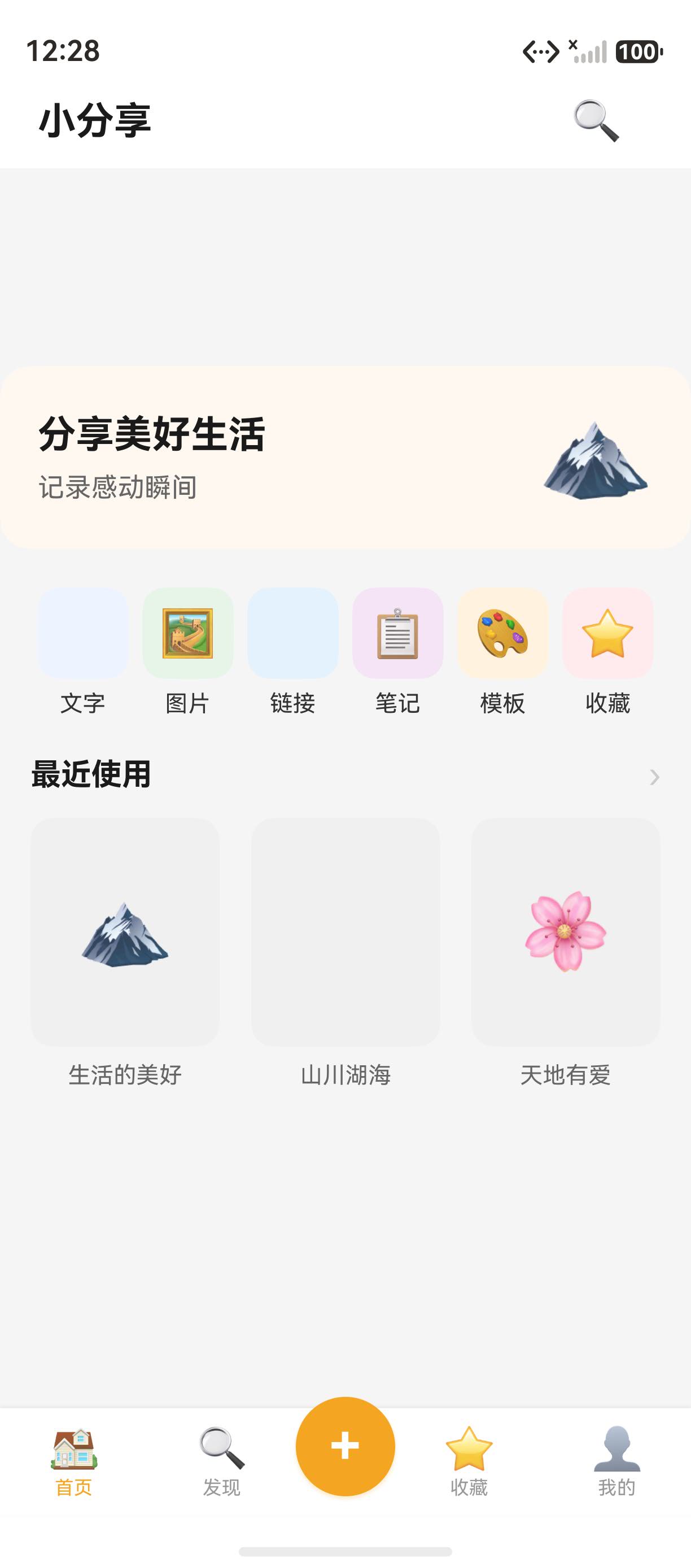
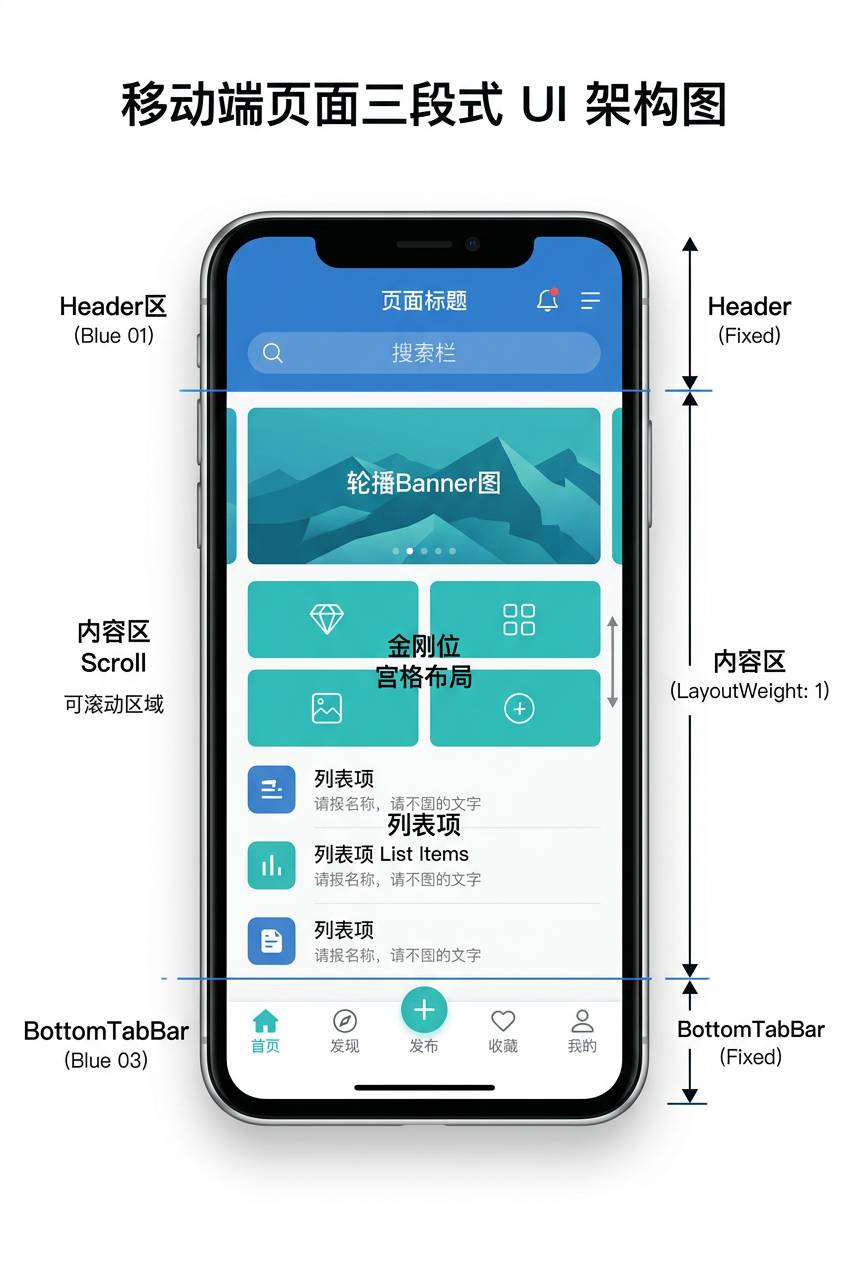
三段式架构(Header + 内容 + BottomTab)是移动应用最经典的页面骨架。本篇以小分享 App 的 HomePage 为例,讲解 Header + Scroll + BottomTabBar 三段式架构的实现,涵盖布局容器、对齐方式、layoutWeight 权重等核心概念。详细 API 可参考 HarmonyOS ArkUI 布局官方文档。
一、HomePage 完整代码
1.1 HomePage.ets 全文
小分享 App 的 pages/HomePage.ets 如下:
import router from '@ohos.router';
import { BottomTabBar } from '../components/BottomTabBar';
import { CategoryItem, RecentItem } from '../common/interfaces';
@Entry
@Component
struct HomePage {
@State currentTab: number = 0;
private categories: Array<CategoryItem> = [
{ icon: '', label: '文字', color: '#5B8DEF', bg: '#EEF4FF', page: 'pages/TextEditPage' },
{ icon: '🖼️', label: '图片', color: '#4CAF50', bg: '#E8F5E9', page: 'pages/ImageEditPage' },
{ icon: '', label: '链接', color: '#2196F3', bg: '#E3F2FD', page: 'pages/LinkEditPage' },
{ icon: '📋', label: '笔记', color: '#9C27B0', bg: '#F3E5F5', page: 'pages/TextEditPage' },
{ icon: '🎨', label: '模板', color: '#FF9800', bg: '#FFF3E0', page: 'pages/TemplateSelectPage' },
{ icon: '⭐', label: '收藏', color: '#F44336', bg: '#FFEBEE', page: 'pages/FavoritesPage' }
];
private recentItems: Array<RecentItem> = [
{ title: '生活的美好', image: '🏔️' },
{ title: '山川湖海', image: '' },
{ title: '天地有爱', image: '🌸' }
];
build() {
Column() {
// Header
Row() {
Text('小分享')
.fontSize(20)
.fontWeight(FontWeight.Bold)
.fontColor('#1A1A1A')
.layoutWeight(1)
Text('🔍')
.fontSize(22)
.margin({ right: 16 })
.onClick(() => {
router.pushUrl({ url: 'pages/DiscoverPage' });
})
}
.width('100%')
.padding({ left: 20, right: 20, top: 12, bottom: 12 })
.backgroundColor(Color.White)
Scroll() {
Column({ space: 20 }) {
// Banner
// … Banner 区
// Category grid
// … 分类网格
// Recent section
// … 最近使用
}
.padding({ bottom: 80 })
}
.layoutWeight(1)
.scrollBar(BarState.Off)
BottomTabBar({ currentIndex: 0 })
}
.width('100%')
.height('100%')
.backgroundColor('#F5F5F5')
}
}
二、三段式架构设计
2.1 整体结构
HomePage 整体结构如下:
Column (主容器)
├─ Row (Header) – 固定高度
├─ Scroll (内容区) – layoutWeight(1) 撑开
└─ BottomTabBar (底部导航) – 固定高度
2.2 三段式架构优势
三段式架构优势如下:
提示:三段式架构适用于列表页、详情页、个人中心等大多数页面。
三、Header 实现解析
3.1 Header 完整代码
Header 完整代码如下:
Row() {
Text('小分享')
.fontSize(20)
.fontWeight(FontWeight.Bold)
.fontColor('#1A1A1A')
.layoutWeight(1)
Text('🔍')
.fontSize(22)
.margin({ right: 16 })
.onClick(() => {
router.pushUrl({ url: 'pages/DiscoverPage' });
})
}
.width('100%')
.padding({ left: 20, right: 20, top: 12, bottom: 12 })
.backgroundColor(Color.White)
3.2 layoutWeight 权重机制
layoutWeight(1) 让左侧 Text 占满剩余空间,右侧搜索图标固定宽度:
Row 总宽 = 屏幕宽
├─ Text('小分享') – layoutWeight(1) 撑开
└─ Text('🔍') – 自适应宽度
3.3 padding 内边距
padding 用于控制 Header 内边距:
.padding({ left: 20, right: 20, top: 12, bottom: 12 })
各方向边距说明如下:
| left | 20 | 左侧留白 |
| right | 20 | 右侧留白 |
| top | 12 | 顶部留白 |
| bottom | 12 | 底部留白 |
四、Scroll 内容区实现
4.1 Scroll 完整代码
Scroll 完整代码如下:
Scroll() {
Column({ space: 20 }) {
// Banner 区
Column() {
// … Banner 内容
}
.width('100%')
.backgroundColor('#FFF8F0')
.borderRadius(16)
.margin({ left: 16, right: 16, top: 16 })
// 分类网格
Row({ space: 0 }) {
ForEach(this.categories, (item: CategoryItem, index: number) => {
// … 分类项
}, (item: CategoryItem, index: number) => `${item.label}`)
}
.width('100%')
.padding({ left: 16, right: 16 })
// 最近使用
Column({ space: 12 }) {
// … 最近使用项
}
.width('100%')
.padding({ left: 16, right: 16 })
}
.padding({ bottom: 80 })
}
.layoutWeight(1)
.scrollBar(BarState.Off)
4.2 Scroll 核心属性
Scroll 核心属性如下:
| layoutWeight(1) | 撑开剩余空间 | 1 |
| scrollBar(BarState.Off) | 隐藏滚动条 | Off |
| scrollable(ScrollDirection.Vertical) | 纵向滚动 | Vertical |
4.3 Column space 间距
Column({ space: 20 }) 让子元素之间有 20vp 的垂直间距:
Column({ space: 20 }) {
// 子元素1
// 子元素2
// 子元素3
}
提示:space 只作用于相邻子元素之间,不影响首尾元素的外边距。
五、Banner 营销位实现
5.1 Banner 完整代码
Banner 完整代码如下:
Column() {
Row() {
Column({ space: 8 }) {
Text('分享美好生活')
.fontSize(20)
.fontWeight(FontWeight.Bold)
.fontColor('#1A1A1A')
Text('记录感动瞬间')
.fontSize(14)
.fontColor('#666666')
}
.alignItems(HorizontalAlign.Start)
.layoutWeight(1)
Text('🏔️')
.fontSize(48)
}
.width('100%')
.padding(20)
}
.width('100%')
.backgroundColor('#FFF8F0')
.borderRadius(16)
.margin({ left: 16, right: 16, top: 16 })
5.2 视觉设计要点
视觉设计要点如下:
5.3 alignItems 对齐方式
alignItems(HorizontalAlign.Start) 让子元素左对齐:
Column({ space: 8 }) {
Text('分享美好生活') ← 左对齐
Text('记录感动瞬间') ← 左对齐
}
六、六宫格分类导航
6.1 分类网格代码
分类网格代码如下:
Row({ space: 0 }) {
ForEach(this.categories, (item: CategoryItem, index: number) => {
Column({ space: 6 }) {
Column() {
Text(item.icon)
.fontSize(24)
}
.width(48)
.height(48)
.backgroundColor(item.bg)
.borderRadius(12)
.justifyContent(FlexAlign.Center)
.alignItems(HorizontalAlign.Center)
Text(item.label)
.fontSize(12)
.fontColor('#333333')
}
.width('16.66%')
.alignItems(HorizontalAlign.Center)
.onClick(() => {
router.pushUrl({ url: item.page });
})
}, (item: CategoryItem, index: number) => `${item.label}`)
}
.width('100%')
.padding({ left: 16, right: 16 })
6.2 六等分宽度
width('16.66%') 让每个分类项占 1/6 宽度:
屏幕宽 / 6 = 16.66%
6.3 ForEach key 生成
ForEach 的第三个参数是 key 生成器:
ForEach(this.categories, (item: CategoryItem, index: number) => {
// …
}, (item: CategoryItem, index: number) => `${item.label}`)
提示:key 应当稳定且唯一,避免使用 index 作为 key,因为列表项位置变化时 index 会变。
七、最近使用横向列表
7.1 完整代码
最近使用横向列表代码如下:
Column({ space: 12 }) {
Row() {
Text('最近使用')
.fontSize(16)
.fontWeight(FontWeight.Bold)
.fontColor('#1A1A1A')
.layoutWeight(1)
Text('›')
.fontSize(18)
.fontColor('#CCCCCC')
}
.width('100%')
.padding({ left: 16, right: 16 })
Row({ space: 12 }) {
ForEach(this.recentItems, (item: RecentItem, index: number) => {
Column() {
Column() {
Text(item.image)
.fontSize(40)
}
.width('100%')
.height(120)
.backgroundColor('#F0F0F0')
.borderRadius(12)
.justifyContent(FlexAlign.Center)
.alignItems(HorizontalAlign.Center)
Text(item.title)
.fontSize(12)
.fontColor('#666666')
.margin({ top: 8 })
.maxLines(1)
.textOverflow({ overflow: TextOverflow.Ellipsis })
}
.width('30%')
.alignItems(HorizontalAlign.Center)
}, (item: RecentItem, index: number) => `${item.title}`)
}
.width('100%')
.padding({ left: 16, right: 16 })
.justifyContent(FlexAlign.SpaceBetween)
}
.width('100%')
.padding({ left: 16, right: 16 })
7.2 文字省略
文字省略配置如下:
.maxLines(1) // 最多 1 行
.textOverflow({ overflow: TextOverflow.Ellipsis }) // 溢出显示省略号
7.3 三栏均分
三栏均分配置如下:
Row({ space: 12 })
├─ Column.width('30%') ← 第 1 栏
├─ Column.width('30%') ← 第 2 栏
└─ Column.width('30%') ← 第 3 栏
空间分配:30% + 30% + 30% = 90%(剩余 10% 用于 space: 12)
八、BottomTabBar 集成
8.1 引入组件
引入 BottomTabBar 组件:
import { BottomTabBar } from '../components/BottomTabBar';
8.2 使用组件
使用 BottomTabBar 组件:
BottomTabBar({ currentIndex: 0 })
currentIndex: 0 表示当前选中第一个 Tab(首页)。
提示:BottomTabBar 的实现将在第 21-25 篇详细讲解。
九、本篇核心知识点
9.1 三段式架构核心要点
三段式架构核心要点总结如下:
9.2 关键 ArkUI 属性
关键 ArkUI 属性总结如下:
- width('100%') / height('100%'):百分比尺寸
- layoutWeight(1):权重分配剩余空间
- padding / margin:内外边距
- borderRadius:圆角
- alignItems / justifyContent:对齐方式
总结
本文详细讲解了 HarmonyOS HomePage 首页的三段式架构设计,结合小分享 App 的实际代码演示了 Header、Scroll、BottomTabBar 三段的实现。下一篇我们将深入 ArkUI 布局容器 Column 与 Row 的对齐与权重。
相关资源
-
HarmonyOS ArkUI 布局官方文档:Layout Reference
-
HarmonyOS Column 组件:Column Component
-
HarmonyOS Row 组件:Row Component
-
HarmonyOS Scroll 组件:Scroll Component
-
开源鸿蒙跨平台社区:https://openharmonycrossplatform.csdn.net
-
HarmonyOS Flex 布局:Flex Layout
-
HarmonyOS layoutWeight 文档:Layout Weight
如果这篇文章对你有帮助,欢迎点赞👍、收藏⭐、关注🔔,你的支持是我持续创作的动力!