/* MD / 富文本中的 .toc(含博客园搬家等嵌套结构);.toc-box 在侧栏,不受影响 */
#content_views .toc,
/* 编辑器常在目录前后插入空 p(:empty 仍占 20px),一并去掉避免顶空隙 */
#content_views.markdown_views > p:empty:has(+ .toc),
#content_views.markdown_views > .toc + p:empty,
/* 富文本旧版目录标记 */
#content_views.htmledit_views #main-toc,
#content_views.htmledit_views #hr-toc,
#content_views.htmledit_views p[id*=\”-toc\”] {
display: none !important;
}
/* 目录去掉后,紧跟的首个标题不再多出一块上边距 */
#content_views.markdown_views > .toc + h1,
#content_views.markdown_views > .toc + h2,
#content_views.markdown_views > .toc + h3,
#content_views.markdown_views > .toc + h4,
#content_views.markdown_views > .toc + p:empty + h1,
#content_views.markdown_views > .toc + p:empty + h2,
#content_views.markdown_views > .toc + p:empty + h3,
#content_views.markdown_views > .toc + p:empty + h4 {
margin-top: 0 !important;
}
VS Code使用OAI Compatible Provider for Copilot接入三方api(随风AI)
- 通过随风AI中转接入glm5.2
-
- 1. OAICopilot 面板设置
-
- 1.1 Global Configuration
- 1.2 Provider Management
- 1.3 Model Management
-
- 1.3.1 Base Settings
- 1.3.2 Advanced Settings
- 1.4 配置后整体界面:
- 2. VS Code Settings
- 3. 常见问题
-
- 3.1 chat 返回结果为空
由于Github copilot是VS Code官方原生的插件,拥有强大的与VS Code IDE交互的工具,包括但不限于直接在聊天窗口渲染流程图、制作图表、生成文档、快速实现代码跳转等功能,与IDE的交互方面相较于 LLM CLI 命令行界面更为友好,本篇分享下如何在 VS Code中接入三方的api使用国内的模型。
通过随风AI中转接入glm5.2
首先,安装扩展插件OAI Compatible Provider for Copilot
1. OAICopilot 面板设置
Ctrl + Shift + P 输入 OAICopilot: Open Configuration UI 打开OAICopilot面板
具体配置项含义,参考GitHub Copilot 调用第三方模型API – CSDN App
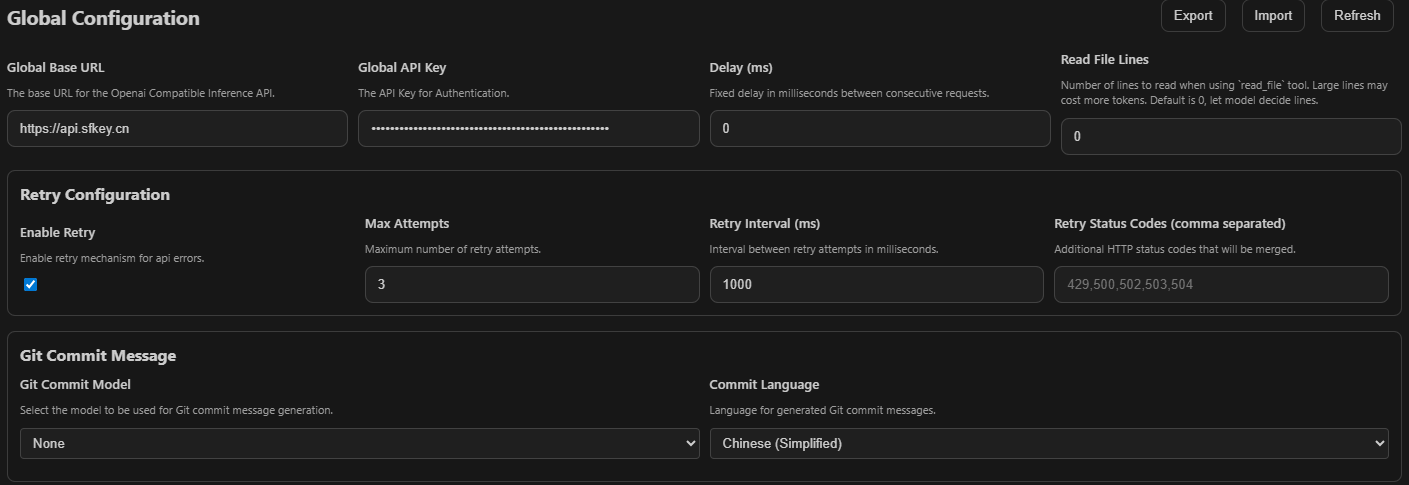
1.1 Global Configuration
1.2 Provider Management

1.3 Model Management
1.3.1 Base Settings
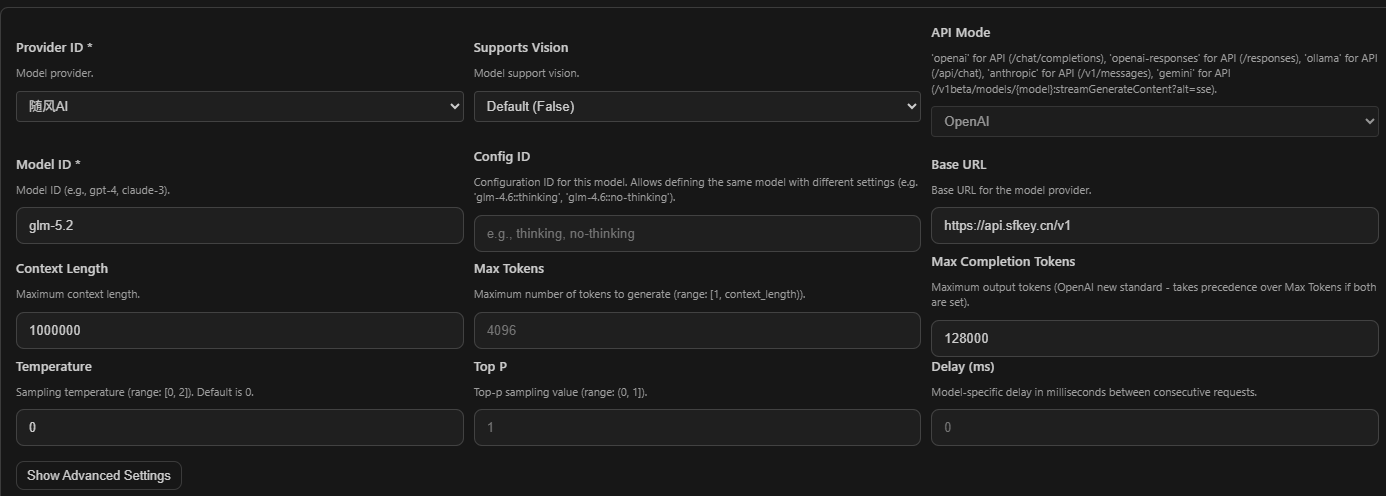
1.3.2 Advanced Settings
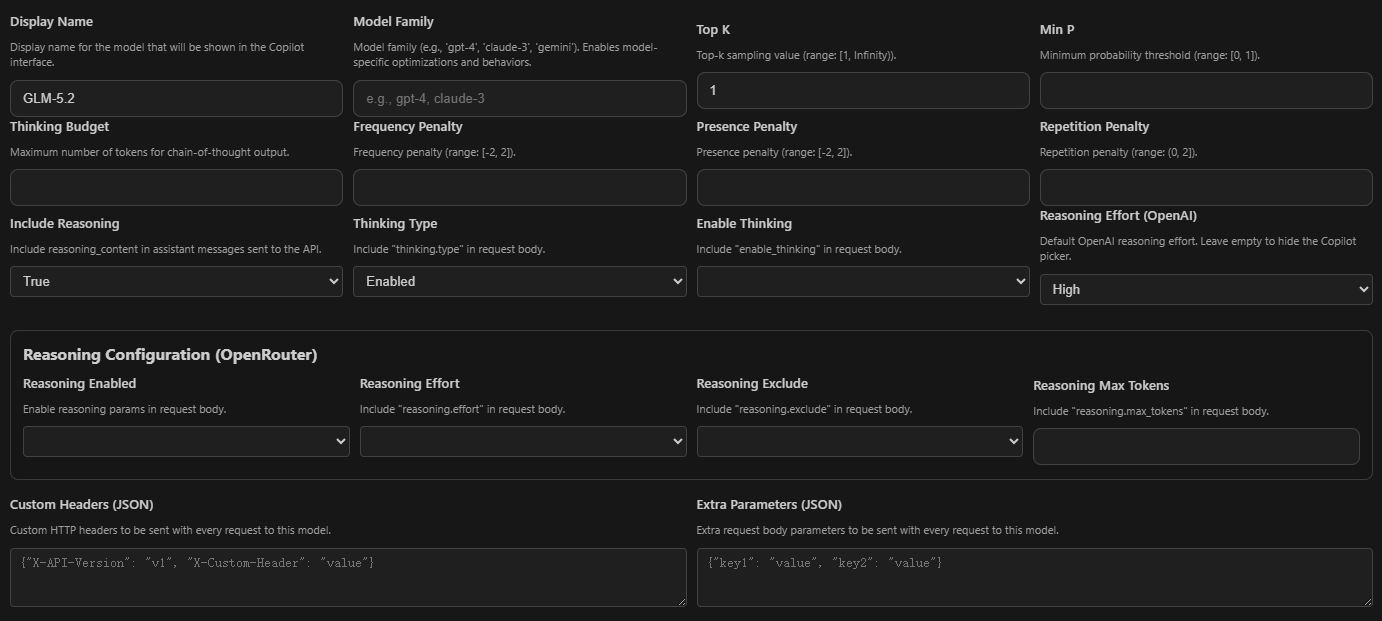
1.4 配置后整体界面:

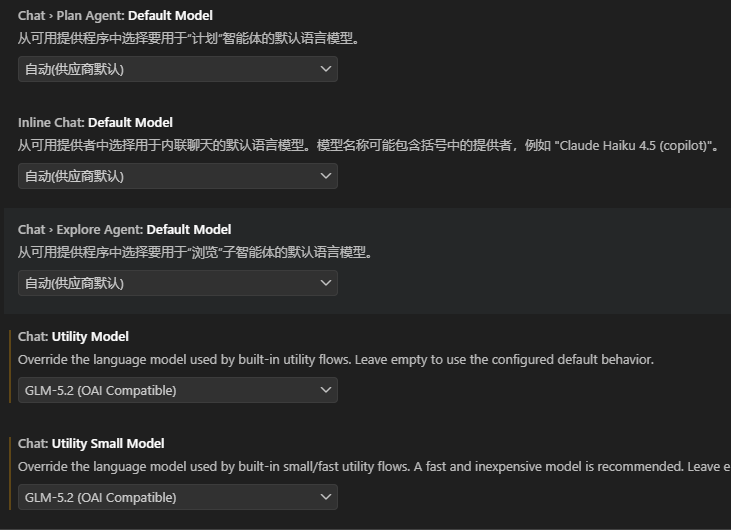
2. VS Code Settings
文件 → 首选项 → 设置,搜索“Oaicopilot” 
3. 常见问题
3.1 chat 返回结果为空
文件 → 首选项 → 设置,搜索“Oaicopilot” → 点击 Oaicopilot: Models 在 settings.json 中编辑,检查 settings.json 中 Oaicopilot 的配置。 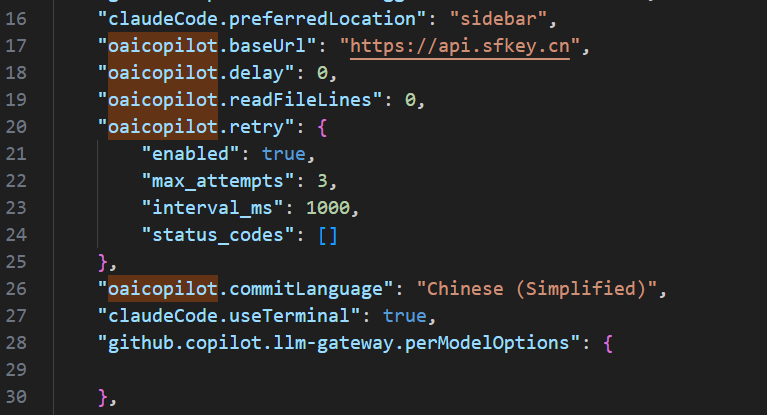

"oaicopilot.baseUrl": "https://api.sfkey.cn",
"oaicopilot.delay": 0,
"oaicopilot.readFileLines": 0,
"oaicopilot.retry": {
"enabled": true,
"max_attempts": 3,
"interval_ms": 1000,
"status_codes": []
},
"oaicopilot.commitLanguage": "Chinese (Simplified)",
"oaicopilot.models": [
{
"id": "glm-5.2",
"owned_by": "随风AI",
"displayName": "GLM-5.2",
"baseUrl": "https://api.sfkey.cn/v1",
"context_length": 1000000,
"apiMode": "openai",
"temperature": 0,
"top_k": 1,
"reasoning_effort": "high",
"include_reasoning_in_request": true,
"max_completion_tokens": 128000,
"thinking": {
"type": "enabled"
}
}
],
"chat.utilityModel": "oaicopilot/glm-5.2",
"chat.utilitySmallModel": "oaicopilot/glm-5.2",
"terminal.integrated.tabs.enabled": false,
"chat.agent.maxRequests": 360