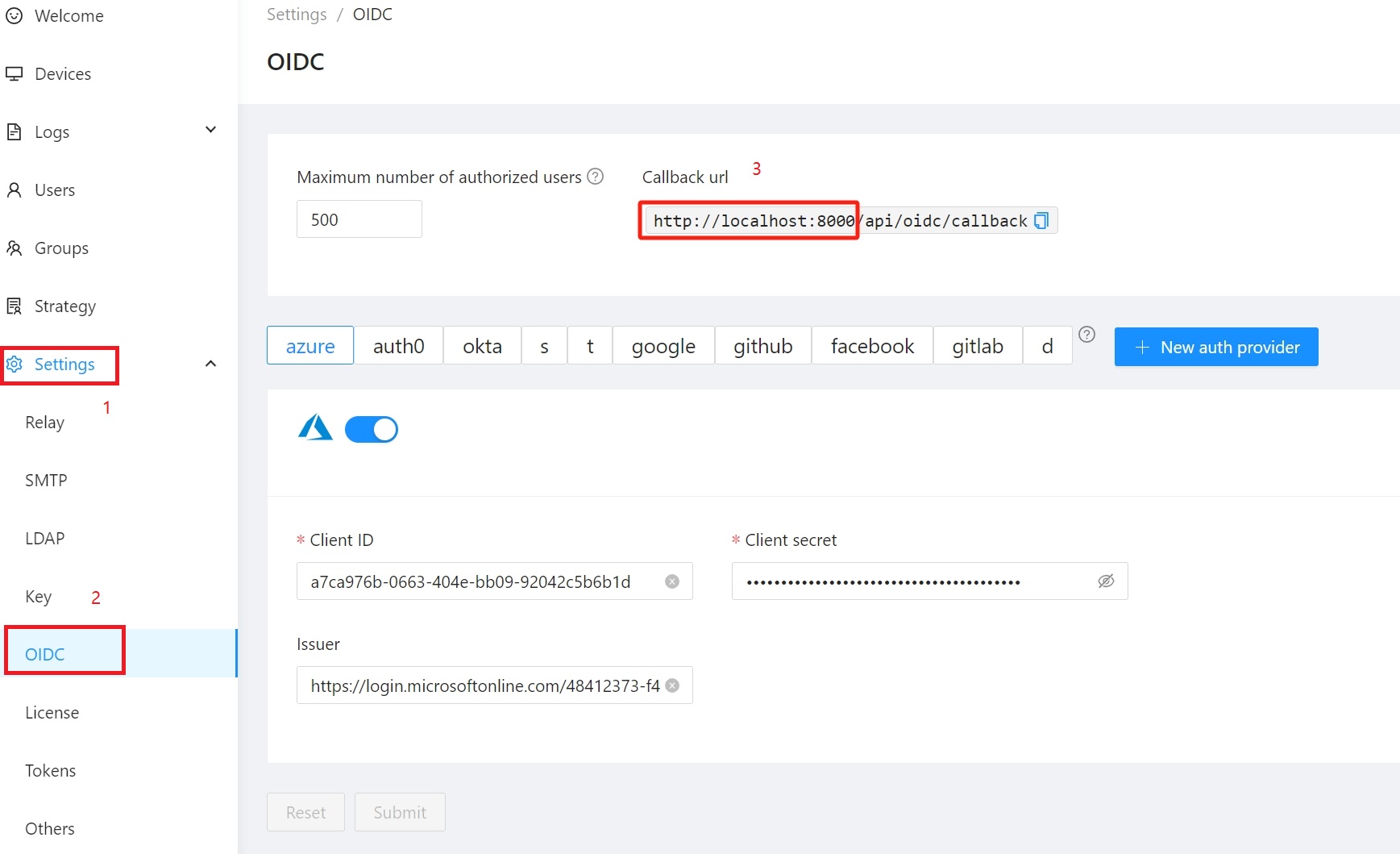
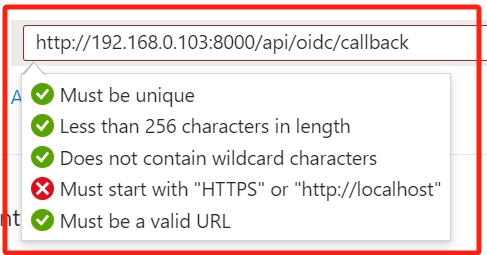
Open the RustDesk Pro console, in the Settings page, click the OIDC module. Then copy the Callback URL. Note: The Callback URL is not editable, the Path part is fixed to api/oidc/callback, and the Protocol://Host:Port part is the origin of the current web page. If you open it through the address http://localhost:8000/<path>, then the Callback URL is http://localhost:8000/api/oidc/callback. If you open it through the address https://192.168.0.1:8000/<path> is opened, then the Callback URL is https://192.168.0.1:8000/api/oidc/callback. Because Azure must use https:// or http://localhost, please select the appropriate address to open your RustDesk Pro console.
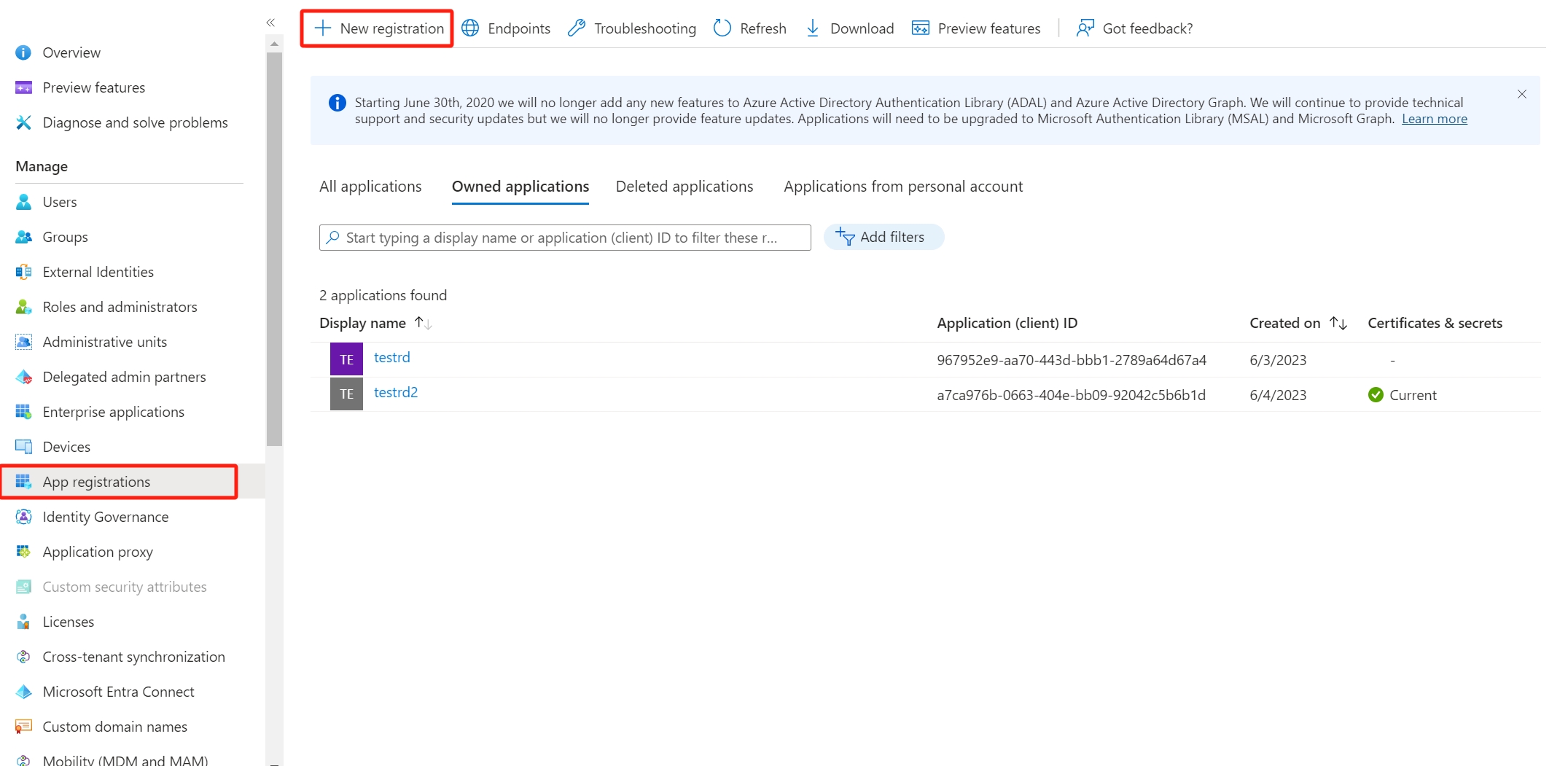
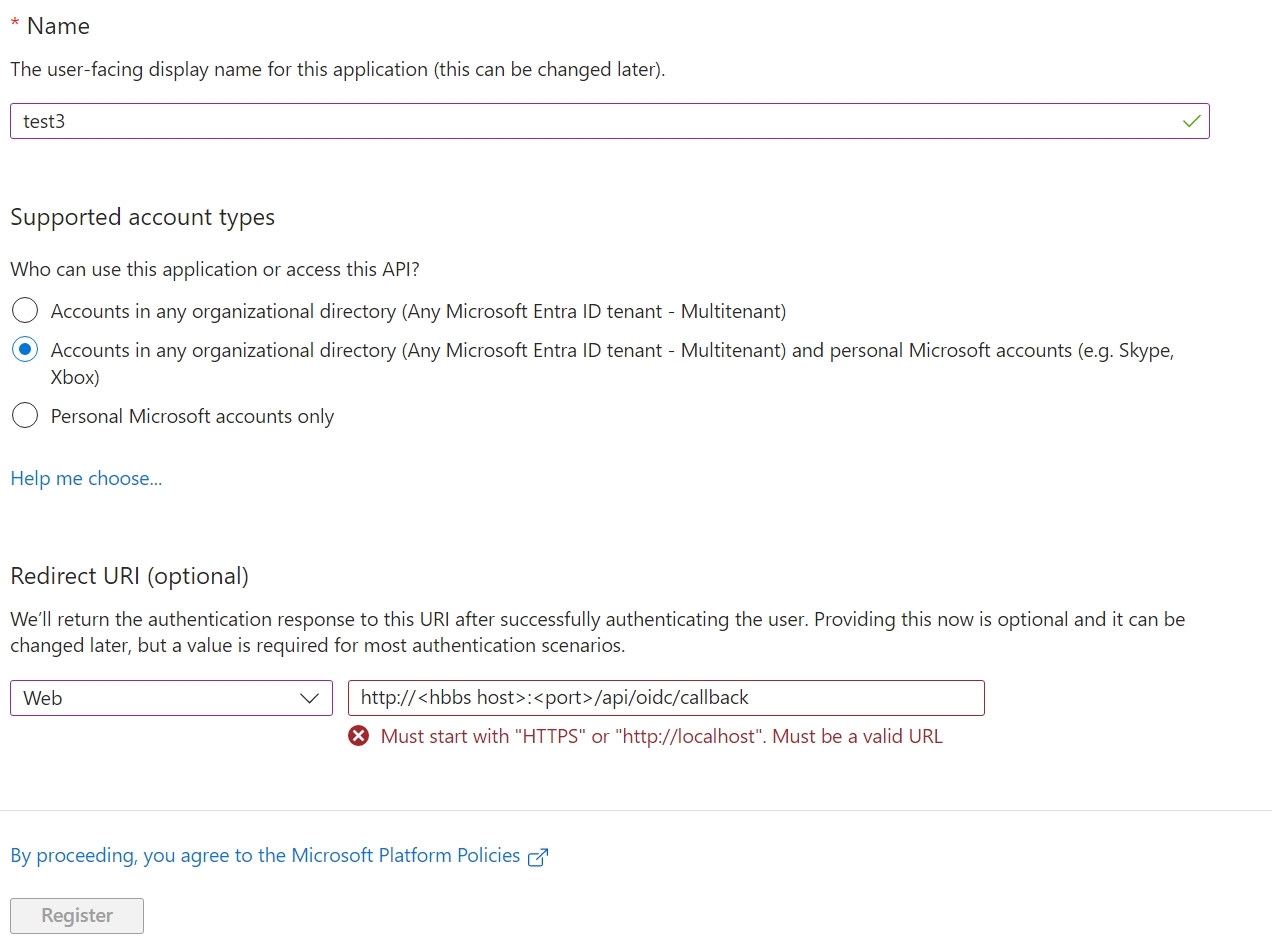
Input the Name, select the Supported account types, and paste the Redirect URI from RustDesk Pro.
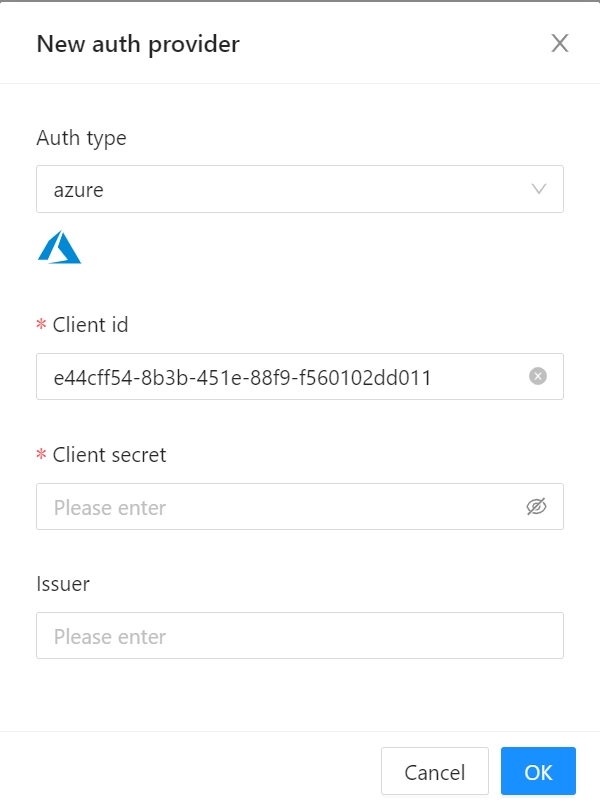
In RustDesk Pro, click New auth provider.
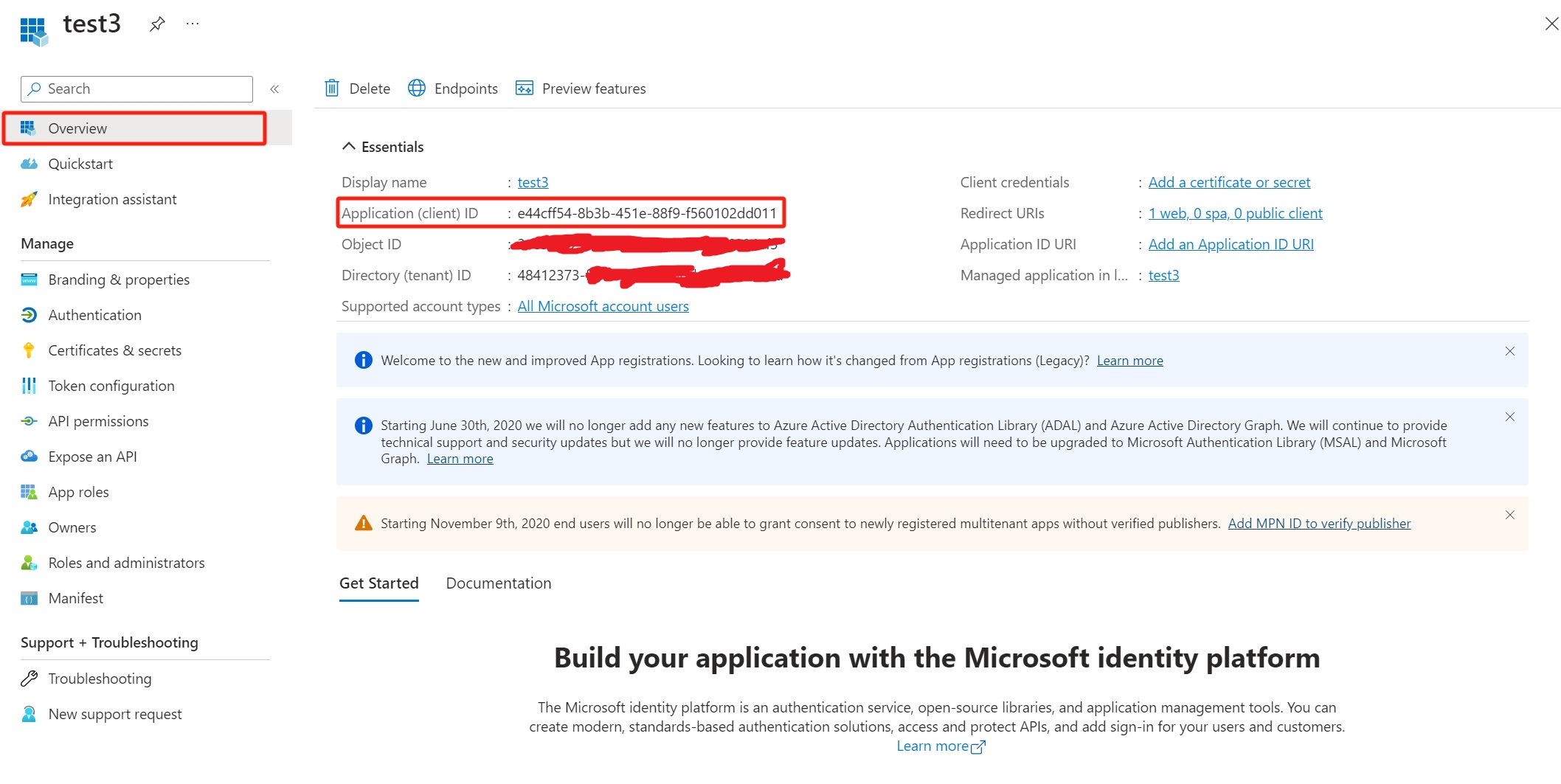
In Azure, select the application you want to use, click Overview, and copy the Application (client) ID.
In RustDesk Pro, paste the Client ID.
In Azure, Certificates & secrets, create a new or select a client secret, usually New.
In Azure, copy the value of the client secret. Note: This value is only visible when you first register. It is no longer visible after you leave the page. Please keep this value properly.
In RustDesk Pro, paste the value for the client secret.
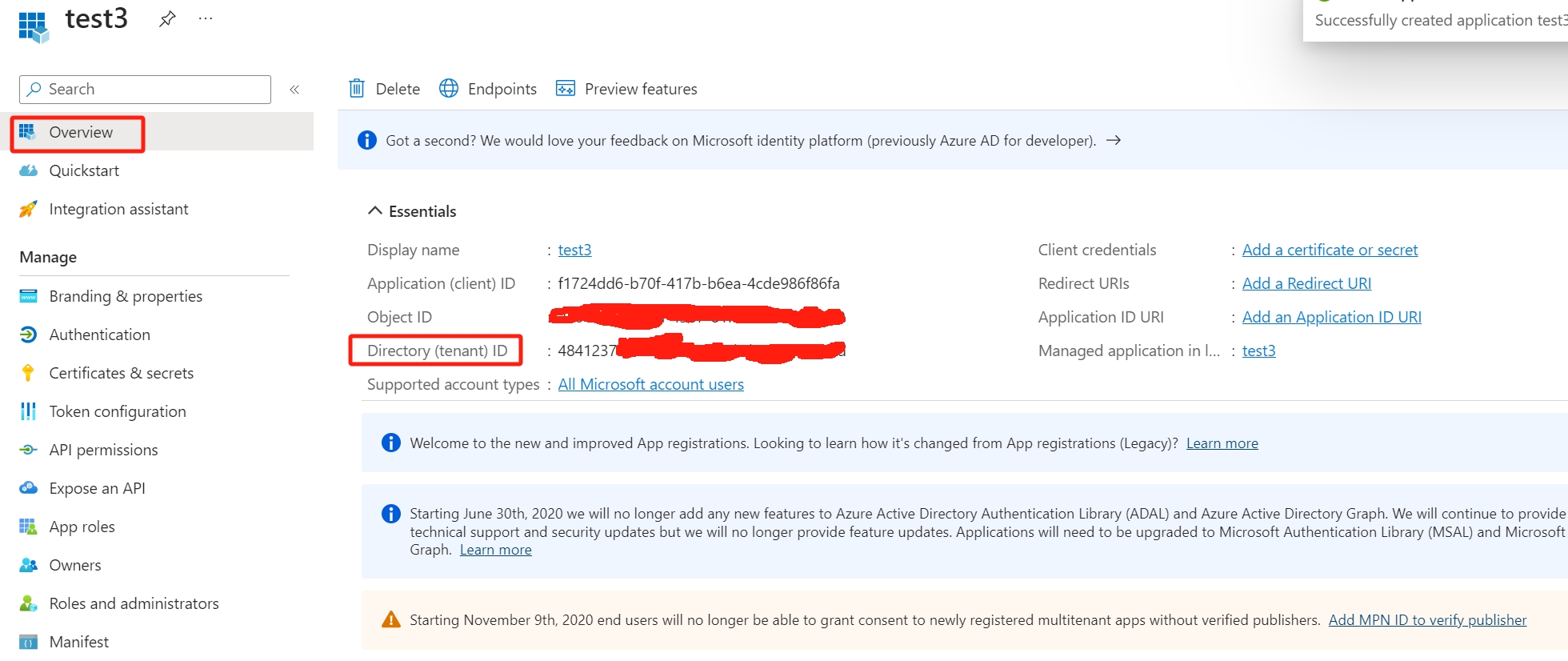
In RustDesk Pro, fill in the Issuer field with https://login.microsoftonline.com/<Directory (tenant) ID>/v2.0. Please replace Directory (tenant) ID with your Directory (tenant) ID. The Directory (tenant) ID is in Azure’s app Overview panel.
In Azure, select Authentication menu. Then set up authorization, by choosing ID tokens (used for implicit and hybrid flows).