在 Python 自动化测试与网页数据采集领域,Selenium 是最核心的工具之一。很多人习惯用 Chrome 浏览器,但实际上,基于 Chromium 内核的 Microsoft Edge 浏览器,凭借其系统原生支持、更低的资源占用和同样优秀的兼容性,正在成为越来越多人的选择。本文将带你从环境搭建开始,一步步掌握如何用 Selenium 驱动 Edge 浏览器,并通过实战案例完成完整的自动化流程。
一、环境准备:Edge 浏览器与驱动安装
1. 确认 Edge 浏览器版本
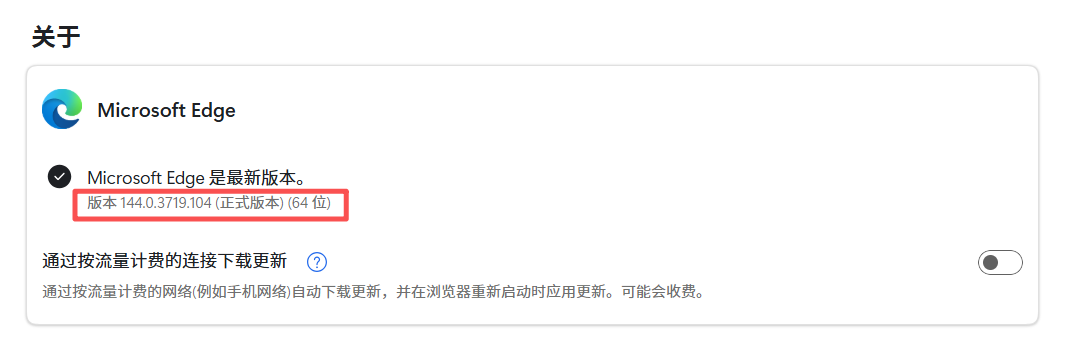
首先要确保你的 Edge 浏览器是最新版本,并且记下它的版本号。
• 打开 Edge → 点击右上角「···」→ 「设置」→ 「关于 Microsoft Edge」
• 记下版本号(例如:144.0.3719.104)
2. 下载匹配的 EdgeDriver
驱动是 Selenium 和浏览器之间的桥梁,版本必须严格匹配。
• 官方下载地址:Microsoft EdgeDriver

• 官网界面往下,根据你的系统(Windows/macOS/Linux)和 Edge 版本下载对应的驱动
 • 解压后得到 msedgedriver.exe(Windows)或 msedgedriver(macOS/Linux)
3. 配置驱动环境
为了让 Python 能全局找到驱动,推荐把驱动文件放到 Python 的 Scripts 目录下(例如:C:\\Python311\\Scripts)。
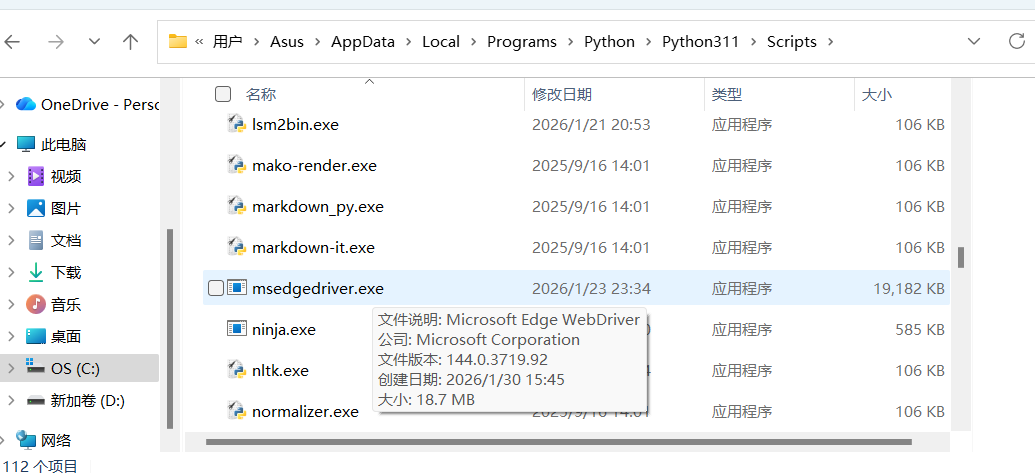
或者,也可以在代码里直接指定驱动路径:
driver = webdriver.Edge(executable_path=r"C:\\Tools\\msedgedriver.exe")
4. 安装selenium库
pip install selenium==4. 11. 0 -i https://pypi. mirrors. ustc. edu. cn/simple/
(以selenium4.11.0为例)

二、驱动浏览器
在selenium库源代码文件下的webdriver中课查看所有支持的浏览器类型,webdriver使用形式如下
(以Edge为例):
webdriver.edge()
驱动 Edge 浏览器
from selenium import webdriver
from selenium.webdriver.edge.options import Options
edge_options = Options()
edge_options.binary_location = r"C:\\Program Files (x86)\\Microsoft\\Edge\\Application\\msedge.exe"
driver = webdriver.Edge(options=edge_options)
三、加载网页
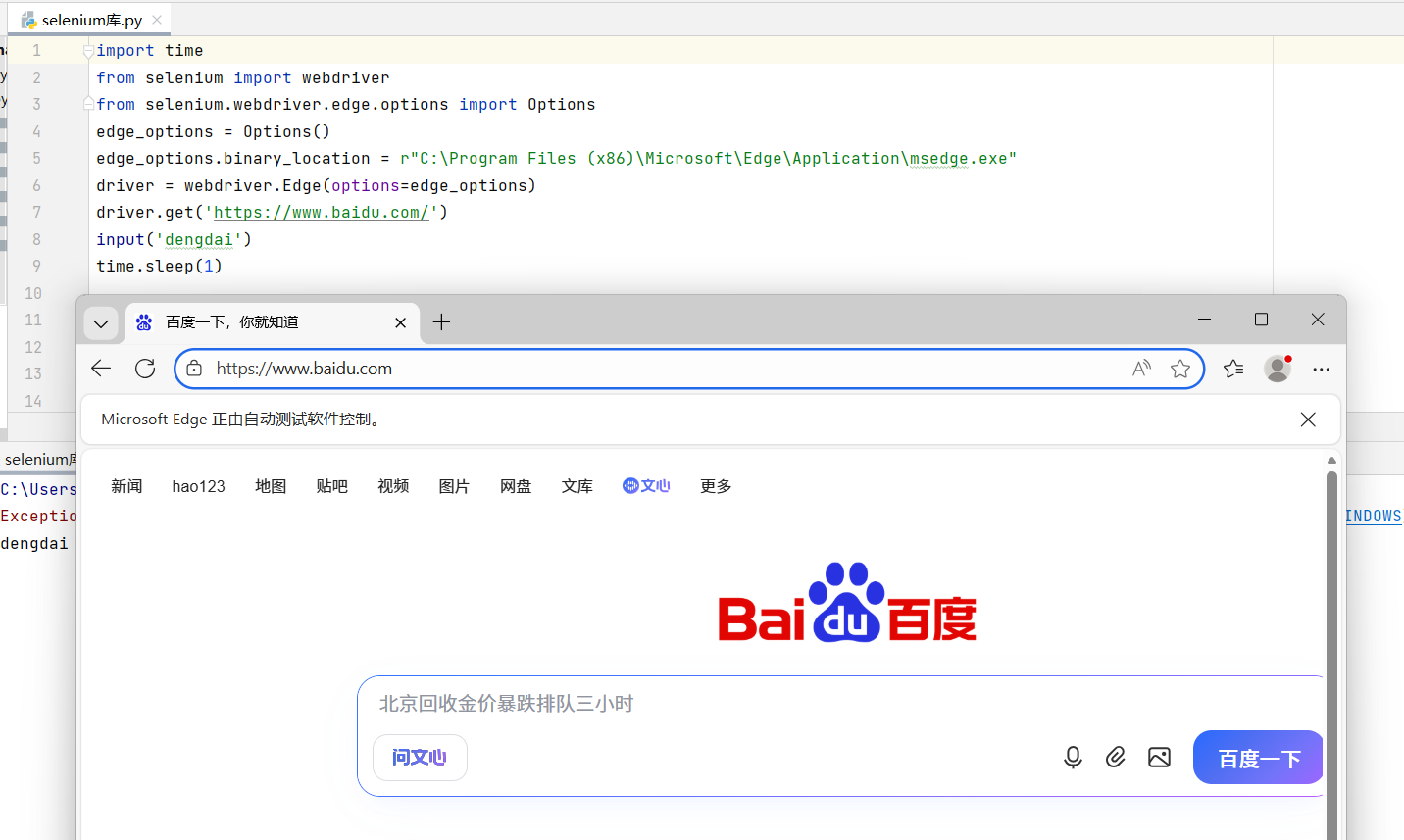
1. get()方法:get(url),在当前浏览器会话中加载url指向的网页
import time
from selenium import webdriver
from selenium.webdriver.edge.options import Options
edge_options = Options()
edge_options.binary_location = r"C:\\Program Files (x86)\\Microsoft\\Edge\\Application\\msedge.exe"
driver = webdriver.Edge(options=edge_options)
driver.get('https://www.baidu.com/')
input('dengdai')
time.sleep(1)
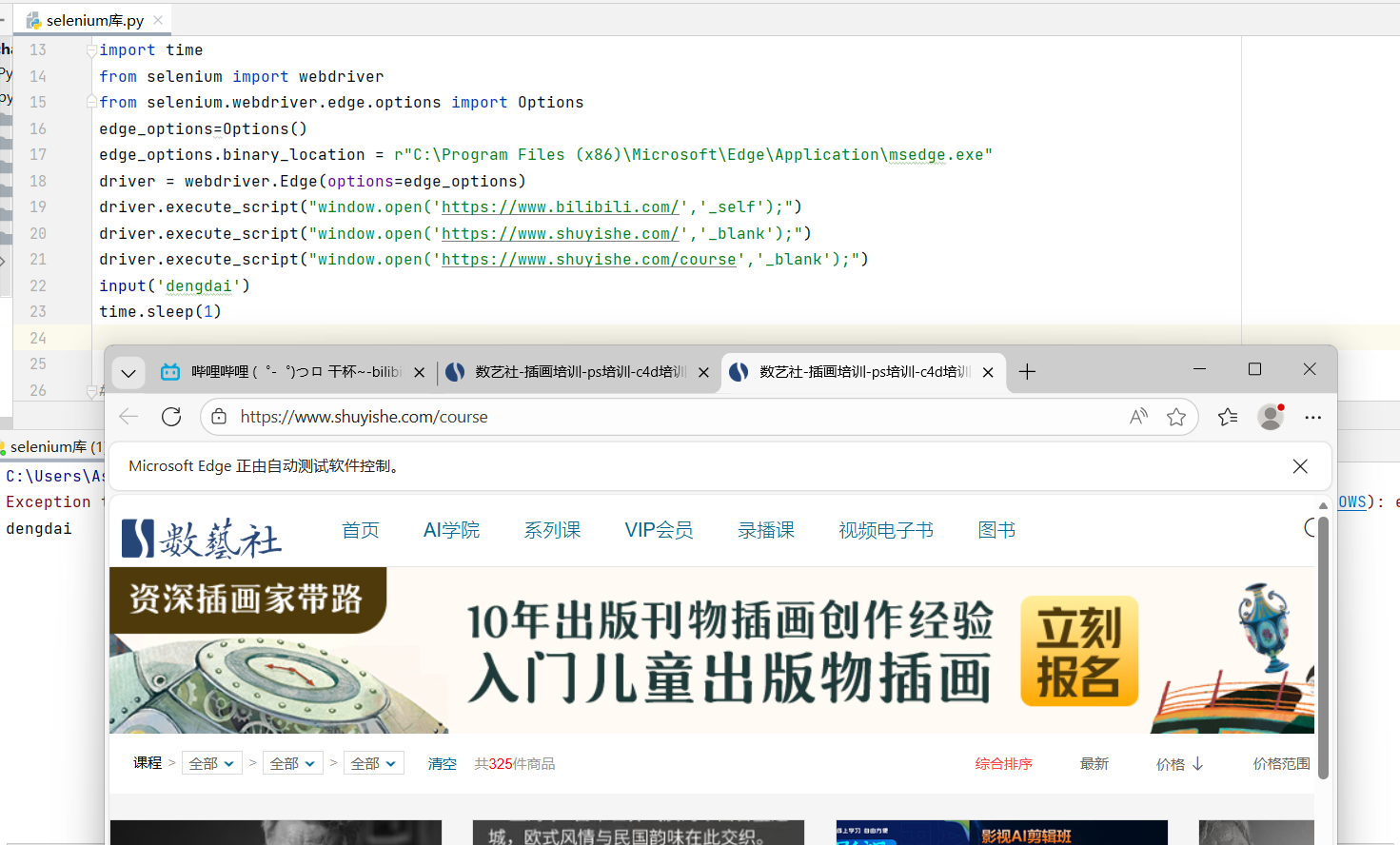
2. execute_script()方法:execute_script(script,*args),用于打开多个标签页,即在同一浏览器中打开多个网页。
import time
from selenium import webdriver
from selenium.webdriver.edge.options import Options
edge_options=Options()
edge_options.binary_location = r"C:\\Program Files (x86)\\Microsoft\\Edge\\Application\\msedge.exe"
driver = webdriver.Edge(options=edge_options)
driver.execute_script("window.open('https://www.bilibili.com/','_self');")
driver.execute_script("window.open('https://www.shuyishe.com/','_blank');")
driver.execute_script("window.open('https://www.shuyishe.com/course','_blank');")
input('dengdai')
time.sleep(1)
四、获取渲染后的代码
通get()方法获取浏览器中的网页资源后,浏览器将自动渲染网页源代码内容,并生成渲染后的内容,这时使用page_source()方法即可获取渲染后的网页代码。
from selenium import webdriver
from selenium.webdriver.edge.options import Options
edge_options = Options()
edge_options.binary_location = r"C:\\Program Files (x86)\\Microsoft\\Edge\\Application\\msedge.exe"
driver = webdriver.Edge(options=edge_options)
driver.get('http://www.baidu.com')
print(driver.page_source)
input('dengdai')

五、实现批量下载网页资源
from selenium import webdriver
from selenium.webdriver.edge.options import Options
from selenium.webdriver.common.by import By
edge_options = Options()
edge_options.binary_location =r"C:\\Program Files (x86)\\Microsoft\\Edge\\Application\\msedge.exe"
driver=webdriver.Edge(options=edge_options)
driver.get('https://image.baidu.com/search/index?tn=baiduimage&ie=utf-8&word=热巴')#执行JavaScript滚动操作
driver.execute_script("window.scrollTo(0, document.body.scrollHeight);")
time.sleep(5)
img_list=driver.find_elements(By.XPATH, value="//img[@class='img_7rRSL']")
i=1
for img in img_list:
img_url = img.get_attribute("src")
img_data = requests.get(img_url)
with open(f"./迪丽热巴1/{i}.png", 'wb') as f:
f.write(img_data.content)
i += 1

六、获取和操作网页元素
1.获取网页中的指定元素
在获取网页某个元素后,可以使用以下方法对此元素进行相应操作。
• tag_name()方法:获取元素的名称。
• text()方法:获取元素的文本内容。
• click()方法:单击此元素。
• submit()方法:提交表单。
• send_keys()方法:模拟输入信息。
• size()方法:获取元素的尺寸
2. 在元素中输入信息
send_keys()方法可以实现在元素中输入信息。
from selenium import webdriver
from selenium.webdriver.edge.options import Options
from selenium.webdriver.common.by import By
edge_options = Options()
edge_options.binary_location = r"C:\\Program Files (x86)\\Microsoft\\Edge\\Application\\msedge.exe"
driver = webdriver.Edge(options=edge_options)
driver.get('https://www.ryjiaoyu.com/')
driver.find_elements(by=By.TAG_NAME,value="input")[0].send_keys("Python")
input('dengdai')
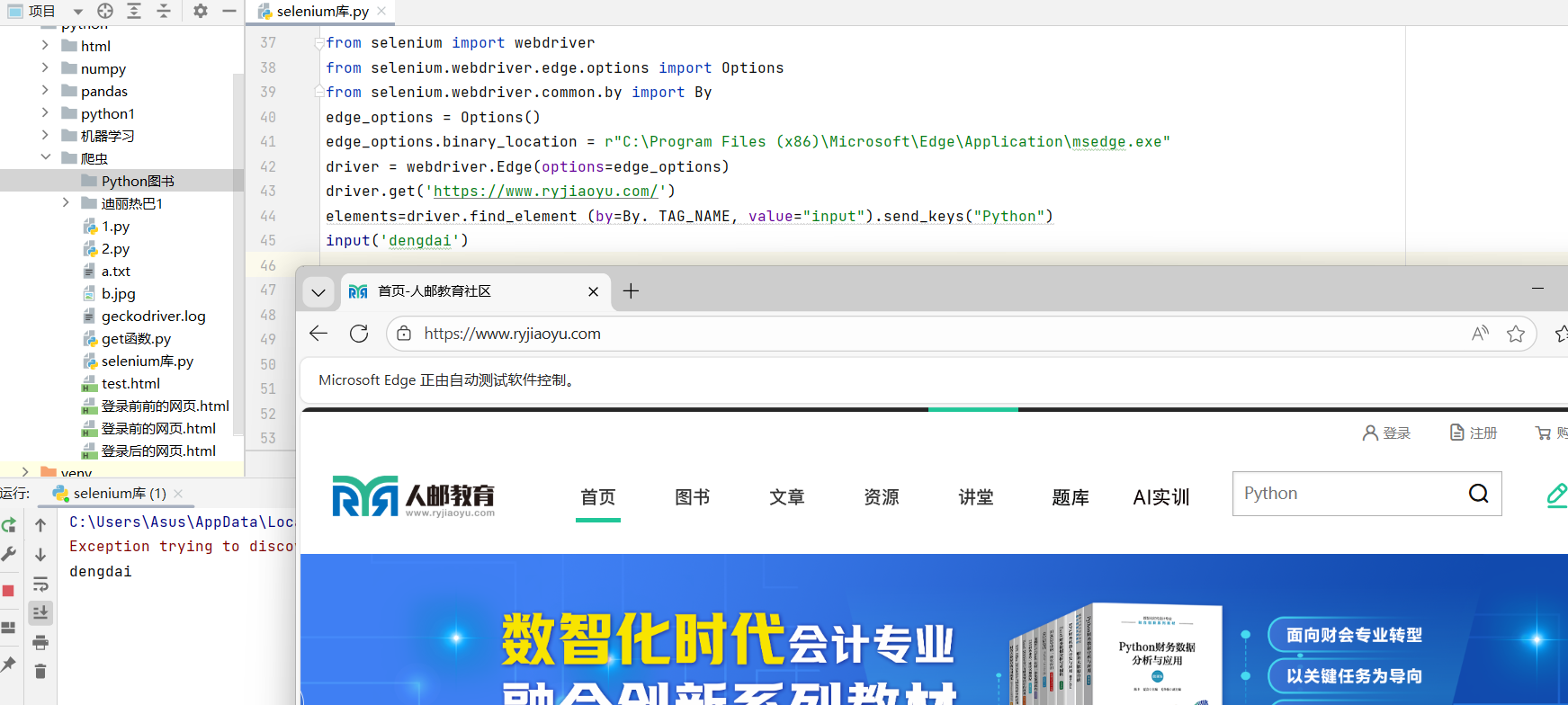
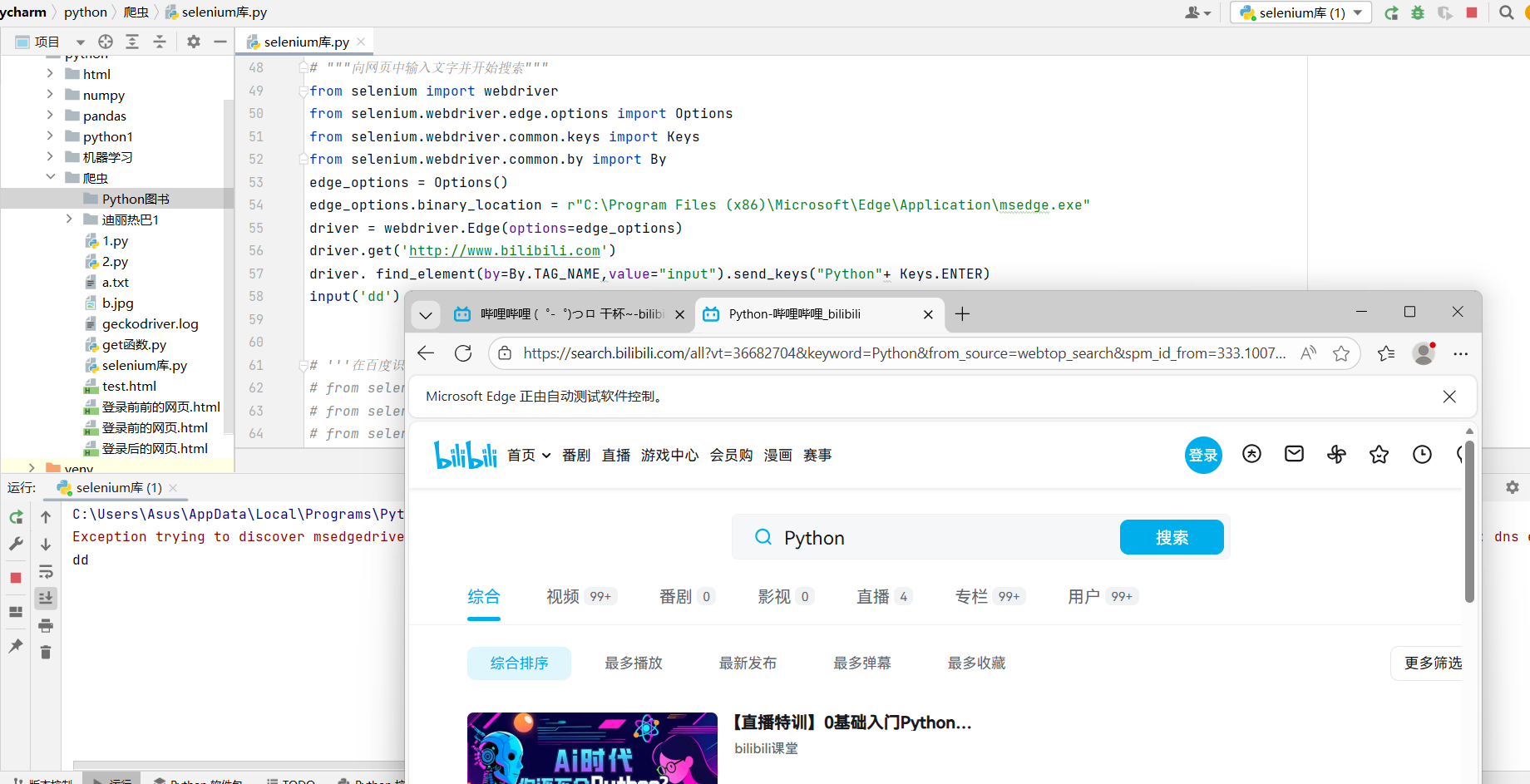
实现在搜素框中输入信息的代码程序后,还可以模拟用户的按键操作。
from selenium import webdriver
from selenium.webdriver.edge.options import Options
from selenium.webdriver.common.keys import Keys
from selenium.webdriver.common.by import By
edge_options = Options()
edge_options.binary_location = r"C:\\Program Files (x86)\\Microsoft\\Edge\\Application\\msedge.exe"
driver = webdriver.Edge(options=edge_options)
driver.get('http://www.bilibili.com')
driver. find_element(by=By.TAG_NAME,value="input").send_keys("Python"+ Keys.ENTER)
input('dd')
七、案例:实现上传图片
from selenium import webdriver
from selenium.webdriver.edge.options import Options
from selenium.webdriver.common.by import By
edge_options = Options()
edge_options.binary_location = r'C:\\Program Files (x86)\\Microsoft\\Edge\\Application\\msedge.exe'
driver = webdriver.Edge(options=edge_options)
driver.get('https://graph.baidu.com/pcpage/index?tpl_from=pc')
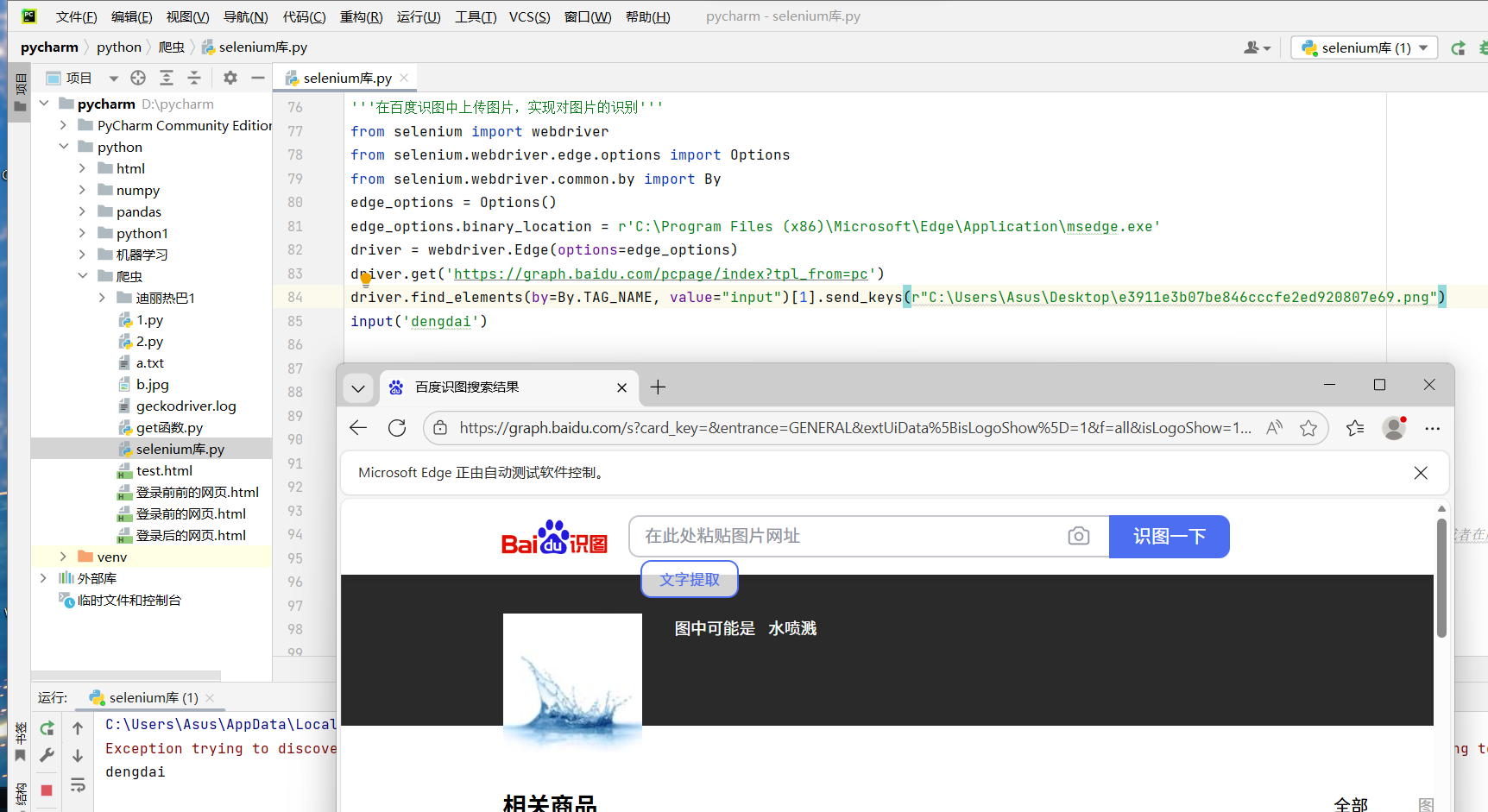
driver.find_elements(by=By.TAG_NAME, value="input")[1].send_keys(r"C:\\Users\\Asus\\Desktop\\e3911e3b07be846cccfe2ed920807e69.png")
#或
#input_element = driver.find_element(by=By.NAME, value="file")
#input_element.send_keys(r"E:\\爬虫\\img.png")
input('dengdai')
八、浏览器的前进后退
from selenium import webdriver
from selenium.webdriver.edge.options import Options
import time
edge_options = Options()
edge_options.binary_location = r"C:\\Program Files (x86)\\Microsoft\\Edge\\Application\\msedge.exe"
driver = webdriver.Edge(options=edge_options)
driver.get('http://www.taobao.com') #请求网页http://www.taobao.com
driver.get('http://www.baidu.com')
driver.get('http://www.bilibili.com')
driver.back() #网页返回到上一步
time.sleep(1)
driver.forward()#网页返回到下一步
time.sleep(1)
driver.refresh() #刷新
time.sleep(1)
#driver.quit()#关闭浏览器
driver.close()

九、避坑指南和经验总结


