🦞 OpenClaw 保姆级部署教程:Windows/macOS 全平台安装 + Telegram/飞书双端集成实战
作者:猫头虎AI | 阅读时间:约 25 分钟 | 难度:⭐⭐⭐☆☆
因为🦞实在太火了,加上看多了AI相关的东西搞得人很焦虑,所以还是打算自己部署一下找点自我安慰吧🤷。先不说我能用来干啥,就想探一探它这么火的原因😮💨
在Windows中折腾了一天,终于算是初步跑通了,并配置了 Telegram 和 飞书 两个 channel。本文将完整记录从环境准备到多平台集成的全流程,帮你避开我踩过的所有坑。
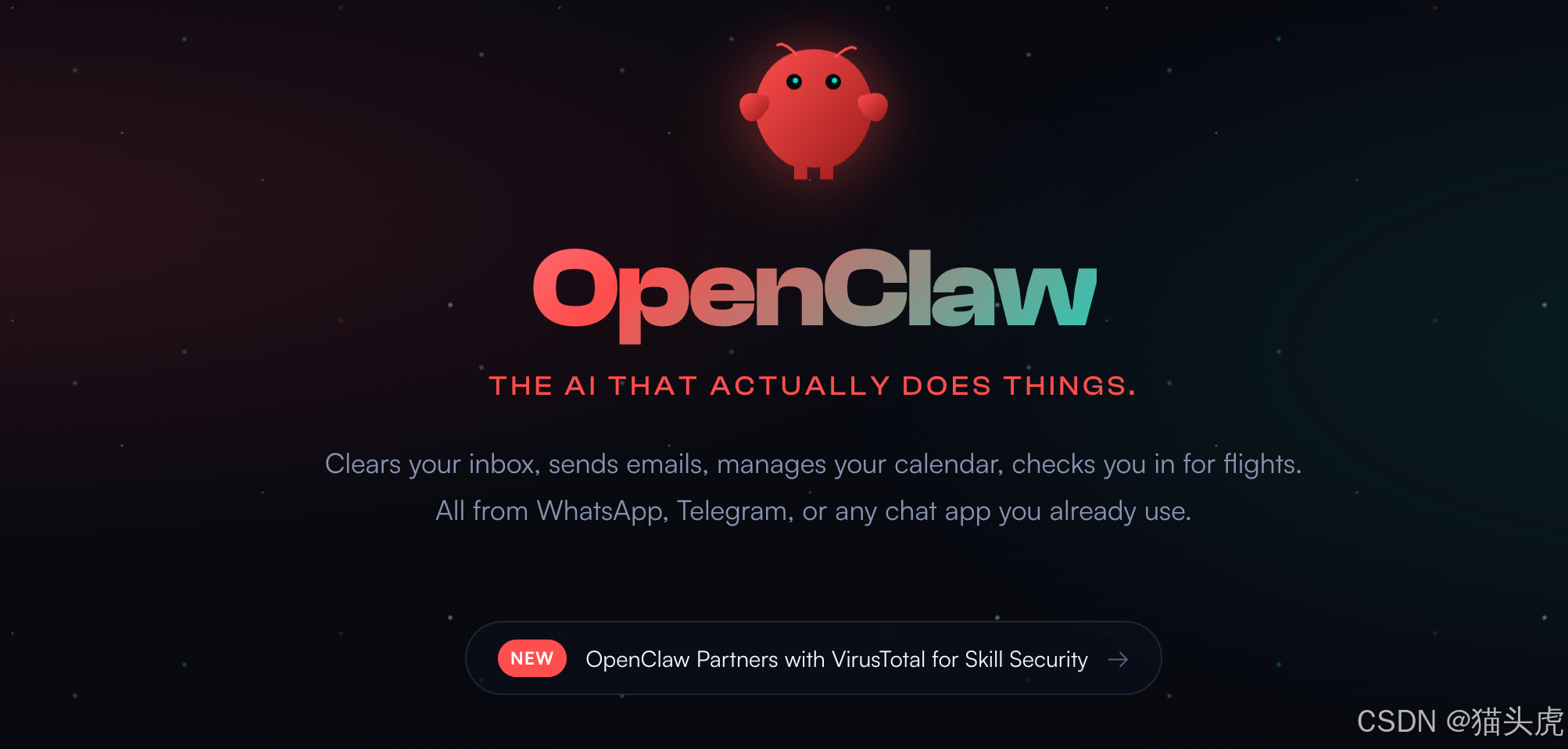
OpenClaw 是一个适用于任何操作系统的 AI 智能体 Gateway 网关,支持 WhatsApp、Telegram、Discord、飞书等多种聊天应用。
📋 阅读目录
- 🦞 OpenClaw 保姆级部署教程:Windows/macOS 全平台安装 + Telegram/飞书双端集成实战
-
- 安装前准备
-
- 系统要求
- 检查 Node.js 版本
- Windows 安装流程
-
- 方法一:使用安装脚本(推荐)
- 方法二:使用 npm 安装
- 方法三:使用 WSL2(⭐强烈推荐)
-
- 1. 安装 WSL2 Ubuntu
- 2. 在 WSL2 中安装 OpenClaw
- 运行新手引导
- 启动 Gateway
- 验证安装
- macOS 安装流程
-
- 方法一:使用安装脚本(推荐)
- 方法二:使用 Homebrew + npm
- 方法三:使用 pnpm
- 运行新手引导
- 启动 Gateway
- 访问控制界面
- Telegram 集成使用
-
- 1. 创建 Telegram 机器人
- 2. 配置 OpenClaw
-
- 方式一:通过向导配置(推荐)
- 方式二:通过环境变量
- 方式三:通过配置文件
- 3. 重启 Gateway
- 4. 测试使用
- 5. 在群组中使用
- Telegram 常用命令
- 飞书集成使用
-
- 1. 安装飞书插件
-
- 方式一:使用 openclaw plugins 命令(推荐)
- 方式二:使用 npm 全局安装(Windows 兼容性好)
- 方式三:使用 pnpm
- 方式四:手动克隆源码
- 2. 创建飞书应用
-
- 步骤 1:创建应用
- 步骤 2:获取应用凭证
- 步骤 3:配置应用权限
- 步骤 4:启用机器人能力
- 步骤 5:配置事件订阅
- 步骤 6:发布应用
- 3. 配置 OpenClaw
-
- 方式一:通过向导配置
- 方式二:通过环境变量
- 方式三:通过配置文件
- 4. 重启 Gateway
- 5. 测试使用
- 6. 在群组中使用
- 飞书常用命令
- 常见坑和注意点
-
- 🔴 Windows 通用问题
-
- 1. WSL2 网络访问问题
- 2. Node.js 版本管理
- 3. 权限问题
- 4. 端口占用
- 5. `spawn EINVAL` 错误
- 🔵 macOS 通用问题
-
- 1. 权限授予时应用崩溃
- 2. Gateway 卡在 "Starting…"
- 3. LaunchAgent 服务异常
- 4. PATH 环境变量问题
- 🟢 跨平台共同问题
-
- 1. Node 版本要求
- 2. 认证配置问题
- 3. 配置文件位置混乱
- 4. 渠道不响应
- 5. 配对码问题
- 6. 媒体文件大小限制
- 7. 内存占用过高
- 8. 网络连接问题
- 🛠️ 调试建议
- 📞 获取帮助
- 附录:命令速查表
-
- 安装和配置
- Gateway 管理
- 渠道管理
- 配对管理
- 日志和诊断
- 模型管理
- 发送测试消息
- 配置文件位置对照表
- 💬 写在最后
安装前准备
系统要求
| Node.js | ≥ 22 | 核心运行环境 |
| 操作系统 | Windows/macOS/Linux | 推荐 WSL2 (Ubuntu) / 原生 macOS |
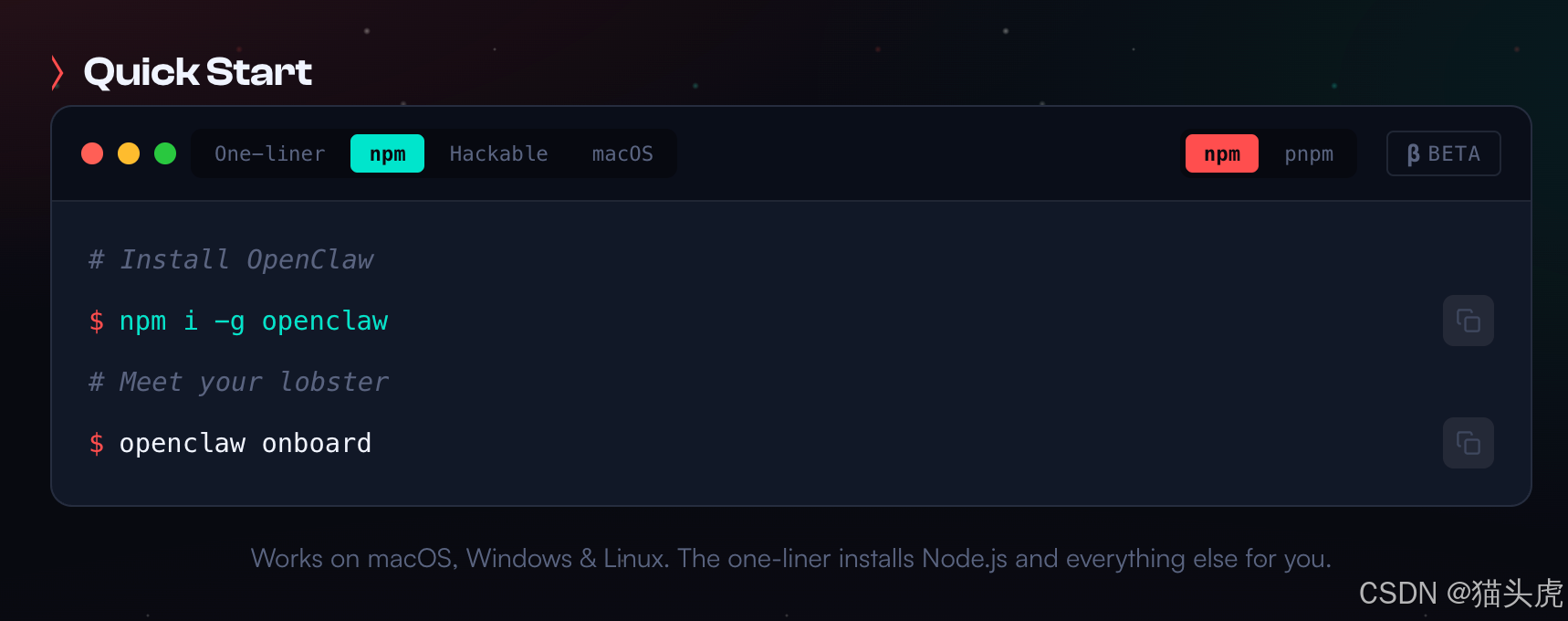
检查 Node.js 版本
node –version
⚠️ 注意:如果版本低于 22,请先升级 Node.js,否则后续会出现兼容性问题。
Windows 安装流程
方法一:使用安装脚本(推荐)
在 PowerShell 中运行:
iwr –useb https://openclaw.ai/install.ps1 | iex
方法二:使用 npm 安装
npm install –g openclaw@latest
方法三:使用 WSL2(⭐强烈推荐)
1. 安装 WSL2 Ubuntu
打开 **PowerShell(管理员)**运行:
wsl —install
重启电脑并完成 Ubuntu 初始设置。
2. 在 WSL2 中安装 OpenClaw
# 更新系统
sudo apt update && sudo apt upgrade -y
# 安装 Node.js 22
curl -fsSL https://deb.nodesource.com/setup_22.x | sudo -E bash –
sudo apt-get install -y nodejs
# 安装 OpenClaw
curl -fsSL https://openclaw.ai/install.sh | bash
运行新手引导
# 在 WSL2 终端中运行
openclaw onboard –install-daemon
新手引导会帮助你完成:
- ✅ 配置模型和认证(推荐使用 Anthropic API Key)
- ✅ 设置 Gateway 运行模式
- ✅ 配置聊天渠道
- ✅ 安装后台服务(systemd)
启动 Gateway
# 查看服务状态
openclaw gateway status
# 手动启动
openclaw gateway –port 18789
# 重启服务
openclaw gateway restart
验证安装
openclaw status
openclaw health
macOS 安装流程
方法一:使用安装脚本(推荐)
在终端中运行:
curl -fsSL https://openclaw.ai/install.sh | bash
方法二:使用 Homebrew + npm
# 安装 Node.js 22
brew install node@22
# 安装 OpenClaw
npm install -g openclaw@latest
方法三:使用 pnpm
pnpm add -g openclaw@latest
运行新手引导
# 安装并启动服务
openclaw onboard –install-daemon
新手引导步骤:
启动 Gateway
# 查看服务状态
openclaw gateway status
# 手动启动
openclaw gateway –port 18789
# 重启服务
openclaw gateway restart
访问控制界面
在浏览器中打开:http://127.0.0.1:18789/
Telegram 集成使用
1. 创建 Telegram 机器人
| 1 | 搜索 @BotFather | ⚠️ 认准蓝标认证账号 |
| 2 | 发送 /newbot | 创建新机器人 |
| 3 | 设置名称和用户名 | 用户名必须以 bot 结尾 |
| 4 | 复制 Token | 格式:123456:ABC-DEF1234ghIkl-zyx57W2vxxu123ew11 |
2. 配置 OpenClaw
方式一:通过向导配置(推荐)
openclaw channels add
选择 telegram 并粘贴 Bot Token。
方式二:通过环境变量
export TELEGRAM_BOT_TOKEN="你的机器人Token"
方式三:通过配置文件
编辑配置文件:
- macOS/Linux: ~/.openclaw/openclaw.json
- Windows: %USERPROFILE%\\.openclaw\\openclaw.json
{
"channels": {
"telegram": {
"enabled": true,
"botToken": "你的机器人Token",
"dmPolicy": "pairing",
"groups": {
"*": {
"requireMention": true
}
}
}
}
}
3. 重启 Gateway
openclaw gateway restart
4. 测试使用
openclaw pairing list telegram
openclaw pairing approve telegram <配对码>
⚠️ 网络问题:如果聊天没反应,需配置代理:
openclaw config set channels.telegram.proxy "http://127.0.0.1:代理端口"
5. 在群组中使用
Telegram 常用命令
| /status | 查看机器人状态 |
| /reset | 重置对话会话 |
| /model | 查看/切换模型 |
| /activation always | 群组中始终响应 |
| /activation mention | 群组中仅响应提及 |
飞书集成使用
1. 安装飞书插件
方式一:使用 openclaw plugins 命令(推荐)
openclaw plugins install @openclaw/feishu
方式二:使用 npm 全局安装(Windows 兼容性好)
# macOS/Linux
npm install -g @openclaw/feishu
# Windows PowerShell
npm install -g @openclaw/feishu
方式三:使用 pnpm
pnpm add -g @openclaw/feishu
方式四:手动克隆源码
git clone https://github.com/openclaw/feishu.git ~/.openclaw/plugins/feishu
2. 创建飞书应用
步骤 1:创建应用
步骤 2:获取应用凭证
在应用的 凭证与基础信息 页面,复制:
- App ID(格式如 cli_xxx)
- App Secret
步骤 3:配置应用权限
在 权限管理 页面,点击 批量导入,粘贴以下 JSON:
{
"scopes": {
"tenant": [
"aily:file:read",
"aily:file:write",
"application:application.app_message_stats.overview:readonly",
"application:application.self_manage",
"application:bot.menu:write",
"cardkit:card:write",
"contact:user.employee_id:readonly",
"corehr:file:download",
"docs:document.content:read",
"event:ip_list",
"im:chat",
"im:chat.access_event.bot_p2p_chat:read",
"im:chat.members:bot_access",
"im:message",
"im:message.group_at_msg:readonly",
"im:message.group_msg",
"im:message.p2p_msg:readonly",
"im:message:readonly",
"im:message:send_as_bot",
"im:resource",
"sheets:spreadsheet",
"wiki:wiki:readonly"
],
"user": [
"aily:file:read",
"aily:file:write",
"im:chat.access_event.bot_p2p_chat:read"
]
}
}
步骤 4:启用机器人能力
在 应用能力 > 机器人 页面:
步骤 5:配置事件订阅
⚠️ 重要:确保 OpenClaw Gateway 已启动
在 事件订阅 页面:
步骤 6:发布应用
3. 配置 OpenClaw
方式一:通过向导配置
openclaw channels add
选择 feishu 并输入 App ID 和 App Secret。
方式二:通过环境变量
export FEISHU_APP_ID="cli_xxx"
export FEISHU_APP_SECRET="xxx"
方式三:通过配置文件
{
"channels": {
"feishu": {
"enabled": true,
"dmPolicy": "pairing",
"accounts": {
"main": {
"appId": "cli_xxx",
"appSecret": "xxx",
"botName": "我的AI助手"
}
}
}
}
}
4. 重启 Gateway
openclaw gateway restart
5. 测试使用
openclaw pairing list feishu
openclaw pairing approve feishu <配对码>
6. 在群组中使用
{
"channels": {
"feishu": {
"groups": {
"oc_xxx": {
"requireMention": false
}
}
}
}
}
飞书常用命令
| /status | 查看机器人状态 |
| /reset | 重置对话会话 |
| /model | 查看/切换模型 |
常见坑和注意点
🔴 Windows 通用问题
1. WSL2 网络访问问题
现象:Gateway 无法从宿主机访问
解决方案:
- 确保在 WSL2 中使用 0.0.0.0 或 lan 模式
- 使用 Windows 防火墙规则允许端口 18789
- 或使用 http://localhost:18789/ 在宿主机访问
2. Node.js 版本管理
现象:系统 Node.js 版本过低或版本混乱
解决方案:
- 在 WSL2 中使用 NodeSource 官方包安装
- 避免使用 nvm/fnm(服务不会加载 shell 初始化)
- 运行 openclaw doctor 检查环境
3. 权限问题
现象:权限不足导致服务无法启动
# 确保服务正确安装
openclaw gateway install –force
# 检查日志
openclaw logs –follow
4. 端口占用
现象:端口 18789 已被占用
# 查看占用进程
netstat -ano | findstr :18789
# 或使用不同端口
openclaw gateway –port 19001
5. spawn EINVAL 错误
现象:运行 openclaw plugins install @openclaw/feishu 时报错:
Failed to start CLI: Error: spawn EINVAL
原因:Windows PowerShell 与 Node.js 的 spawn 调用存在兼容性问题
解决方案:
| 方案一(推荐) | npm install -g @openclaw/feishu |
| 方案二:使用 CMD | 在 CMD 中运行(非 PowerShell) |
| 方案三:使用 WSL2 | 在 WSL2 Ubuntu 中运行 |
| 方案四:手动克隆 | git clone https://github.com/openclaw/feishu.git "$HOME\\.openclaw\\plugins\\feishu" |
🔵 macOS 通用问题
1. 权限授予时应用崩溃
现象:点击隐私提示的"允许"时应用消失
# 重置 TCC 缓存
tccutil reset All bot.molt.mac.debug
2. Gateway 卡在 “Starting…”
现象:应用连接一直卡住
# 停止监管程序
openclaw gateway stop
# 检查端口占用
lsof -nP -iTCP:18789 -sTCP:LISTEN
# 查看日志
openclaw logs –follow
3. LaunchAgent 服务异常
现象:服务已安装但不运行
# 检查服务状态
openclaw gateway status
# 查看 launchd 日志
tail -f ~/.openclaw/logs/gateway.log
tail -f ~/.openclaw/logs/gateway.err.log
# 重新安装服务
openclaw gateway install –force
4. PATH 环境变量问题
现象:服务找不到某些工具
解决方案:
- macOS 服务最小 PATH:/opt/homebrew/bin, /usr/local/bin, /usr/bin, /bin
- 将依赖工具路径放入 ~/.openclaw/.env
- 或设置 tools.exec.pathPrepend 配置
🟢 跨平台共同问题
1. Node 版本要求
| Node 版本低于 22 | 安装 Node 22+,使用官方安装包 |
| Bun 运行时不兼容 | 使用 Node.js 运行 Gateway(推荐) |
2. 认证配置问题
现象:新智能体没有继承主智能体的认证
# 检查认证状态
openclaw models status
# 为智能体设置认证
openclaw models auth setup-token –provider anthropic
3. 配置文件位置混乱
| 主配置 | ~/.openclaw/openclaw.json | %USERPROFILE%\\.openclaw\\openclaw.json |
| 认证配置 | ~/.openclaw/credentials/ | %USERPROFILE%\\.openclaw\\credentials\\ |
建议:运行 openclaw doctor 检查配置
4. 渠道不响应
排查步骤:
# 1. 检查网关状态
openclaw gateway status
# 2. 检查渠道状态
openclaw channels status –probe
# 3. 查看实时日志
openclaw logs –follow
5. 配对码问题
现象:未批准配对,机器人不回复
# 查看待审批列表
openclaw pairing list <channel>
# 批准配对
openclaw pairing approve <channel> <code>
6. 媒体文件大小限制
| 6MB | 16MB | 100MB | |
| Telegram | 5MB | – | – |
| 飞书 | 30MB | – | – |
7. 内存占用过高
{
"session": {
"historyLimit": 100,
"reset": {
"mode": "daily",
"atHour": 4
}
}
}
8. 网络连接问题
现象:国内网络访问某些 API 困难
解决方案:
- 配置代理
- 检查防火墙规则
🛠️ 调试建议
当遇到问题时,按以下顺序排查:
# 1. 快速状态检查
openclaw status
# 2. 深度诊断
openclaw status –all
openclaw status –deep
# 3. 查看日志
openclaw logs –follow
# 4. 检查健康状态
openclaw health
# 5. 运行诊断工具
openclaw doctor
📞 获取帮助
- OpenClaw 版本
- 相关日志片段
- 重现步骤
- 配置文件(隐藏密钥)
附录:命令速查表
安装和配置
openclaw onboard # 运行新手引导
openclaw channels add # 添加渠道
openclaw configure # 重新配置
openclaw config set <key> <value> # 设置配置项
Gateway 管理
openclaw gateway status # 查看状态
openclaw gateway start # 启动
openclaw gateway stop # 停止
openclaw gateway restart # 重启
openclaw gateway install # 安装服务
openclaw gateway uninstall # 卸载服务
渠道管理
openclaw channels login # 登录渠道(如 WhatsApp QR)
openclaw channels logout # 登出渠道
openclaw channels status # 查看渠道状态
openclaw channels status –probe # 探测渠道状态
配对管理
openclaw pairing list <channel> # 查看待审批配对
openclaw pairing approve <channel> <code> # 批准配对
日志和诊断
openclaw logs –follow # 实时查看日志
openclaw logs –limit 100 # 查看最近日志
openclaw status –all # 完整诊断报告
openclaw doctor # 运行诊断
openclaw doctor –fix # 自动修复
模型管理
openclaw models list # 列出可用模型
openclaw models status # 查看认证状态
openclaw models auth setup-token # 设置认证
发送测试消息
openclaw message send –target <number> –message "Hello"
配置文件位置对照表
| 主配置文件 | ~/.openclaw/openclaw.json | %USERPROFILE%\\.openclaw\\openclaw.json |
| 认证配置 | ~/.openclaw/credentials/ | %USERPROFILE%\\.openclaw\\credentials\\ |
| 会话文件 | ~/.openclaw/agents/<agentId>/sessions/ | %USERPROFILE%\\.openclaw\\agents\\<agentId>\\sessions\\ |
| 媒体缓存 | ~/.openclaw/media/ | %USERPROFILE%\\.openclaw\\media\\ |
| 日志文件 | /tmp/openclaw/openclaw-YYYY-MM-DD.log | %USERPROFILE%\\.openclaw\\logs\\ |
💬 写在最后
部署 OpenClaw 的过程确实需要一些耐心,特别是在 Windows 环境下。但一旦跑通,拥有一个属于自己的 AI 智能体网关还是非常值得的。
- 返回🔙目录
- 安装前准备
- Windows 安装流程
- macOS 安装流程
- Telegram 集成使用
- 飞书集成使用
- 常见坑和注意点
- 附录:命令速查表
如果你在部署过程中遇到其他问题,欢迎在评论区留言交流!
如果觉得本文对你有帮助,不妨点个赞👍、收藏⭐,让更多人看到!