一、案例背景
在健康管理 APP 的睡眠记录功能中,我们需要让用户对睡眠质量进行评分。星级评分是最直观的评价方式:
- 使用 ForEach 渲染 5 颗星星
- 点击星星切换评分(1-5 分)
- 实心星星表示选中,空心星星表示未选中
- 每个评分对应文字描述(很差、较差、一般、良好、优秀)
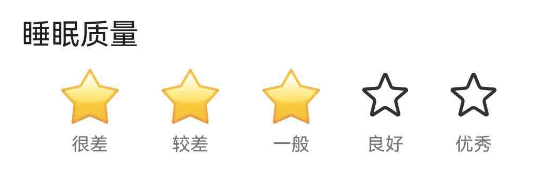
本文将详细讲解如何用 ForEach 和状态管理实现这个经典的交互组件。
二、完整代码实现
@Component
export struct SleepRecordDialog {
@State sleepQuality: number = 3; // 默认评分 3 分
getQualityText(quality: number): string {
const texts: string[] = ['', '很差', '较差', '一般', '良好', '优秀'];
return texts[quality] || '';
}
build() {
Column() {
Text('睡眠质量')
.fontSize(16)
.fontColor($r('app.color.text_primary'))
.alignSelf(ItemAlign.Start)
// 星级评分
Row() {
ForEach([1, 2, 3, 4, 5], (quality: number) => {
Column() {
Text(quality <= this.sleepQuality ? '⭐' : '☆')
.fontSize(32)
Text(this.getQualityText(quality))
.fontSize(12)
.fontColor($r('app.color.text_secondary'))
.margin({ top: 4 })
}
.onClick(() => {
this.sleepQuality = quality;
})
})
}
.width('100%')
.justifyContent(FlexAlign.SpaceEvenly)
.margin({ top: 8 })
}
}
}
三、ForEach 渲染星星
3.1 ForEach 基本用法
Row() {
ForEach(
[1, 2, 3, 4, 5], // 数据源:1-5 的数组
(quality: number) => { // 渲染函数
Column() {
Text(quality <= this.sleepQuality ? '⭐' : '☆')
.fontSize(32)
Text(this.getQualityText(quality))
.fontSize(12)
}
.onClick(() => {
this.sleepQuality = quality;
})
}
)
}
3.2 为什么用 ForEach?
使用 ForEach 的优势:
- 代码简洁,避免重复编写 5 次相同的组件
- 数据驱动,易于维护和扩展
- 可以轻松修改星星数量(比如改成 10 星制)
对比手动编写:
// ❌ 手动编写:代码冗长
Column() {
Text(1 <= this.sleepQuality ? '⭐' : '☆')
}.onClick(() => { this.sleepQuality = 1; })
Column() {
Text(2 <= this.sleepQuality ? '⭐' : '☆')
}.onClick(() => { this.sleepQuality = 2; })
// … 重复 5 次
// ✅ ForEach:简洁优雅
ForEach([1, 2, 3, 4, 5], (quality: number) => {
Column() {
Text(quality <= this.sleepQuality ? '⭐' : '☆')
}.onClick(() => { this.sleepQuality = quality; })
})
四、点击切换评分
4.1 状态定义
@State sleepQuality: number = 3; // 当前评分,默认 3 分
4.2 点击事件处理
Column() {
Text(quality <= this.sleepQuality ? '⭐' : '☆')
.fontSize(32)
Text(this.getQualityText(quality))
.fontSize(12)
}
.onClick(() => {
this.sleepQuality = quality; // 更新评分
})
点击任意星星,将评分设置为对应的数值。
4.3 交互流程
用户点击第 3 颗星
↓
触发 onClick 回调
↓
设置 sleepQuality = 3
↓
@State 变量更新
↓
UI 自动重新渲染
↓
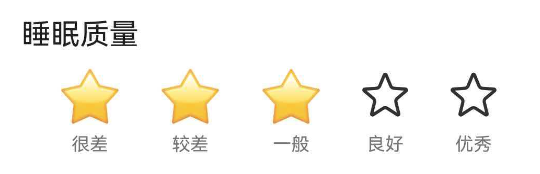
前 3 颗星显示实心 ⭐
后 2 颗星显示空心 ☆
五、实心/空心星星切换
5.1 核心逻辑
使用三元运算符判断是否显示实心星星:
Text(quality <= this.sleepQuality ? '⭐' : '☆')
判断逻辑:
- 如果当前星星的序号 ≤ 评分值,显示实心星 ⭐
- 否则显示空心星 ☆
5.2 示例说明
假设 sleepQuality = 3:
| 1 | 1 <= 3 | true | ⭐ |
| 2 | 2 <= 3 | true | ⭐ |
| 3 | 3 <= 3 | true | ⭐ |
| 4 | 4 <= 3 | false | ☆ |
| 5 | 5 <= 3 | false | ☆ |
最终显示:⭐⭐⭐☆☆
5.3 视觉效果
评分 1:⭐☆☆☆☆
评分 2:⭐⭐☆☆☆
评分 3:⭐⭐⭐☆☆
评分 4:⭐⭐⭐⭐☆
评分 5:⭐⭐⭐⭐⭐
六、评分文字描述
6.1 文字映射函数
getQualityText(quality: number): string {
const texts: string[] = ['', '很差', '较差', '一般', '良好', '优秀'];
return texts[quality] || '';
}
使用数组索引映射评分和文字:
- 索引 0:空字符串(占位)
- 索引 1:‘很差’
- 索引 2:‘较差’
- 索引 3:‘一般’
- 索引 4:‘良好’
- 索引 5:‘优秀’
6.2 显示文字描述
Column() {
Text(quality <= this.sleepQuality ? '⭐' : '☆')
.fontSize(32)
Text(this.getQualityText(quality))
.fontSize(12)
.fontColor($r('app.color.text_secondary'))
.margin({ top: 4 })
}
每颗星星下方显示对应的文字描述。
七、布局与样式
7.1 整体布局
Row() {
ForEach([1, 2, 3, 4, 5], (quality: number) => {
Column() {
// 星星和文字
}
})
}
.width('100%')
.justifyContent(FlexAlign.SpaceEvenly) // 均匀分布
使用 FlexAlign.SpaceEvenly 让星星均匀分布在整行。
7.2 单个星星布局
Column() {
Text(quality <= this.sleepQuality ? '⭐' : '☆')
.fontSize(32)
Text(this.getQualityText(quality))
.fontSize(12)
.fontColor($r('app.color.text_secondary'))
.margin({ top: 4 })
}
垂直排列:星星在上,文字在下。
八、总结
本文通过睡眠质量评分案例,详细讲解了星级评分组件的实现:
星级评分是最经典的交互组件之一,掌握这个案例后,你可以轻松实现商品评价、用户反馈、满意度调查等各种评分场景。