文章目录
-
- 一、React Navigation 概述
-
- 1.1 什么是 React Navigation?
- 1.2 为什么选择 React Navigation?
- 二、核心导航器类型详解
-
- 2.1 堆栈导航器(Stack Navigator)
-
- 2.1.1 高级堆栈导航特性
- 2.2 标签导航器(Tab Navigator)
- 2.3 抽屉导航器(Drawer Navigator)
- 2.4 其他导航器类型
- 三、导航器类型对比与选择指南
-
- 3.1 导航器类型对比表
- 3.2 导航器选择决策树
- 四、高级特性与实战技巧
-
- 4.1 导航状态管理与 Redux 集成
- 4.2 动态导航配置
- 4.3 自定义转场动画与手势
- 4.4 导航性能优化
- 五、实战项目:电商应用导航架构
- 六、最佳实践总结
-
- 6.1 项目结构建议
- 6.2 性能优化清单
- 6.3 调试技巧
- 七、总结
一、React Navigation 概述
1.1 什么是 React Navigation?
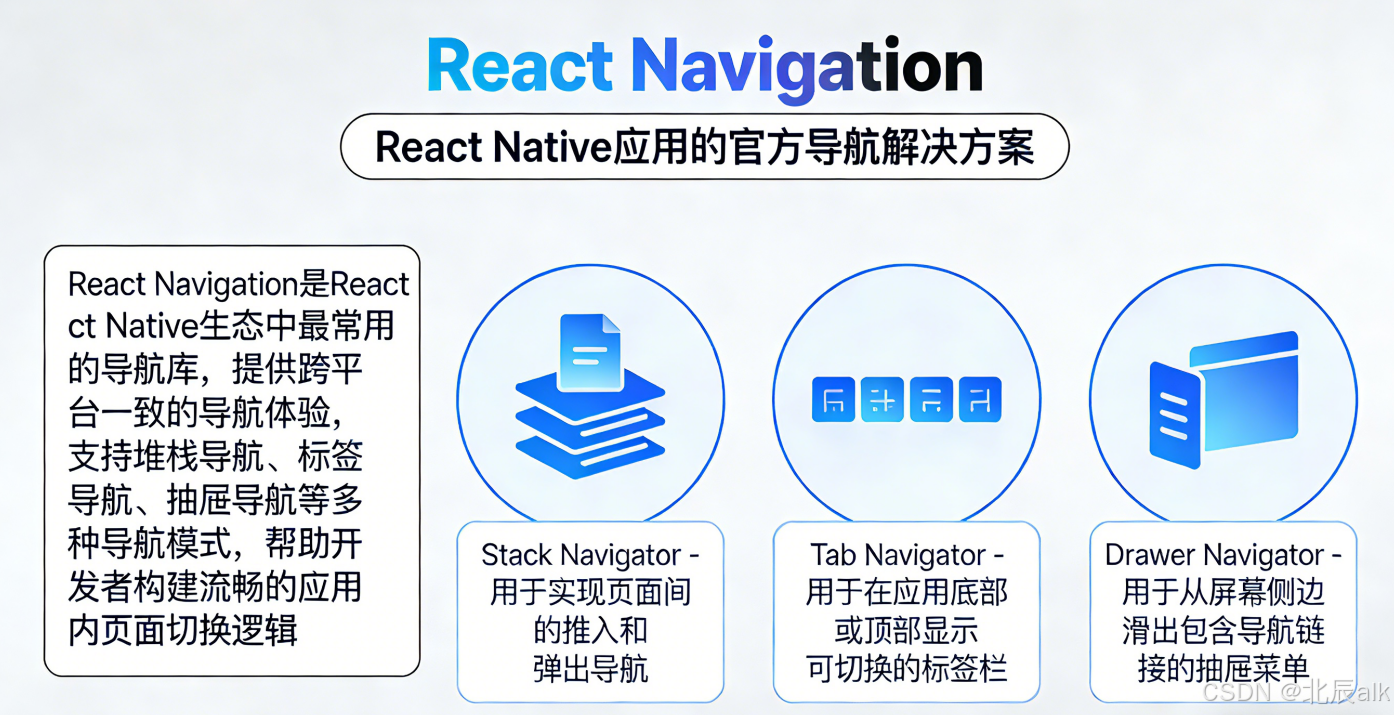
React Navigation 是 React Native 社区最受欢迎、最成熟的导航解决方案。它提供了完全用 JavaScript 编写的导航库,让你能够构建原生体验的导航结构。
// React Navigation 核心特点
const reactNavigationFeatures = {
// 1. 跨平台一致性
platformSupport: {
ios: '✅ 完全支持',
android: '✅ 完全支持',
web: '✅ 实验性支持',
windows: '✅ 支持'
},
// 2. 核心优势
advantages: [
'完全用JavaScript编写,易于调试',
'灵活的路由配置系统',
'丰富的导航器类型',
'强大的动画和过渡效果',
'活跃的社区和维护',
'与Redux等状态管理库良好集成'
],
// 3. 架构设计
architecture: {
navigationState: '基于堆栈的状态管理',
navigatorComponents: '可组合的导航组件',
actions: '导航动作分发系统',
screenComponents: '屏幕组件管理'
}
};
1.2 为什么选择 React Navigation?
// 与其他导航库对比
const navigationLibraryComparison = {
'React Navigation': {
type: 'JavaScript实现',
setup: '简单快捷',
performance: '优秀(经过优化)',
community: '最活跃',
features: '最丰富',
learningCurve: '中等'
},
'React Native Navigation (Wix)': {
type: '原生桥接',
setup: '复杂',
performance: '卓越(原生)',
community: '活跃',
features: '丰富',
learningCurve: '陡峭'
},
'React Native Router Flux': {
type: 'JavaScript实现',
setup: '简单',
performance: '良好',
community: '维护较少',
features: '基础',
learningCurve: '简单'
}
};
// React Navigation 适用场景
const useCases = [
'需要快速原型开发的项目',
'跨平台应用(iOS、Android、Web)',
'需要复杂导航结构的应用',
'需要与Redux等状态管理集成的项目',
'团队已有React Navigation经验的项目'
];
二、核心导航器类型详解
2.1 堆栈导航器(Stack Navigator)
堆栈导航器提供了一种屏幕之间的过渡方式,每个新屏幕都放置在堆栈的顶部。
import { createStackNavigator } from '@react-navigation/stack';
import { NavigationContainer } from '@react-navigation/native';
// 1. 创建堆栈导航器
const Stack = createStackNavigator();
// 2. 定义屏幕组件
const HomeScreen = ({ navigation }) => (
<View style={styles.container}>
<Text>Home Screen</Text>
<Button
title="Go to Details"
onPress={() => navigation.navigate('Details')}
/>
<Button
title="Go to Profile"
onPress={() => navigation.navigate('Profile')}
/>
</View>
);
const DetailsScreen = ({ navigation, route }) => (
<View style={styles.container}>
<Text>Details Screen</Text>
<Text>ID: {route.params?.itemId || 'N/A'}</Text>
<Button
title="Go back"
onPress={() => navigation.goBack()}
/>
<Button
title="Go to Home"
onPress={() => navigation.navigate('Home')}
/>
<Button
title="Replace with Profile"
onPress={() =>
navigation.replace('Profile', { userId: '123' })
}
/>
</View>
);
// 3. 完整堆栈导航器配置
function App() {
return (
<NavigationContainer>
<Stack.Navigator
// 全局屏幕选项
screenOptions={{
headerStyle: {
backgroundColor: '#6200ee',
},
headerTintColor: '#fff',
headerTitleStyle: {
fontWeight: 'bold',
},
// 动画配置
transitionSpec: {
open: {
animation: 'timing',
config: {
duration: 500,
easing: Easing.bezier(0.2833, 0.99, 0.31833, 0.99),
},
},
close: {
animation: 'timing',
config: {
duration: 500,
easing: Easing.bezier(0.2833, 0.99, 0.31833, 0.99),
},
},
},
cardStyleInterpolator: ({ current, next, layouts }) => ({
cardStyle: {
transform: [
{
translateX: current.progress.interpolate({
inputRange: [0, 1],
outputRange: [layouts.screen.width, 0],
}),
},
{
scale: next
? next.progress.interpolate({
inputRange: [0, 1],
outputRange: [1, 0.9],
})
: 1,
},
],
},
overlayStyle: {
opacity: current.progress.interpolate({
inputRange: [0, 1],
outputRange: [0, 0.5],
}),
},
}),
}}
// 初始路由
initialRouteName="Home"
// 屏幕模式
mode="card" // 或 "modal"
// 头部模式
headerMode="float" // 或 "screen"、"none"
>
<Stack.Screen
name="Home"
component={HomeScreen}
options={{
title: '首页',
// 自定义头部
headerRight: () => (
<Button
onPress={() => alert('This is a button!')}
title="Info"
color="#fff"
/>
),
}}
/>
<Stack.Screen
name="Details"
component={DetailsScreen}
options={({ route }) => ({
title: `详情 ${route.params?.itemId || ''}`,
// 动态选项
headerStyle: {
backgroundColor: route.params?.itemId ? '#f4511e' : '#6200ee',
},
})}
/>
<Stack.Screen
name="Profile"
component={ProfileScreen}
options={{
// 模态窗口样式
presentation: 'modal',
headerShown: false,
}}
/>
</Stack.Navigator>
</NavigationContainer>
);
}
2.1.1 高级堆栈导航特性
// 深度链接配置
const linking = {
prefixes: ['myapp://', 'https://myapp.com'],
config: {
screens: {
Home: 'home',
Details: {
path: 'details/:id',
parse: {
id: (id) => parseInt(id, 10),
},
},
Profile: 'user/:id/profile',
Settings: {
screens: {
General: 'settings/general',
Notifications: 'settings/notifications',
},
},
},
},
};
// 导航状态持久化
import AsyncStorage from '@react-native-async-storage/async-storage';
const persistenceKey = 'navigation-state';
const persistenceNavigationState = async (state) => {
try {
await AsyncStorage.setItem(persistenceKey, JSON.stringify(state));
} catch (err) {
console.error('Failed to save navigation state', err);
}
};
// 导航事件监听
const onStateChange = (state) => {
// 保存状态
persistenceNavigationState(state);
// 获取当前路由
const currentRoute = getActiveRouteName(state);
console.log('Current route:', currentRoute);
// 发送分析事件
Analytics.trackScreenView(currentRoute);
};
// 获取活动路由名的工具函数
function getActiveRouteName(state) {
const route = state.routes[state.index];
if (route.state) {
// 递归获取嵌套路由
return getActiveRouteName(route.state);
}
return route.name;
}
// 在导航容器中使用
<NavigationContainer
linking={linking}
onStateChange={onStateChange}
fallback={<SplashScreen />}
>
{/* … */}
</NavigationContainer>
2.2 标签导航器(Tab Navigator)
标签导航器在屏幕底部或顶部显示一个标签栏,让用户在不同屏幕之间切换。
import { createBottomTabNavigator } from '@react-navigation/bottom-tabs';
import { createMaterialTopTabNavigator } from '@react-navigation/material-top-tabs';
import Ionicons from 'react-native-vector-icons/Ionicons';
// 1. 底部标签导航器
const BottomTab = createBottomTabNavigator();
// 2. 顶部标签导航器(Material Design风格)
const TopTab = createMaterialTopTabNavigator();
// 3. 屏幕组件
const HomeScreen = () => <View><Text>Home</Text></View>;
const SettingsScreen = () => <View><Text>Settings</Text></View>;
const ProfileScreen = () => <View><Text>Profile</Text></View>;
// 4. 底部标签导航器实现
function BottomTabNavigator() {
return (
<BottomTab.Navigator
initialRouteName="Home"
screenOptions={({ route }) => ({
tabBarIcon: ({ focused, color, size }) => {
let iconName;
if (route.name === 'Home') {
iconName = focused ? 'home' : 'home-outline';
} else if (route.name === 'Settings') {
iconName = focused ? 'settings' : 'settings-outline';
} else if (route.name === 'Profile') {
iconName = focused ? 'person' : 'person-outline';
}
return <Ionicons name={iconName} size={size} color={color} />;
},
tabBarActiveTintColor: '#6200ee',
tabBarInactiveTintColor: 'gray',
tabBarStyle: {
backgroundColor: '#fff',
borderTopWidth: 1,
borderTopColor: '#e0e0e0',
paddingBottom: 5,
paddingTop: 5,
height: 60,
},
tabBarLabelStyle: {
fontSize: 12,
fontWeight: '500',
},
tabBarBadgeStyle: {
backgroundColor: '#ff3b30',
color: '#fff',
fontSize: 10,
},
// 隐藏特定标签
// tabBarButton: route.name === 'HiddenTab' ? () => null : undefined,
})}
>
<BottomTab.Screen
name="Home"
component={HomeScreen}
options={{
tabBarLabel: '首页',
tabBarBadge: 3, // 角标
}}
/>
<BottomTab.Screen
name="Settings"
component={SettingsScreen}
options={{
tabBarLabel: '设置',
// 自定义标签组件
tabBarLabel: ({ focused, color }) => (
<Text style={{ color, fontSize: 12, fontWeight: focused ? 'bold' : 'normal' }}>
设置
</Text>
),
}}
/>
<BottomTab.Screen
name="Profile"
component={ProfileScreen}
options={{
tabBarLabel: '我的',
tabBarIcon: ({ color, size }) => (
<View style={{
width: size + 4,
height: size + 4,
borderRadius: (size + 4) / 2,
borderWidth: 2,
borderColor: color,
justifyContent: 'center',
alignItems: 'center',
}}>
<Ionicons name="person" size={size – 4} color={color} />
</View>
),
}}
/>
</BottomTab.Navigator>
);
}
// 5. 顶部标签导航器实现
function TopTabNavigator() {
return (
<TopTab.Navigator
initialRouteName="Chats"
screenOptions={{
tabBarActiveTintColor: '#007AFF',
tabBarInactiveTintColor: '#8E8E93',
tabBarStyle: {
backgroundColor: '#fff',
elevation: 0,
shadowOpacity: 0,
},
tabBarIndicatorStyle: {
backgroundColor: '#007AFF',
height: 3,
},
tabBarLabelStyle: {
fontSize: 14,
fontWeight: '600',
textTransform: 'none',
},
tabBarItemStyle: {
width: 'auto',
minWidth: 80,
},
tabBarScrollEnabled: true,
tabBarGap: 20,
}}
>
<TopTab.Screen
name="Chats"
component={ChatsScreen}
options={{
tabBarLabel: '聊天',
tabBarBadge: () => (
<View style={{
backgroundColor: '#FF3B30',
borderRadius: 10,
minWidth: 20,
height: 20,
justifyContent: 'center',
alignItems: 'center',
marginLeft: 5,
}}>
<Text style={{ color: '#fff', fontSize: 12, fontWeight: 'bold' }}>5</Text>
</View>
),
}}
/>
<TopTab.Screen name="Status" component={StatusScreen} />
<TopTab.Screen name="Calls" component={CallsScreen} />
<TopTab.Screen name="Groups" component={GroupsScreen} />
<TopTab.Screen name="Channels" component={ChannelsScreen} />
</TopTab.Navigator>
);
}
// 6. 嵌套标签导航器(标签页内包含堆栈导航)
function ComplexTabNavigator() {
return (
<BottomTab.Navigator>
<BottomTab.Screen
name="HomeStack"
options={{ title: '首页' }}
>
{() => (
<Stack.Navigator>
<Stack.Screen name="HomeMain" component={HomeScreen} />
<Stack.Screen name="HomeDetails" component={DetailsScreen} />
</Stack.Navigator>
)}
</BottomTab.Screen>
<BottomTab.Screen
name="DiscoverStack"
options={{ title: '发现' }}
>
{() => (
<Stack.Navigator>
<Stack.Screen name="DiscoverMain" component={DiscoverScreen} />
<Stack.Screen name="DiscoverDetails" component={DetailsScreen} />
</Stack.Navigator>
)}
</BottomTab.Screen>
</BottomTab.Navigator>
);
}
2.3 抽屉导航器(Drawer Navigator)
抽屉导航器从屏幕边缘滑出,提供访问应用不同部分的导航菜单。
import { createDrawerNavigator } from '@react-navigation/drawer';
import { DrawerContentScrollView, DrawerItemList, DrawerItem } from '@react-navigation/drawer';
const Drawer = createDrawerNavigator();
// 1. 自定义抽屉内容
function CustomDrawerContent(props) {
return (
<DrawerContentScrollView
{…props}
contentContainerStyle={{
flex: 1,
justifyContent: 'space-between',
}}
>
<View>
{/* 自定义头部 */}
<View style={{
padding: 20,
backgroundColor: '#6200ee',
alignItems: 'center',
}}>
<Image
source={{ uri: 'https://example.com/avatar.jpg' }}
style={{
width: 80,
height: 80,
borderRadius: 40,
marginBottom: 10,
}}
/>
<Text style={{ color: '#fff', fontSize: 18, fontWeight: 'bold' }}>
John Doe
</Text>
<Text style={{ color: 'rgba(255,255,255,0.7)', fontSize: 14 }}>
john@example.com
</Text>
</View>
{/* 默认抽屉项 */}
<DrawerItemList {…props} />
{/* 自定义抽屉项 */}
<DrawerItem
label="帮助与反馈"
icon={({ color, size }) => (
<Ionicons name="help-circle-outline" color={color} size={size} />
)}
onPress={() => Linking.openURL('https://example.com/help')}
/>
</View>
{/* 底部区域 */}
<View style={{ padding: 20, borderTopWidth: 1, borderTopColor: '#ccc' }}>
<DrawerItem
label="退出登录"
icon={({ color, size }) => (
<Ionicons name="log-out-outline" color={color} size={size} />
)}
onPress={() => {
// 处理退出登录
props.navigation.closeDrawer();
Alert.alert('确认', '确定要退出登录吗?', [
{ text: '取消', style: 'cancel' },
{ text: '确定', onPress: () => console.log('退出登录') }
]);
}}
/>
</View>
</DrawerContentScrollView>
);
}
// 2. 抽屉导航器实现
function DrawerNavigator() {
return (
<Drawer.Navigator
initialRouteName="Home"
drawerContent={(props) => <CustomDrawerContent {…props} />}
screenOptions={{
drawerType: 'front', // 'front', 'back', 'slide', 'permanent'
drawerStyle: {
backgroundColor: '#fff',
width: 280,
},
drawerActiveTintColor: '#6200ee',
drawerInactiveTintColor: '#666',
drawerActiveBackgroundColor: '#f0e6ff',
drawerLabelStyle: {
fontSize: 16,
fontWeight: '500',
marginLeft: –15,
},
drawerItemStyle: {
borderRadius: 8,
marginHorizontal: 8,
marginVertical: 2,
},
overlayColor: 'rgba(0,0,0,0.5)',
swipeEnabled: true,
swipeEdgeWidth: 50,
gestureHandlerProps: {
minVelocityX: 0.1,
},
// 隐藏特定屏幕的抽屉
// drawerContentOptions: {
// activeTintColor: '#e91e63',
// itemsContainerStyle: {
// marginVertical: 0,
// },
// iconContainerStyle: {
// opacity: 1
// }
// },
}}
>
<Drawer.Screen
name="Home"
component={HomeScreen}
options={{
title: '首页',
drawerIcon: ({ color, size }) => (
<Ionicons name="home-outline" color={color} size={size} />
),
// 在抽屉中隐藏某些项
// drawerItemStyle: { display: 'none' }
}}
/>
<Drawer.Screen
name="Profile"
component={ProfileScreen}
options={{
title: '个人资料',
drawerIcon: ({ color, size }) => (
<Ionicons name="person-outline" color={color} size={size} />
),
}}
/>
<Drawer.Screen
name="Settings"
component={SettingsScreen}
options={{
title: '设置',
drawerIcon: ({ color, size }) => (
<Ionicons name="settings-outline" color={color} size={size} />
),
}}
/>
<Drawer.Screen
name="Notifications"
component={NotificationsScreen}
options={{
title: '通知',
drawerIcon: ({ color, size }) => (
<Ionicons name="notifications-outline" color={color} size={size} />
),
drawerBadge: () => (
<View style={{
backgroundColor: '#ff3b30',
borderRadius: 10,
minWidth: 20,
height: 20,
justifyContent: 'center',
alignItems: 'center',
marginLeft: 10,
}}>
<Text style={{ color: '#fff', fontSize: 12, fontWeight: 'bold' }}>3</Text>
</View>
),
}}
/>
</Drawer.Navigator>
);
}
// 3. 在屏幕中控制抽屉
function HomeScreen({ navigation }) {
return (
<View style={{ flex: 1, alignItems: 'center', justifyContent: 'center' }}>
<Button
onPress={() => navigation.openDrawer()}
title="打开抽屉"
/>
<Button
onPress={() => navigation.toggleDrawer()}
title="切换抽屉"
/>
<Button
onPress={() => navigation.closeDrawer()}
title="关闭抽屉"
/>
<Button
onPress={() => navigation.jumpTo('Profile')}
title="跳转到资料页"
/>
</View>
);
}
2.4 其他导航器类型
import { createNativeStackNavigator } from '@react-navigation/native-stack';
import { createMaterialBottomTabNavigator } from '@react-navigation/material-bottom-tabs';
// 1. 原生堆栈导航器(使用原生API,性能更好)
const NativeStack = createNativeStackNavigator();
function NativeStackNavigator() {
return (
<NativeStack.Navigator
screenOptions={{
headerShown: true,
animation: 'slide_from_right', // 原生动画
contentStyle: {
backgroundColor: '#fff',
},
}}
>
<NativeStack.Screen
name="Home"
component={HomeScreen}
options={{
title: '首页',
headerLargeTitle: true, // iOS大标题
headerTransparent: true, // 透明头部
headerBlurEffect: 'regular', // iOS毛玻璃效果
}}
/>
<NativeStack.Screen
name="Details"
component={DetailsScreen}
options={{
presentation: 'modal', // 模态展示
animation: 'slide_from_bottom',
gestureEnabled: true,
gestureDirection: 'vertical',
}}
/>
</NativeStack.Navigator>
);
}
// 2. Material Design底部导航器
const MaterialBottomTab = createMaterialBottomTabNavigator();
function MaterialBottomTabNavigator() {
return (
<MaterialBottomTab.Navigator
initialRouteName="Home"
activeColor="#fff"
inactiveColor="#b0b0b0"
barStyle={{
backgroundColor: '#6200ee',
paddingBottom: 0,
}}
shifting={true} // 切换时图标和标签动画
labeled={true} // 是否显示标签
sceneAnimationEnabled={true} // 场景切换动画
>
<MaterialBottomTab.Screen
name="Home"
component={HomeScreen}
options={{
tabBarLabel: '首页',
tabBarIcon: ({ color }) => (
<Ionicons name="home" color={color} size={24} />
),
tabBarBadge: 3,
}}
/>
<MaterialBottomTab.Screen
name="Settings"
component={SettingsScreen}
options={{
tabBarLabel: '设置',
tabBarIcon: ({ color }) => (
<Ionicons name="settings" color={color} size={24} />
),
}}
/>
</MaterialBottomTab.Navigator>
);
}
// 3. 组合导航器示例
function CombinedNavigator() {
return (
<NavigationContainer>
<Drawer.Navigator>
<Drawer.Screen name="MainTabs" options={{ title: '主页' }}>
{() => (
<BottomTab.Navigator>
<BottomTab.Screen name="HomeStack" options={{ title: '首页' }}>
{() => (
<Stack.Navigator>
<Stack.Screen name="Home" component={HomeScreen} />
<Stack.Screen name="Details" component={DetailsScreen} />
</Stack.Navigator>
)}
</BottomTab.Screen>
<BottomTab.Screen name="Messages" options={{ title: '消息' }}>
{() => (
<Stack.Navigator>
<Stack.Screen name="MessagesList" component={MessagesScreen} />
<Stack.Screen name="Chat" component={ChatScreen} />
</Stack.Navigator>
)}
</BottomTab.Screen>
</BottomTab.Navigator>
)}
</Drawer.Screen>
<Drawer.Screen name="Profile" component={ProfileScreen} />
<Drawer.Screen name="Settings" component={SettingsScreen} />
</Drawer.Navigator>
</NavigationContainer>
);
}
三、导航器类型对比与选择指南
3.1 导航器类型对比表
const NAVIGATOR_COMPARISON = {
'Stack Navigator': {
type: 'createStackNavigator / createNativeStackNavigator',
useCase: '层级导航,如详情页、表单流程',
animation: '卡片滑动、模态',
header: '每个屏幕可自定义',
performance: '良好(原生堆栈更好)',
complexity: '简单',
bestFor: ['详情页面', '表单流程', '阅读应用', '设置流程']
},
'Tab Navigator': {
type: 'createBottomTabNavigator / createMaterialBottomTabNavigator',
useCase: '平级导航,主要功能模块',
animation: '淡入淡出或滑动',
header: '全局或每个标签页独立',
performance: '优秀',
complexity: '中等',
bestFor: ['社交媒体', '电商应用', '音乐播放器', '新闻应用']
},
'Drawer Navigator': {
type: 'createDrawerNavigator',
useCase: '应用菜单,大量导航选项',
animation: '从边缘滑出',
header: '可隐藏',
performance: '良好',
complexity: '中等',
bestFor: ['企业应用', '工具类应用', '设置丰富的应用', '内容管理']
},
'Material Top Tabs': {
type: 'createMaterialTopTabNavigator',
useCase: '同一内容的不同分类',
animation: '水平滑动',
header: '通常与顶部标签结合',
performance: '优秀',
complexity: '简单',
bestFor: ['聊天分类', '新闻分类', '产品分类', '社交媒体动态']
}
};
3.2 导航器选择决策树
// 导航器选择算法
function chooseNavigator(appRequirements) {
const {
navigationStructure,
userExperience,
platform,
complexity
} = appRequirements;
// 决策逻辑
if (navigationStructure === 'hierarchical') {
if (platform === 'ios' && performanceCritical) {
return 'Native Stack Navigator';
} else {
return 'Stack Navigator';
}
}
if (navigationStructure === 'flat') {
if (numberOfMainSections <= 5) {
return 'Bottom Tab Navigator';
} else {
return 'Drawer Navigator';
}
}
if (navigationStructure === 'categorized') {
return 'Material Top Tabs + Stack Navigator';
}
if (navigationStructure === 'mixed') {
return 'Combination of multiple navigators';
}
return 'Stack Navigator'; // 默认选择
}
// 实际应用场景示例
const APP_SCENARIOS = {
'社交应用 (如微信)': {
primary: 'Bottom Tab Navigator (4-5个主标签)',
secondary: 'Stack Navigator (聊天详情、朋友圈)',
tertiary: 'Drawer Navigator (设置、个人中心)',
special: 'Material Top Tabs (聊天、通讯录、发现分类)'
},
'电商应用 (如淘宝)': {
primary: 'Bottom Tab Navigator (首页、分类、购物车、我的)',
secondary: 'Stack Navigator (商品详情、订单流程)',
tertiary: 'Drawer Navigator (设置、客服、我的资产)',
special: '嵌套导航器 (首页内包含轮播、分类网格等)'
},
'新闻阅读应用': {
primary: 'Material Top Tabs (新闻分类)',
secondary: 'Stack Navigator (文章详情、评论)',
tertiary: 'Drawer Navigator (设置、收藏、历史)',
special: '底部标签作为辅助导航'
},
'企业办公应用': {
primary: 'Drawer Navigator (功能菜单较多)',
secondary: 'Stack Navigator (审批流程、报告详情)',
tertiary: 'Bottom Tab Navigator (常用功能快捷入口)',
special: '复杂的嵌套导航结构'
}
};
四、高级特性与实战技巧
4.1 导航状态管理与 Redux 集成
import { connect } from 'react-redux';
import { NavigationActions } from '@react-navigation/native';
import { createReduxContainer, createReactNavigationReduxMiddleware } from 'react-navigation-redux-helpers';
// 1. 创建导航中间件
const middleware = createReactNavigationReduxMiddleware(
state => state.nav,
'root'
);
// 2. 创建带有Redux集成的导航器
const AppNavigator = createStackNavigator({
Home: { screen: HomeScreen },
Details: { screen: DetailsScreen },
});
// 3. 包装导航器
const AppWithNavigationState = createReduxContainer(AppNavigator, 'root');
// 4. 连接Redux store
const mapStateToProps = (state) => ({
state: state.nav,
});
const ReduxNavigator = connect(mapStateToProps)(AppWithNavigationState);
// 5. 在Redux中处理导航动作
const navigationReducer = (state, action) => {
let nextState;
switch (action.type) {
case 'Navigation/NAVIGATE':
// 自定义导航逻辑
if (action.routeName === 'Login' && !state.user.isLoggedIn) {
// 重定向到登录页
nextState = AppNavigator.router.getStateForAction(
NavigationActions.navigate({ routeName: 'Login' }),
state
);
} else {
// 默认导航
nextState = AppNavigator.router.getStateForAction(action, state);
}
break;
case 'USER_LOGOUT':
// 用户退出时重置导航状态
nextState = AppNavigator.router.getStateForAction(
NavigationActions.navigate({ routeName: 'Login' }),
undefined
);
break;
default:
nextState = AppNavigator.router.getStateForAction(action, state);
break;
}
return nextState || state;
};
// 6. 在组件中派发导航动作
const ConnectedComponent = connect(
null,
(dispatch) => ({
navigateToDetails: (itemId) => dispatch(
NavigationActions.navigate({
routeName: 'Details',
params: { itemId },
})
),
goBack: () => dispatch(NavigationActions.back()),
resetToHome: () => dispatch(
NavigationActions.reset({
index: 0,
actions: [
NavigationActions.navigate({ routeName: 'Home' }),
],
})
),
})
)(MyComponent);
4.2 动态导航配置
// 1. 基于条件的动态路由
function DynamicNavigator({ isLoggedIn, userRole }) {
return (
<NavigationContainer>
<Stack.Navigator>
{isLoggedIn ? (
// 已登录用户的路由
<>
<Stack.Screen name="Home" component={HomeScreen} />
<Stack.Screen name="Profile" component={ProfileScreen} />
{userRole === 'admin' && (
<Stack.Screen name="Admin" component={AdminScreen} />
)}
{userRole === 'premium' && (
<Stack.Screen name="Premium" component={PremiumScreen} />
)}
</>
) : (
// 未登录用户的路由
<>
<Stack.Screen name="Login" component={LoginScreen} />
<Stack.Screen name="Register" component={RegisterScreen} />
<Stack.Screen name="ForgotPassword" component={ForgotPasswordScreen} />
</>
)}
</Stack.Navigator>
</NavigationContainer>
);
}
// 2. 动态屏幕选项
function DynamicOptionsNavigator() {
const [unreadCount, setUnreadCount] = useState(0);
useEffect(() => {
// 监听未读消息数变化
const unsubscribe = messageStore.subscribe((count) => {
setUnreadCount(count);
});
return unsubscribe;
}, []);
return (
<BottomTab.Navigator>
<BottomTab.Screen
name="Messages"
component={MessagesScreen}
options={{
tabBarLabel: '消息',
tabBarBadge: unreadCount > 0 ? unreadCount : undefined,
tabBarBadgeStyle: unreadCount > 99 ? {
fontSize: 10,
} : undefined,
}}
/>
</BottomTab.Navigator>
);
}
// 3. 懒加载屏幕组件
const LazyHomeScreen = React.lazy(() => import('./screens/HomeScreen'));
const LazyDetailsScreen = React.lazy(() => import('./screens/DetailsScreen'));
function LazyNavigator() {
return (
<NavigationContainer>
<Stack.Navigator>
<Stack.Screen name="Home">
{(props) => (
<React.Suspense fallback={<LoadingScreen />}>
<LazyHomeScreen {…props} />
</React.Suspense>
)}
</Stack.Screen>
<Stack.Screen name="Details">
{(props) => (
<React.Suspense fallback={<LoadingScreen />}>
<LazyDetailsScreen {…props} />
</React.Suspense>
)}
</Stack.Screen>
</Stack.Navigator>
</NavigationContainer>
);
}
4.3 自定义转场动画与手势
import { CardStyleInterpolators } from '@react-navigation/stack';
// 1. 自定义卡片样式插值器
const customCardStyleInterpolator = ({ current, next, layouts }) => {
return {
cardStyle: {
transform: [
{
translateY: current.progress.interpolate({
inputRange: [0, 1],
outputRange: [layouts.screen.height, 0],
}),
},
{
scale: next
? next.progress.interpolate({
inputRange: [0, 1],
outputRange: [1, 0.9],
})
: 1,
},
],
opacity: current.progress.interpolate({
inputRange: [0, 1],
outputRange: [0, 1],
}),
},
overlayStyle: {
opacity: current.progress.interpolate({
inputRange: [0, 1],
outputRange: [0, 0.5],
}),
},
};
};
// 2. 预定义动画配置
const ANIMATION_CONFIGS = {
'fade': {
cardStyleInterpolator: CardStyleInterpolators.forFadeFromBottomAndroid,
transitionSpec: {
open: {
animation: 'timing',
config: {
duration: 300,
},
},
close: {
animation: 'timing',
config: {
duration: 300,
},
},
},
},
'slideHorizontal': {
cardStyleInterpolator: CardStyleInterpolators.forHorizontalIOS,
transitionSpec: {
open: {
animation: 'spring',
config: {
stiffness: 1000,
damping: 500,
mass: 3,
overshootClamping: true,
restDisplacementThreshold: 0.01,
restSpeedThreshold: 0.01,
},
},
close: {
animation: 'spring',
config: {
stiffness: 1000,
damping: 500,
mass: 3,
overshootClamping: true,
restDisplacementThreshold: 0.01,
restSpeedThreshold: 0.01,
},
},
},
},
'modalSlide': {
cardStyleInterpolator: CardStyleInterpolators.forModalPresentationIOS,
gestureDirection: 'vertical',
gestureEnabled: true,
gestureResponseDistance: {
vertical: 500,
},
},
};
// 3. 使用自定义动画的导航器
function AnimatedNavigator() {
return (
<Stack.Navigator
screenOptions={{
…ANIMATION_CONFIGS.slideHorizontal,
headerShown: false,
cardOverlayEnabled: true,
cardShadowEnabled: true,
cardStyle: {
backgroundColor: '#fff',
},
}}
>
<Stack.Screen name="Home" component={HomeScreen} />
<Stack.Screen
name="Modal"
component={ModalScreen}
options={{
…ANIMATION_CONFIGS.modalSlide,
presentation: 'modal',
cardStyle: {
backgroundColor: 'transparent',
},
}}
/>
<Stack.Screen
name="FadeIn"
component={FadeInScreen}
options={{
…ANIMATION_CONFIGS.fade,
}}
/>
</Stack.Navigator>
);
}
4.4 导航性能优化
// 1. 屏幕组件优化
const OptimizedScreen = React.memo(({ navigation, route }) => {
// 使用useCallback避免每次渲染创建新函数
const handlePress = useCallback(() => {
navigation.navigate('Details', { id: route.params?.id });
}, [navigation, route.params?.id]);
// 使用useMemo缓存计算结果
const computedData = useMemo(() => {
return expensiveCalculation(route.params?.data);
}, [route.params?.data]);
return (
<View>
<Button title="Go to Details" onPress={handlePress} />
<Text>{computedData}</Text>
</View>
);
});
// 2. 避免不必要的重新渲染
const NavigationAwareComponent = ({ navigation }) => {
// 使用订阅模式监听导航状态变化
const [isFocused, setIsFocused] = useState(false);
useEffect(() => {
const unsubscribe = navigation.addListener('focus', () => {
setIsFocused(true);
});
const unsubscribeBlur = navigation.addListener('blur', () => {
setIsFocused(false);
});
return () => {
unsubscribe();
unsubscribeBlur();
};
}, [navigation]);
// 只在屏幕获取焦点时渲染内容
if (!isFocused) {
return <LoadingPlaceholder />;
}
return <ExpensiveComponent />;
};
// 3. 延迟加载标签页
function LazyTabNavigator() {
const [loadedTabs, setLoadedTabs] = useState({
Home: true,
Messages: false,
Profile: false,
});
const handleTabPress = useCallback((tabName) => {
setLoadedTabs(prev => ({
…prev,
[tabName]: true,
}));
}, []);
return (
<BottomTab.Navigator
screenOptions={({ route }) => ({
tabBarButton: (props) => (
<TouchableOpacity
{…props}
onPress={() => {
handleTabPress(route.name);
props.onPress();
}}
/>
),
})}
>
<BottomTab.Screen name="Home" component={HomeScreen} />
<BottomTab.Screen name="Messages">
{() => loadedTabs.Messages ? (
<MessagesScreen />
) : (
<PlaceholderScreen />
)}
</BottomTab.Screen>
<BottomTab.Screen name="Profile">
{() => loadedTabs.Profile ? (
<ProfileScreen />
) : (
<PlaceholderScreen />
)}
</BottomTab.Screen>
</BottomTab.Navigator>
);
}
五、实战项目:电商应用导航架构
// 完整的电商应用导航架构
import React from 'react';
import { NavigationContainer } from '@react-navigation/native';
import { createStackNavigator } from '@react-navigation/stack';
import { createBottomTabNavigator } from '@react-navigation/bottom-tabs';
import { createDrawerNavigator } from '@react-navigation/drawer';
import { createMaterialTopTabNavigator } from '@react-navigation/material-top-tabs';
import Ionicons from 'react-native-vector-icons/Ionicons';
// ========== 屏幕组件 ==========
// (实际项目中这些应该放在单独的文件中)
const HomeScreen = ({ navigation }) => {/* … */};
const ProductListScreen = ({ navigation, route }) => {/* … */};
const ProductDetailScreen = ({ navigation, route }) => {/* … */};
const CartScreen = ({ navigation }) => {/* … */};
const CheckoutScreen = ({ navigation, route }) => {/* … */};
const OrderScreen = ({ navigation }) => {/* … */};
const SearchScreen = ({ navigation }) => {/* … */};
const CategoryScreen = ({ navigation }) => {/* … */};
const ProfileScreen = ({ navigation }) => {/* … */};
const SettingsScreen = ({ navigation }) => {/* … */};
const LoginScreen = ({ navigation }) => {/* … */};
const RegisterScreen = ({ navigation }) => {/* … */};
// ========== 创建导航器 ==========
const Stack = createStackNavigator();
const BottomTab = createBottomTabNavigator();
const Drawer = createDrawerNavigator();
const TopTab = createMaterialTopTabNavigator();
// ========== 1. 首页堆栈导航器 ==========
function HomeStackNavigator() {
return (
<Stack.Navigator
screenOptions={{
headerStyle: {
backgroundColor: '#ff6b6b',
},
headerTintColor: '#fff',
}}
>
<Stack.Screen
name="HomeMain"
component={HomeScreen}
options={{
title: '首页',
headerRight: () => (
<TouchableOpacity
style={{ marginRight: 15 }}
onPress={() => navigation.navigate('Search')}
>
<Ionicons name="search" size={24} color="#fff" />
</TouchableOpacity>
),
}}
/>
<Stack.Screen
name="ProductList"
component={ProductListScreen}
options={({ route }) => ({
title: route.params?.categoryName || '商品列表',
})}
/>
<Stack.Screen
name="ProductDetail"
component={ProductDetailScreen}
options={{
title: '商品详情',
headerTransparent: true,
headerTintColor: '#000',
}}
/>
<Stack.Screen
name="Search"
component={SearchScreen}
options={{
presentation: 'modal',
headerShown: false,
}}
/>
</Stack.Navigator>
);
}
// ========== 2. 分类顶部标签导航器 ==========
function CategoryTopTabNavigator() {
return (
<TopTab.Navigator
screenOptions={{
tabBarActiveTintColor: '#ff6b6b',
tabBarInactiveTintColor: '#999',
tabBarIndicatorStyle: {
backgroundColor: '#ff6b6b',
height: 3,
},
tabBarStyle: {
backgroundColor: '#fff',
elevation: 0,
},
tabBarScrollEnabled: true,
}}
>
<TopTab.Screen
name="All"
component={CategoryScreen}
initialParams={{ category: 'all' }}
options={{ tabBarLabel: '全部' }}
/>
<TopTab.Screen
name="Electronics"
component={CategoryScreen}
initialParams={{ category: 'electronics' }}
options={{ tabBarLabel: '电子产品' }}
/>
<TopTab.Screen
name="Clothing"
component={CategoryScreen}
initialParams={{ category: 'clothing' }}
options={{ tabBarLabel: '服装服饰' }}
/>
<TopTab.Screen
name="Food"
component={CategoryScreen}
initialParams={{ category: 'food' }}
options={{ tabBarLabel: '食品饮料' }}
/>
<TopTab.Screen
name="Books"
component={CategoryScreen}
initialParams={{ category: 'books' }}
options={{ tabBarLabel: '图书音像' }}
/>
</TopTab.Navigator>
);
}
// ========== 3. 购物车堆栈导航器 ==========
function CartStackNavigator() {
return (
<Stack.Navigator>
<Stack.Screen
name="Cart"
component={CartScreen}
options={{
title: '购物车',
headerRight: () => (
<TouchableOpacity
style={{ marginRight: 15 }}
onPress={() => Alert.alert('清空购物车')}
>
<Text style={{ color: '#ff6b6b' }}>清空</Text>
</TouchableOpacity>
),
}}
/>
<Stack.Screen
name="Checkout"
component={CheckoutScreen}
options={{
title: '结算',
gestureEnabled: false, // 禁用返回手势
}}
/>
<Stack.Screen
name="OrderSuccess"
component={OrderSuccessScreen}
options={{
title: '订单成功',
headerLeft: () => null, // 隐藏返回按钮
}}
/>
</Stack.Navigator>
);
}
// ========== 4. 订单顶部标签导航器 ==========
function OrderTopTabNavigator() {
return (
<TopTab.Navigator>
<TopTab.Screen
name="AllOrders"
component={OrderScreen}
initialParams={{ status: 'all' }}
options={{ tabBarLabel: '全部订单' }}
/>
<TopTab.Screen
name="Pending"
component={OrderScreen}
initialParams={{ status: 'pending' }}
options={{ tabBarLabel: '待付款' }}
/>
<TopTab.Screen
name="Processing"
component={OrderScreen}
initialParams={{ status: 'processing' }}
options={{ tabBarLabel: '处理中' }}
/>
<TopTab.Screen
name="Completed"
component={OrderScreen}
initialParams={{ status: 'completed' }}
options={{ tabBarLabel: '已完成' }}
/>
</TopTab.Navigator>
);
}
// ========== 5. 底部标签导航器 ==========
function MainTabNavigator() {
const [cartCount, setCartCount] = useState(0);
useEffect(() => {
// 监听购物车数量变化
const unsubscribe = cartStore.subscribe((count) => {
setCartCount(count);
});
return unsubscribe;
}, []);
return (
<BottomTab.Navigator
screenOptions={({ route }) => ({
tabBarIcon: ({ focused, color, size }) => {
let iconName;
switch (route.name) {
case 'HomeTab':
iconName = focused ? 'home' : 'home-outline';
break;
case 'CategoryTab':
iconName = focused ? 'apps' : 'apps-outline';
break;
case 'CartTab':
iconName = focused ? 'cart' : 'cart-outline';
break;
case 'OrdersTab':
iconName = focused ? 'receipt' : 'receipt-outline';
break;
case 'ProfileTab':
iconName = focused ? 'person' : 'person-outline';
break;
}
return <Ionicons name={iconName} size={size} color={color} />;
},
tabBarActiveTintColor: '#ff6b6b',
tabBarInactiveTintColor: '#999',
tabBarStyle: {
backgroundColor: '#fff',
borderTopWidth: 1,
borderTopColor: '#f0f0f0',
height: 60,
paddingBottom: 8,
paddingTop: 8,
},
headerShown: false,
})}
>
<BottomTab.Screen
name="HomeTab"
component={HomeStackNavigator}
options={{
title: '首页',
}}
/>
<BottomTab.Screen
name="CategoryTab"
component={CategoryTopTabNavigator}
options={{
title: '分类',
}}
/>
<BottomTab.Screen
name="CartTab"
component={CartStackNavigator}
options={{
title: '购物车',
tabBarBadge: cartCount > 0 ? cartCount : undefined,
}}
/>
<BottomTab.Screen
name="OrdersTab"
component={OrderTopTabNavigator}
options={{
title: '订单',
}}
/>
<BottomTab.Screen
name="ProfileTab"
component={ProfileStackNavigator}
options={{
title: '我的',
}}
/>
</BottomTab.Navigator>
);
}
// ========== 6. 抽屉导航器 ==========
function AppDrawerNavigator() {
const [isLoggedIn, setIsLoggedIn] = useState(false);
return (
<Drawer.Navigator
drawerContent={(props) => (
<CustomDrawerContent
{…props}
isLoggedIn={isLoggedIn}
onLogin={() => setIsLoggedIn(true)}
onLogout={() => setIsLoggedIn(false)}
/>
)}
screenOptions={{
drawerType: 'slide',
drawerStyle: {
width: 300,
},
overlayColor: 'rgba(0,0,0,0.5)',
}}
>
<Drawer.Screen
name="Main"
component={MainTabNavigator}
options={{
title: '首页',
drawerIcon: ({ color, size }) => (
<Ionicons name="home-outline" color={color} size={size} />
),
}}
/>
{isLoggedIn ? (
// 已登录用户的菜单项
<>
<Drawer.Screen
name="MyWallet"
component={WalletScreen}
options={{
title: '我的钱包',
drawerIcon: ({ color, size }) => (
<Ionicons name="wallet-outline" color={color} size={size} />
),
}}
/>
<Drawer.Screen
name="MyCoupons"
component={CouponsScreen}
options={{
title: '我的优惠券',
drawerIcon: ({ color, size }) => (
<Ionicons name="pricetags-outline" color={color} size={size} />
),
}}
/>
<Drawer.Screen
name="AddressBook"
component={AddressScreen}
options={{
title: '地址管理',
drawerIcon: ({ color, size }) => (
<Ionicons name="location-outline" color={color} size={size} />
),
}}
/>
</>
) : (
// 未登录用户的菜单项
<Drawer.Screen
name="Login"
component={LoginStackNavigator}
options={{
title: '登录/注册',
drawerIcon: ({ color, size }) => (
<Ionicons name="log-in-outline" color={color} size={size} />
),
}}
/>
)}
{/* 所有用户都有的菜单项 */}
<Drawer.Screen
name="Settings"
component={SettingsScreen}
options={{
title: '设置',
drawerIcon: ({ color, size }) => (
<Ionicons name="settings-outline" color={color} size={size} />
),
}}
/>
<Drawer.Screen
name="CustomerService"
component={CustomerServiceScreen}
options={{
title: '客服中心',
drawerIcon: ({ color, size }) => (
<Ionicons name="chatbubbles-outline" color={color} size={size} />
),
}}
/>
<Drawer.Screen
name="About"
component={AboutScreen}
options={{
title: '关于我们',
drawerIcon: ({ color, size }) => (
<Ionicons name="information-circle-outline" color={color} size={size} />
),
}}
/>
</Drawer.Navigator>
);
}
// ========== 7. 应用入口 ==========
export default function ECommerceApp() {
// 配置深度链接
const linking = {
prefixes: ['myecommerce://', 'https://myecommerce.com'],
config: {
screens: {
Main: {
screens: {
HomeTab: {
screens: {
HomeMain: 'home',
ProductDetail: 'product/:id',
ProductList: 'category/:categoryId',
},
},
CartTab: 'cart',
ProfileTab: {
screens: {
ProfileMain: 'profile',
OrdersTab: {
screens: {
AllOrders: 'orders',
},
},
},
},
},
},
Login: 'login',
Register: 'register',
},
},
};
// 主题配置
const theme = {
…DefaultTheme,
colors: {
…DefaultTheme.colors,
primary: '#ff6b6b',
background: '#f8f9fa',
card: '#ffffff',
text: '#333333',
border: '#e0e0e0',
},
};
return (
<NavigationContainer
linking={linking}
theme={theme}
fallback={<SplashScreen />}
onStateChange={(state) => {
// 跟踪用户行为
Analytics.trackNavigation(state);
// 持久化导航状态
persistNavigationState(state);
}}
>
<AppDrawerNavigator />
</NavigationContainer>
);
}
六、最佳实践总结
6.1 项目结构建议
src/
├── navigation/
│ ├── index.js # 导航器入口
│ ├── AppNavigator.js # 主导航器配置
│ ├── StackNavigators/ # 各种堆栈导航器
│ │ ├── HomeStack.js
│ │ ├── AuthStack.js
│ │ └── ProfileStack.js
│ ├── TabNavigators/ # 标签导航器
│ │ ├── MainTabs.js
│ │ └── HomeTabs.js
│ ├── DrawerNavigator.js # 抽屉导航器
│ └── config/
│ ├── linking.js # 深度链接配置
│ └── theme.js # 导航主题配置
├── screens/ # 所有屏幕组件
│ ├── Home/
│ ├── Auth/
│ └── Profile/
└── components/ # 可复用组件
6.2 性能优化清单
const PERFORMANCE_CHECKLIST = [
'✅ 使用React.memo包装屏幕组件',
'✅ 避免在renderItem或屏幕选项中内联函数',
'✅ 使用useCallback和useMemo优化回调',
'✅ 对于复杂导航结构,考虑使用原生堆栈导航器',
'✅ 合理设置initialNumToRender和windowSize',
'✅ 使用getItemLayout提升固定高度列表性能',
'✅ 懒加载不常用的屏幕组件',
'✅ 监控导航状态变化,避免不必要的重新渲染',
'✅ 在开发环境使用Why Did You Render检测渲染问题',
'✅ 定期进行性能分析,使用React DevTools Profiler',
];
const COMMON_PITFALLS = [
'❌ 在导航选项中直接传递内联样式对象',
'❌ 在屏幕组件中执行阻塞主线程的操作',
'❌ 过度嵌套导航器(建议不超过3层)',
'❌ 忽略内存泄漏,未正确清理事件监听器',
'❌ 未处理导航器的卸载和重新挂载',
'❌ 在渲染过程中修改导航状态',
];
6.3 调试技巧
// 1. 导航状态调试
const NavigationDebugger = ({ navigation }) => {
const [routeHistory, setRouteHistory] = useState([]);
useEffect(() => {
const updateHistory = () => {
const state = navigation.dangerouslyGetState();
setRouteHistory(prev => […prev, {
routeNames: state.routeNames,
index: state.index,
timestamp: new Date().toISOString(),
}]);
};
const unsubscribe = navigation.addListener('state', updateHistory);
return unsubscribe;
}, [navigation]);
if (!__DEV__) return null;
return (
<View style={styles.debugContainer}>
<Text style={styles.debugTitle}>导航调试信息</Text>
{routeHistory.slice(–5).map((item, index) => (
<Text key={index} style={styles.debugText}>
{item.timestamp}: {item.routeNames[item.index]}
</Text>
))}
</View>
);
};
// 2. 使用Flipper调试
// 安装:react-native-flipper
// 配置后可在Flipper中查看导航状态
// 3. 自定义开发工具
if (__DEV__) {
// 添加全局导航助手
global.navigationHelper = {
navigateTo: (routeName, params) => {
// 开发环境快速导航
},
getCurrentRoute: () => {
// 获取当前路由
},
resetNavigation: () => {
// 重置导航状态
},
};
}
七、总结
React Navigation 是一个功能强大且灵活的导航解决方案,通过多种导航器的组合使用,可以构建出满足各种复杂需求的移动应用导航结构。关键要点:
通过掌握 React Navigation 的各种导航器类型和高级特性,你可以为 React Native 应用构建出既美观又实用的导航体验。