前言:为什么需要前端PDF导出?
在现代Web开发中,将网页内容导出为PDF是一项常见但颇具挑战的需求。无论是生成报告、发票、合同还是数据可视化图表,前端PDF导出都能为用户提供便捷的离线查看和打印体验。传统的PDF生成通常需要在后端完成,但随着前端技术的发展,现在我们可以直接在浏览器中实现高质量的PDF导出功能。
本文将深入探讨两个核心工具——JSPDF和HTML2Canvas,通过详细的原理分析、实战案例和最佳实践,帮助您掌握前端PDF导出的核心技术。
第一部分:工具介绍与技术选型
1.1 JSPDF:轻量级PDF生成库
JSPDF是一个纯JavaScript实现的PDF生成库,它不依赖任何服务器端组件,完全在客户端运行。这个库最初发布于2010年,经过多年的发展,已经成为前端PDF生成的事实标准。
主要特性:
-
纯客户端运行:不需要服务器支持
-
轻量级:压缩后仅约60KB
-
丰富的API:支持文本、图片、形状、字体等
-
多语言支持:包括中文在内的多种语言
-
插件系统:可通过插件扩展功能
基本使用:
javascript
// 最简单的PDF生成示例
const doc = new jsPDF();
// 添加文本
doc.text('Hello World!', 10, 10);
// 保存PDF
doc.save('document.pdf');
1.2 HTML2Canvas:网页截图神器
HTML2Canvas是一个强大的JavaScript库,它可以将HTML元素渲染为Canvas。虽然名字中包含"canvas",但它实际上是通过模拟浏览器渲染引擎来实现HTML到Canvas的转换。
工作原理:
解析目标元素的CSS样式
克隆DOM节点并应用样式
使用Canvas 2D API绘制每个节点
处理图片、渐变、阴影等复杂样式
技术特点:
-
基于Canvas:输出为标准Canvas元素
-
样式支持:支持大部分CSS属性
-
跨域处理:可以配置跨域图片加载
-
异步处理:使用Promise API
1.3 为什么选择这两个库?
组合优势:
-
JSPDF擅长PDF操作:创建、编辑、保存PDF文档
-
HTML2Canvas擅长网页渲染:准确捕获网页视觉状态
-
完美互补:HTML2Canvas生成图片,JSPDF将图片转为PDF
适用场景对比:
| 简单文本PDF | 纯JSPDF | 轻量、快速、代码简洁 |
| 表格报表 | JSPDF + 表格插件 | 结构化数据友好 |
| 复杂网页截图 | HTML2Canvas + JSPDF | 保留视觉样式 |
| 大量数据导出 | 后端生成 | 性能更好 |
第二部分:JSPDF深度解析
2.1 核心API详解
2.1.1 初始化与页面设置
// 创建PDF实例
const doc = new jsPDF({
orientation: 'p', // 方向:p-纵向,l-横向
unit: 'mm', // 单位:pt, mm, cm, in
format: 'a4', // 格式:a3, a4, a5, letter等
compress: true, // 是否压缩
precision: 16 // 浮点数精度
});
// 页面尺寸获取
const pageWidth = doc.internal.pageSize.getWidth();
const pageHeight = doc.internal.pageSize.getHeight();
// 添加新页面
doc.addPage();
// 删除页面
doc.deletePage(2);
// 设置页面背景色
doc.setFillColor(240, 240, 240);
doc.rect(0, 0, pageWidth, pageHeight, 'F');
2.1.2 文本处理
// 基本文本设置
doc.setFont("helvetica"); // 字体
doc.setFontSize(16); // 字号
doc.setTextColor(0, 0, 0); // 颜色
doc.setFontStyle("bold"); // 样式:normal, bold, italic, bolditalic
// 添加文本
doc.text("单行文本", x, y);
doc.text("多行文本", x, y, {
maxWidth: 100, // 最大宽度
align: 'left', // 对齐:left, center, right
baseline: 'top' // 基线:top, middle, bottom
});
// 自动换行文本
const lines = doc.splitTextToSize(
"这是一个很长的文本,需要自动换行显示",
pageWidth – 40
);
doc.text(lines, 20, 30);
// 多行文本带行高
const text = "第一行\\n第二行\\n第三行";
doc.text(text, 20, 50, {
lineHeightFactor: 1.5
});
// 旋转文本
doc.textWithRotation("旋转文本", 100, 100, 45); // 旋转45度
2.1.3 中文支持
// 添加中文字体
// 1. 首先需要加载字体文件
const font = 'AAEAAAAQAQAABAAAR0RFRgE…'; // Base64编码的字体
// 2. 添加到JSPDF
doc.addFileToVFS('chinese-normal.ttf', font);
doc.addFont('chinese-normal.ttf', 'chinese', 'normal');
// 3. 使用中文字体
doc.setFont('chinese');
doc.text('中文字体测试', 20, 20);
// 或者使用内置的亚洲字体
doc.setFont('simhei');
doc.setFontSize(16);
doc.text('使用黑体显示中文', 20, 40);
2.1.4 图片处理
// 添加图片
const imgData = 'data:image/png;base64,iVBORw0KGgo…';
doc.addImage(imgData, 'PNG', 15, 40, 180, 160);
// 完整参数
doc.addImage({
imageData: imgData,
x: 15,
y: 40,
width: 180,
height: 160,
compression: 'FAST', // 压缩等级:NONE, FAST, MEDIUM, SLOW
rotation: 0, // 旋转角度
alias: 'myImage', // 图片别名
format: 'PNG' // 格式:JPEG, PNG
});
// 获取图片属性
const imgProps = doc.getImageProperties(imgData);
console.log(`图片尺寸: ${imgProps.width}x${imgProps.height}`);
// 图片缩放模式
const scaleToFit = (imgWidth, imgHeight, maxWidth, maxHeight) => {
const widthRatio = maxWidth / imgWidth;
const heightRatio = maxHeight / imgHeight;
const ratio = Math.min(widthRatio, heightRatio);
return {
width: imgWidth * ratio,
height: imgHeight * ratio
};
};
2.1.5 图形绘制
// 线条
doc.setLineWidth(0.5); // 线宽
doc.setDrawColor(0, 0, 255); // 线条颜色
doc.line(20, 20, 100, 20); // 直线
// 矩形
doc.setFillColor(255, 0, 0); // 填充色
doc.rect(20, 30, 50, 30, 'F'); // 填充矩形
doc.rect(80, 30, 50, 30, 'S'); // 描边矩形
doc.rect(140, 30, 50, 30, 'FD'); // 填充+描边
// 圆形/椭圆
doc.circle(60, 80, 20, 'FD'); // 圆形
doc.ellipse(120, 80, 30, 20, 'FD'); // 椭圆
// 多边形
const triangle = [[100, 120], [120, 100], [140, 120]];
doc.setFillColor(0, 255, 0);
doc.poly(triangle, 'F');
// 路径
doc.setDrawColor(128, 0, 128);
doc.setLineWidth(2);
doc.path('M 160 100 L 180 120 L 160 140 Z'); // SVG路径语法
// 虚线
doc.setLineDashPattern([5, 5], 0); // 5像素实线,5像素间隔
doc.line(20, 150, 200, 150);
doc.setLineDashPattern([], 0); // 恢复实线
2.1.6 表格生成
// 使用autoTable插件
import jsPDF from 'jspdf';
import 'jspdf-autotable';
const doc = new jsPDF();
// 简单表格
doc.autoTable({
head: [['ID', '姓名', '年龄', '城市']],
body: [
['1', '张三', '28', '北京'],
['2', '李四', '32', '上海'],
['3', '王五', '25', '广州']
],
startY: 20,
theme: 'grid', // 主题:striped, grid, plain
styles: {
fontSize: 10,
cellPadding: 3,
overflow: 'linebreak'
},
headStyles: {
fillColor: [22, 160, 133],
textColor: 255,
fontStyle: 'bold'
},
columnStyles: {
0: { cellWidth: 20 }, // 第一列宽度
1: { cellWidth: 40 }
},
margin: { top: 20 },
didDrawPage: function(data) {
// 每页绘制的回调
doc.setFontSize(10);
doc.text(`第 ${data.pageNumber} 页`, data.settings.margin.left, doc.internal.pageSize.height – 10);
}
});
// 多页表格
const largeData = [];
for (let i = 0; i < 100; i++) {
largeData.push([i + 1, `用户${i}`, Math.floor(Math.random() * 50 + 18), '城市']);
}
doc.autoTable({
head: [['ID', '姓名', '年龄', '城市']],
body: largeData,
startY: 20,
pageBreak: 'auto', // 自动分页
rowPageBreak: 'avoid', // 避免行内分页
showHead: 'everyPage' // 每页都显示表头
});
2.2 高级功能
2.2.1 页码和页眉页脚
function addHeaderFooter(doc, totalPages) {
const pageWidth = doc.internal.pageSize.getWidth();
const pageHeight = doc.internal.pageSize.getHeight();
// 页眉
doc.setFontSize(10);
doc.setTextColor(100, 100, 100);
doc.text('公司名称', 20, 15);
doc.text(new Date().toLocaleDateString(), pageWidth – 20, 15, { align: 'right' });
// 页脚
doc.setFontSize(9);
doc.text(`第 ${doc.internal.getCurrentPageInfo().pageNumber} 页 / 共 ${totalPages} 页`,
pageWidth / 2, pageHeight – 10, { align: 'center' });
// 页脚线
doc.setDrawColor(200, 200, 200);
doc.line(20, pageHeight – 15, pageWidth – 20, pageHeight – 15);
}
// 在每页绘制时调用
const totalPages = 5;
for (let i = 1; i <= totalPages; i++) {
if (i > 1) doc.addPage();
addHeaderFooter(doc, totalPages);
// 添加内容…
}
2.2.2 水印功能
function addWatermark(doc, text) {
const pageWidth = doc.internal.pageSize.getWidth();
const pageHeight = doc.internal.pageSize.getHeight();
// 保存当前状态
doc.saveGraphicsState();
// 设置水印样式
doc.setFontSize(40);
doc.setTextColor(200, 200, 200, 0.3); // 半透明灰色
doc.setFont('helvetica', 'bold');
// 计算文本宽度
const textWidth = doc.getStringUnitWidth(text) * doc.internal.getFontSize() / doc.internal.scaleFactor;
// 旋转和重复水印
const angle = -45 * Math.PI / 180;
const spacing = 150;
doc.saveGraphicsState();
for (let x = -pageWidth; x < pageWidth * 2; x += spacing) {
for (let y = -pageHeight; y < pageHeight * 2; y += spacing) {
doc.saveGraphicsState();
doc.translate(x, y);
doc.rotate(angle, { origin: [0, 0] });
doc.text(text, 0, 0);
doc.restoreGraphicsState();
}
}
doc.restoreGraphicsState();
}
// 使用水印
const doc = new jsPDF();
doc.text('文档内容', 20, 20);
addWatermark(doc, '机密文件');
2.2.3 链接和书签
// 内部链接
doc.textWithLink('点击跳转到第2页', 20, 20, {
pageNumber: 2
});
// 外部链接
doc.textWithLink('访问官网', 20, 40, {
url: 'https://example.com'
});
// 邮件链接
doc.textWithLink('发送邮件', 20, 60, {
url: 'mailto:contact@example.com'
});
// 添加书签
doc.outline.add(null, "封面", 1);
doc.outline.add(null, "第一章", 2);
doc.outline.add(1, "1.1 简介", 3); // 子书签
// 可点击目录
const tocY = 30;
const chapters = [
{ title: "第一章 简介", page: 1 },
{ title: "第二章 基础", page: 3 },
{ title: "第三章 高级", page: 5 }
];
chapters.forEach((chapter, i) => {
doc.text(chapter.title, 20, tocY + i * 10);
doc.textWithLink(`第${chapter.page}页`, 150, tocY + i * 10, {
pageNumber: chapter.page
});
});
第三部分:HTML2Canvas深度解析
3.1 核心原理与架构
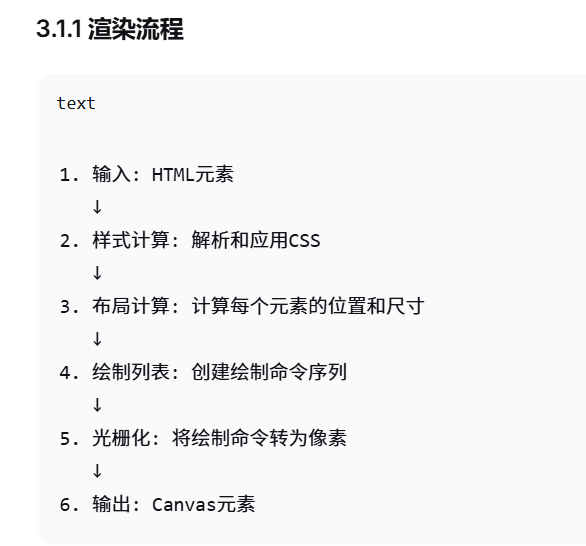
HTML2Canvas的工作原理相当复杂,它本质上是一个简化的浏览器渲染引擎。让我们深入了解它的工作流程:
3.1.2 核心组件
// HTML2Canvas内部结构示意
class HTML2CanvasRenderer {
constructor(element, options) {
this.element = element;
this.options = options;
this.canvas = document.createElement('canvas');
this.ctx = this.canvas.getContext('2d');
}
async render() {
// 1. 解析DOM树
const root = this.parseDOM(this.element);
// 2. 计算样式
this.calculateStyles(root);
// 3. 创建渲染树
const renderTree = this.createRenderTree(root);
// 4. 布局计算
this.calculateLayout(renderTree);
// 5. 绘制
await this.draw(renderTree);
return this.canvas;
}
// … 其他方法
}
3.2 配置参数详解
const options = {
// 基本配置
allowTaint: false, // 是否允许污染canvas
useCORS: true, // 是否使用CORS加载图片
backgroundColor: '#ffffff', // 背景色
scale: 2, // 缩放比例(设备像素比)
width: null, // 自定义宽度
height: null, // 自定义高度
// 日志和调试
logging: true, // 启用日志
onclone: null, // DOM克隆后的回调
// 图像配置
imageTimeout: 15000, // 图片加载超时(ms)
proxy: null, // 代理服务器URL
removeContainer: true, // 是否移除临时容器
// 高级配置
foreignObjectRendering: false, // 使用foreignObject(SVG)
ignoreElements: (element) => false, // 忽略特定元素
onrendered: null, // 渲染完成回调
// 性能配置
async: true, // 异步渲染
cacheBust: false, // 缓存破坏
letterRendering: false, // 文字渲染优化
// Canvas配置
canvas: null, // 使用现有canvas
x: 0, // 水平偏移
y: 0, // 垂直偏移
scrollX: 0, // 水平滚动
scrollY: 0, // 垂直滚动
windowWidth: window.innerWidth, // 窗口宽度
windowHeight: window.innerHeight // 窗口高度
};
第四部分:JSPDF与HTML2Canvas集成实战
4.1 基础集成方案
// 基础集成函数
async function exportToPDF(elementId, fileName = 'document.pdf', options = {}) {
// 默认配置
const defaultOptions = {
pdf: {
orientation: 'p',
unit: 'mm',
format: 'a4',
compress: true
},
html2canvas: {
scale: 2,
useCORS: true,
logging: false
},
margin: {
top: 15,
right: 15,
bottom: 15,
left: 15
}
};
// 合并配置
const config = {
pdf: { …defaultOptions.pdf, …options.pdf },
html2canvas: { …defaultOptions.html2canvas, …options.html2canvas },
margin: { …defaultOptions.margin, …options.margin }
};
try {
// 1. 获取目标元素
const element = document.getElementById(elementId);
if (!element) {
throw new Error(`元素 #${elementId} 未找到`);
}
// 2. 使用html2canvas生成canvas
console.log('开始生成canvas…');
const canvas = await html2canvas(element, config.html2canvas);
// 3. 获取图片数据
const imgData = canvas.toDataURL('image/png', 1.0);
const imgProps = {
width: canvas.width,
height: canvas.height
};
// 4. 计算PDF尺寸
const pdfWidth = config.pdf.format === 'a4' ? 210 : 297; // A4宽度210mm
const pdfHeight = config.pdf.format === 'a4' ? 297 : 210; // A4高度297mm
// 可用宽度 = PDF宽度 – 左右边距
const usableWidth = pdfWidth – config.margin.left – config.margin.right;
// 5. 计算缩放比例
const pixelsPerMM = imgProps.width / usableWidth;
const scale = usableWidth / imgProps.width;
const imgHeightMM = imgProps.height * scale;
// 6. 创建PDF
console.log('创建PDF文档…');
const doc = new jsPDF(config.pdf);
// 7. 处理分页
const pageHeight = pdfHeight – config.margin.top – config.margin.bottom;
let position = 0;
if (imgHeightMM <= pageHeight) {
// 一页能放下
doc.addImage(imgData, 'PNG',
config.margin.left,
config.margin.top,
usableWidth,
imgHeightMM);
} else {
// 需要分页
while (position < imgHeightMM) {
if (position > 0) {
doc.addPage();
}
doc.addImage(imgData, 'PNG',
config.margin.left,
config.margin.top – position,
usableWidth,
imgHeightMM);
position += pageHeight;
}
}
// 8. 保存PDF
doc.save(fileName);
console.log('PDF导出完成');
return doc;
} catch (error) {
console.error('导出PDF失败:', error);
throw error;
}
}
// 使用示例
document.getElementById('export-btn').addEventListener('click', async () => {
try {
await exportToPDF('content', '报告.pdf', {
pdf: {
format: 'a4',
orientation: 'portrait'
},
html2canvas: {
scale: 3, // 更高清
backgroundColor: '#ffffff'
},
margin: {
top: 20,
right: 20,
bottom: 20,
left: 20
}
});
} catch (error) {
alert('导出失败: ' + error.message);
}
});
4.2 高级集成:智能分页与表格保护
class SmartPDFExporter {
constructor(options = {}) {
this.options = this.mergeOptions(options);
this.pageBreaks = [];
}
mergeOptions(options) {
const defaults = {
elementId: null,
fileName: 'export.pdf',
pdf: {
orientation: 'p',
unit: 'mm',
format: 'a4'
},
html2canvas: {
scale: 2,
logging: false,
useCORS: true
},
styling: {
tableProtection: true,
keepTogetherClass: 'keep-together',
avoidBreakClass: 'avoid-break'
},
margins: {
top: 15,
right: 15,
bottom: 15,
left: 15
},
features: {
pageNumbers: true,
header: true,
footer: true,
watermark: false
}
};
return this.deepMerge(defaults, options);
}
deepMerge(target, source) {
for (const key in source) {
if (source[key] && typeof source[key] === 'object' && !Array.isArray(source[key])) {
if (!target[key]) target[key] = {};
this.deepMerge(target[key], source[key]);
} else {
target[key] = source[key];
}
}
return target;
}
async export() {
try {
// 1. 验证和准备
this.validateInput();
// 2. 应用保护样式
if (this.options.styling.tableProtection) {
this.applyProtectionStyles();
}
// 3. 分析DOM结构
const analysis = await this.analyzeDOM();
// 4. 计算分页点
this.calculatePageBreaks(analysis);
// 5. 生成canvas
const canvas = await this.generateCanvas();
// 6. 创建PDF
const pdf = await this.generatePDF(canvas, analysis);
// 7. 保存
pdf.save(this.options.fileName);
return { success: true, pdf };
} catch (error) {
console.error('导出失败:', error);
throw error;
}
}
validateInput() {
if (!this.options.elementId) {
throw new Error('elementId 必须提供');
}
const element = document.getElementById(this.options.elementId);
if (!element) {
throw new Error(`元素 #${this.options.elementId} 未找到`);
}
this.element = element;
}
applyProtectionStyles() {
const style = document.createElement('style');
style.textContent = `
.${this.options.styling.keepTogetherClass} {
page-break-inside: avoid !important;
break-inside: avoid !important;
}
.${this.options.styling.avoidBreakClass} {
page-break-before: avoid !important;
break-before: avoid !important;
}
table {
page-break-inside: avoid !important;
break-inside: avoid !important;
border-collapse: collapse !important;
}
tr {
page-break-inside: avoid !important;
break-inside: avoid !important;
}
`;
// 移除可能存在的旧样式
const oldStyles = this.element.querySelectorAll('style[data-pdf-protection]');
oldStyles.forEach(s => s.remove());
style.setAttribute('data-pdf-protection', 'true');
this.element.appendChild(style);
// 为表格添加保护类
const tables = this.element.querySelectorAll('table');
tables.forEach(table => {
table.classList.add(this.options.styling.keepTogetherClass);
});
// 为重要元素添加避免分页类
const importantElements = this.element.querySelectorAll('h1, h2, .important');
importantElements.forEach(el => {
el.classList.add(this.options.styling.avoidBreakClass);
});
}
async analyzeDOM() {
const tables = this.element.querySelectorAll('table');
const importantElements = this.element.querySelectorAll(`.${this.options.styling.keepTogetherClass}`);
const elementRect = this.element.getBoundingClientRect();
const analysis = {
tables: [],
importantElements: [],
containerHeight: this.element.offsetHeight,
containerWidth: this.element.offsetWidth
};
// 分析表格
tables.forEach((table, index) => {
const rect = table.getBoundingClientRect();
analysis.tables.push({
index,
element: table,
top: rect.top – elementRect.top,
bottom: rect.bottom – elementRect.top,
height: rect.height,
rowCount: table.querySelectorAll('tr').length,
canBreak: !table.classList.contains(this.options.styling.keepTogetherClass)
});
});
// 分析重要元素
importantElements.forEach((el, index) => {
if (el.tagName !== 'TABLE') { // 表格已经分析过了
const rect = el.getBoundingClientRect();
analysis.importantElements.push({
index,
element: el,
top: rect.top – elementRect.top,
bottom: rect.bottom – elementRect.top,
height: rect.height,
tagName: el.tagName
});
}
});
// 按位置排序
analysis.tables.sort((a, b) => a.top – b.top);
analysis.importantElements.sort((a, b) => a.top – b.top);
return analysis;
}
calculatePageBreaks(analysis) {
const pdf = new jsPDF(this.options.pdf);
const pdfWidth = pdf.internal.pageSize.getWidth();
const pdfHeight = pdf.internal.pageSize.getHeight();
const usableWidth = pdfWidth – this.options.margins.left – this.options.margins.right;
const usableHeight = pdfHeight – this.options.margins.top – this.options.margins.bottom;
// 像素到毫米的转换比例
const pxToMM = usableWidth / analysis.containerWidth;
const breaks = [];
let currentPageHeightMM = 0;
// 处理所有需要保护的元素
const allElements = […analysis.tables, …analysis.importantElements]
.sort((a, b) => a.top – b.top);
allElements.forEach((element, index) => {
const elementHeightMM = element.height * pxToMM;
// 检查是否放得下
if (currentPageHeightMM + elementHeightMM > usableHeight && currentPageHeightMM > 0) {
// 放不下,需要分页
if (index > 0) {
const prevElement = allElements[index – 1];
// 在元素前分页
breaks.push({
type: 'before',
element: element,
position: element.top,
reason: `${element.tagName || 'table'} 无法放入当前页`
});
currentPageHeightMM = elementHeightMM;
}
} else {
// 放得下
currentPageHeightMM += elementHeightMM;
}
});
this.pageBreaks = breaks;
console.log('计算出的分页点:', this.pageBreaks);
}
async generateCanvas() {
// 固定尺寸,防止渲染时变化
const originalStyle = {
width: this.element.style.width,
height: this.element.style.height,
position: this.element.style.position
};
this.element.style.width = `${this.element.offsetWidth}px`;
this.element.style.height = `${this.element.offsetHeight}px`;
this.element.style.position = 'relative';
try {
const canvas = await html2canvas(this.element, this.options.html2canvas);
return canvas;
} finally {
// 恢复原始样式
Object.assign(this.element.style, originalStyle);
}
}
async generatePDF(canvas, analysis) {
const pdf = new jsPDF(this.options.pdf);
const pdfWidth = pdf.internal.pageSize.getWidth();
const pdfHeight = pdf.internal.pageSize.getHeight();
const usableWidth = pdfWidth – this.options.margins.left – this.options.margins.right;
const usableHeight = pdfHeight – this.options.margins.top – this.options.margins.bottom;
// 计算缩放
const scale = usableWidth / canvas.width;
const totalHeightMM = canvas.height * scale;
// 如果有分页点,使用智能分页
if (this.pageBreaks.length > 0) {
await this.generatePDFWithBreaks(pdf, canvas, scale, usableWidth, usableHeight);
} else {
// 无分页点,使用简单分页
await this.generatePDFSimple(pdf, canvas, scale, usableWidth, usableHeight);
}
// 添加页眉页脚
if (this.options.features.header || this.options.features.footer) {
this.addHeaderFooter(pdf, this.pageBreaks.length + 1);
}
// 添加水印
if (this.options.features.watermark) {
this.addWatermark(pdf);
}
return pdf;
}
async generatePDFWithBreaks(pdf, canvas, scale, usableWidth, usableHeight) {
const imgData = canvas.toDataURL('image/png', 1.0);
// 转换分页点为canvas像素位置
const breakPoints = this.pageBreaks.map(breakInfo => breakInfo.position);
breakPoints.sort((a, b) => a – b);
// 确保从0开始,到canvas高度结束
const allPoints = [0, …breakPoints, canvas.height];
let startY = 0;
for (let i = 1; i < allPoints.length; i++) {
const segmentHeight = allPoints[i] – startY;
if (segmentHeight <= 0) continue;
// 创建当前页的canvas片段
const segmentCanvas = document.createElement('canvas');
segmentCanvas.width = canvas.width;
segmentCanvas.height = segmentHeight;
const ctx = segmentCanvas.getContext('2d');
ctx.drawImage(
canvas,
0, startY, canvas.width, segmentHeight,
0, 0, canvas.width, segmentHeight
);
const segmentImgData = segmentCanvas.toDataURL('image/png', 1.0);
const segmentHeightMM = segmentHeight * scale;
// 如果不是第一页,添加新页
if (i > 1) {
pdf.addPage();
}
// 添加图片到PDF
pdf.addImage(
segmentImgData,
'PNG',
this.options.margins.left,
this.options.margins.top,
usableWidth,
segmentHeightMM
);
startY = allPoints[i];
}
}
generatePDFSimple(pdf, canvas, scale, usableWidth, usableHeight) {
const imgData = canvas.toDataURL('image/png', 1.0);
const totalHeightMM = canvas.height * scale;
if (totalHeightMM <= usableHeight) {
// 一页能放下
pdf.addImage(
imgData,
'PNG',
this.options.margins.left,
this.options.margins.top,
usableWidth,
totalHeightMM
);
} else {
// 需要分页
let position = 0;
while (position < totalHeightMM) {
if (position > 0) {
pdf.addPage();
}
pdf.addImage(
imgData,
'PNG',
this.options.margins.left,
this.options.margins.top – position,
usableWidth,
totalHeightMM
);
position += usableHeight;
}
}
}
addHeaderFooter(pdf, totalPages) {
const pdfWidth = pdf.internal.pageSize.getWidth();
const pdfHeight = pdf.internal.pageSize.getHeight();
const currentPage = pdf.internal.getCurrentPageInfo().pageNumber;
// 保存当前状态
const originalFont = pdf.internal.getFont();
const originalSize = pdf.internal.getFontSize();
const originalColor = pdf.internal.getTextColor();
// 页眉
if (this.options.features.header) {
pdf.setFontSize(10);
pdf.setTextColor(100, 100, 100);
// 左侧:标题
pdf.text(
this.options.fileName.replace('.pdf', ''),
this.options.margins.left,
this.options.margins.top – 10
);
// 右侧:日期
const dateStr = new Date().toLocaleDateString();
pdf.text(
dateStr,
pdfWidth – this.options.margins.right,
this.options.margins.top – 10,
{ align: 'right' }
);
// 页眉线
pdf.setDrawColor(200, 200, 200);
pdf.line(
this.options.margins.left,
this.options.margins.top – 5,
pdfWidth – this.options.margins.right,
this.options.margins.top – 5
);
}
// 页脚
if (this.options.features.footer) {
// 页脚线
pdf.setDrawColor(200, 200, 200);
pdf.line(
this.options.margins.left,
pdfHeight – this.options.margins.bottom + 5,
pdfWidth – this.options.margins.right,
pdfHeight – this.options.margins.bottom + 5
);
// 页码
if (this.options.features.pageNumbers) {
pdf.setFontSize(9);
pdf.setTextColor(100, 100, 100);
const pageText = `第 ${currentPage} 页 / 共 ${totalPages} 页`;
pdf.text(
pageText,
pdfWidth / 2,
pdfHeight – this.options.margins.bottom + 10,
{ align: 'center' }
);
}
}
// 恢复原始状态
pdf.setFont(originalFont[0], originalFont[1]);
pdf.setFontSize(originalSize);
pdf.setTextColor(originalColor[0], originalColor[1], originalColor[2]);
}
addWatermark(pdf) {
const pdfWidth = pdf.internal.pageSize.getWidth();
const pdfHeight = pdf.internal.pageSize.getHeight();
// 保存状态
pdf.saveGraphicsState();
// 设置水印样式
pdf.setFontSize(40);
pdf.setTextColor(200, 200, 200, 0.1);
pdf.setFont('helvetica', 'bold');
// 旋转和重复
const angle = -45 * Math.PI / 180;
const text = this.options.features.watermark.text || 'CONFIDENTIAL';
for (let x = -pdfWidth; x < pdfWidth * 2; x += 150) {
for (let y = -pdfHeight; y < pdfHeight * 2; y += 150) {
pdf.saveGraphicsState();
pdf.translate(x, y);
pdf.rotate(angle, { origin: [0, 0] });
pdf.text(text, 0, 0);
pdf.restoreGraphicsState();
}
}
pdf.restoreGraphicsState();
}
}
// 使用示例
const exporter = new SmartPDFExporter({
elementId: 'report-content',
fileName: '智能报告.pdf',
pdf: {
format: 'a4',
orientation: 'portrait'
},
html2canvas: {
scale: 2,
useCORS: true,
backgroundColor: '#ffffff'
},
features: {
pageNumbers: true,
header: true,
footer: true,
watermark: {
text: '公司机密',
enabled: true
}
},
styling: {
tableProtection: true,
keepTogetherClass: 'pdf-keep-together'
}
});
// 触发导出
document.getElementById('smart-export').addEventListener('click', async () => {
try {
await exporter.export();
alert('导出成功!');
} catch (error) {
alert('导出失败: ' + error.message);
}
});
4.3 响应式与移动端适配
class ResponsivePDFExporter {
constructor(options = {}) {
this.options = {
breakpoints: {
mobile: 768,
tablet: 1024,
desktop: 1200
},
scaling: {
mobile: 1,
tablet: 1.5,
desktop: 2
},
…options
};
}
detectDeviceType() {
const width = window.innerWidth;
if (width < this.options.breakpoints.mobile) {
return 'mobile';
} else if (width < this.options.breakpoints.tablet) {
return 'tablet';
} else {
return 'desktop';
}
}
async exportResponsive(elementId, fileName) {
const deviceType = this.detectDeviceType();
const scale = this.options.scaling[deviceType] || 1.5;
console.log(`设备类型: ${deviceType}, 使用缩放: ${scale}`);
// 调整元素样式以适应PDF
const element = document.getElementById(elementId);
const originalStyles = this.backupStyles(element);
try {
// 应用响应式样式
this.applyResponsiveStyles(element, deviceType);
// 生成PDF
const canvas = await html2canvas(element, {
scale,
useCORS: true,
backgroundColor: '#ffffff'
});
const pdf = new jsPDF({
orientation: 'p',
unit: 'mm',
format: 'a4'
});
const pdfWidth = pdf.internal.pageSize.getWidth();
const imgWidth = canvas.width;
const imgHeight = canvas.height;
// 计算缩放比例
const margin = 10;
const usableWidth = pdfWidth – 2 * margin;
const scaleFactor = usableWidth / imgWidth;
pdf.addImage(
canvas.toDataURL('image/png', 1.0),
'PNG',
margin,
margin,
usableWidth,
imgHeight * scaleFactor
);
pdf.save(fileName);
} finally {
// 恢复原始样式
this.restoreStyles(element, originalStyles);
}
}
backupStyles(element) {
return {
width: element.style.width,
height: element.style.height,
fontSize: element.style.fontSize,
padding: element.style.padding,
margin: element.style.margin,
display: element.style.display
};
}
applyResponsiveStyles(element, deviceType) {
// 根据设备类型应用不同的样式
const styles = {
mobile: {
width: '100%',
fontSize: '12px',
padding: '10px',
margin: '0',
display: 'block'
},
tablet: {
width: '90%',
fontSize: '13px',
padding: '15px',
margin: '0 auto',
display: 'block'
},
desktop: {
width: '80%',
fontSize: '14px',
padding: '20px',
margin: '0 auto',
display: 'block'
}
};
const deviceStyles = styles[deviceType] || styles.desktop;
Object.assign(element.style, deviceStyles);
// 特别处理表格
const tables = element.querySelectorAll('table');
tables.forEach(table => {
if (deviceType === 'mobile') {
table.style.fontSize = '10px';
table.style.width = '100%';
}
});
}
restoreStyles(element, originalStyles) {
Object.assign(element.style, originalStyles);
}
}
// 使用响应式导出
const responsiveExporter = new ResponsivePDFExporter();
// 响应式导出按钮
document.getElementById('responsive-export').addEventListener('click', () => {
responsiveExporter.exportResponsive('content', '响应式报告.pdf');
});