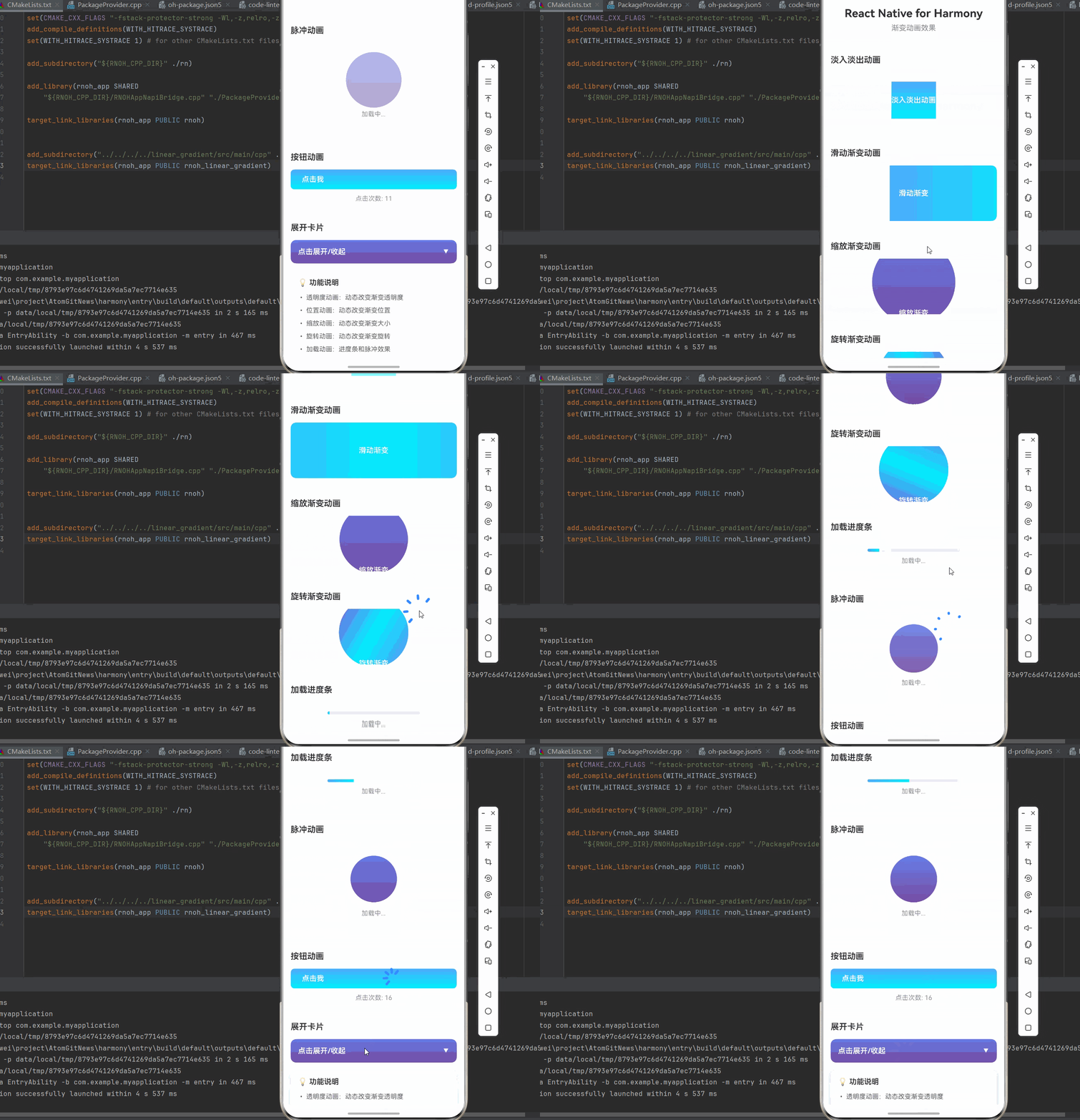
一、渐变动画的核心原理
渐变动画是通过动态改变渐变属性来创建平滑的视觉效果。在 React Native for Harmony 中,由于 react-native-linear-gradient 组件不支持直接对 colors 和 angle 属性进行动画,我们需要采用其他方式来实现渐变相关的动画效果。
1.1 为什么需要渐变动画?
渐变动画在应用中扮演着重要角色:
- 视觉吸引力:动态的色彩变化让界面更加生动
- 状态反馈:通过动画表示加载、成功、失败等状态
- 引导用户:使用动画引导用户的注意力
- 增强体验:平滑的过渡提升用户体验
1.2 动画类型概述
在 React Native for Harmony 中,主要支持以下渐变相关的动画类型:
1.3 实现原理
渐变动画的核心实现原理:
- 使用 Animated API 创建动画值
- 将动画值应用到渐变组件的 opacity、transform 等属性
- 使用 Animated.timing、Animated.spring 或 Animated.loop 控制动画
- 渐变颜色本身保持不变,通过其他属性的变化产生视觉效果
二、透明度渐变动画
2.1 基础透明度动画
创建一个渐变背景的淡入淡出效果:
import React, { memo, useRef, useEffect } from 'react';
import { View, Text, StyleSheet, Animated } from 'react-native';
import LinearGradient from "react-native-linear-gradient";
const FadeGradientAnimation = memo(() => {
const opacityAnim = useRef(new Animated.Value(0)).current;
useEffect(() => {
const animation = Animated.loop(
Animated.sequence([
Animated.timing(opacityAnim, {
toValue: 1,
duration: 1500,
useNativeDriver: true,
}),
Animated.timing(opacityAnim, {
toValue: 0,
duration: 1500,
useNativeDriver: true,
}),
])
);
animation.start();
return () => animation.stop();
}, []);
return (
<View style={styles.gradientBox}>
<Animated.View style={{ opacity: opacityAnim }}>
<LinearGradient
colors={['#4facfe', '#00f2fe']}
style={styles.gradientInner}
>
<Text style={styles.text}>淡入淡出动画</Text>
</LinearGradient>
</Animated.View>
</View>
);
});
FadeGradientAnimation.displayName = 'FadeGradientAnimation';
为什么这样设计?
2.2 多个渐变的透明度动画
创建多个渐变层的淡入淡出效果:
const MultiFadeAnimation = memo(() => {
const opacity1 = useRef(new Animated.Value(0)).current;
const opacity2 = useRef(new Animated.Value(0)).current;
const opacity3 = useRef(new Animated.Value(0)).current;
useEffect(() => {
const animation = Animated.loop(
Animated.sequence([
Animated.parallel([
Animated.timing(opacity1, {
toValue: 1,
duration: 500,
useNativeDriver: true,
}),
Animated.timing(opacity2, {
toValue: 1,
duration: 500,
delay: 200,
useNativeDriver: true,
}),
Animated.timing(opacity3, {
toValue: 1,
duration: 500,
delay: 400,
useNativeDriver: true,
}),
]),
Animated.timing(opacity1, { toValue: 0, duration: 1000, useNativeDriver: true }),
Animated.timing(opacity2, { toValue: 0, duration: 1000, useNativeDriver: true }),
Animated.timing(opacity3, { toValue: 0, duration: 1000, useNativeDriver: true }),
])
);
animation.start();
return () => animation.stop();
}, []);
return (
<View style={styles.gradientBox}>
<Animated.View style={{ opacity: opacity1, …StyleSheet.absoluteFillObject }}>
<LinearGradient
colors={['#667eea', '#764ba2']}
style={styles.gradientInner}
/>
</Animated.View>
<Animated.View style={{ opacity: opacity2, …StyleSheet.absoluteFillObject }}>
<LinearGradient
colors={['#764ba2', '#f093fb']}
style={styles.gradientInner}
/>
</Animated.View>
<Animated.View style={{ opacity: opacity3, …StyleSheet.absoluteFillObject }}>
<LinearGradient
colors={['#f093fb', '#667eea']}
style={styles.gradientInner}
/>
</Animated.View>
<Text style={styles.text}>多层淡入淡出</Text>
</View>
);
});
MultiFadeAnimation.displayName = 'MultiFadeAnimation';
为什么这样设计?
三、位置渐变动画
3.1 滑动渐变动画
创建一个渐变背景的滑动效果:
const SlideGradientAnimation = memo(() => {
const translateX = useRef(new Animated.Value(–300)).current;
useEffect(() => {
const animation = Animated.loop(
Animated.timing(translateX, {
toValue: 300,
duration: 3000,
useNativeDriver: true,
})
);
animation.start();
return () => animation.stop();
}, []);
return (
<View style={styles.gradientBox}>
<Animated.View
style={[
styles.slideGradient,
{
transform: [{ translateX }],
},
]}
>
<LinearGradient
colors={['#4facfe', '#00f2fe', '#4facfe']}
start={{ x: 0, y: 0 }}
end={{ x: 1, y: 0 }}
style={styles.slideGradientInner}
/>
</Animated.View>
<Text style={styles.text}>滑动渐变</Text>
</View>
);
});
SlideGradientAnimation.displayName = 'SlideGradientAnimation';
为什么这样设计?
3.2 缩放渐变动画
创建一个渐变背景的缩放效果:
const ScaleGradientAnimation = memo(() => {
const scale = useRef(new Animated.Value(0.8)).current;
useEffect(() => {
const animation = Animated.loop(
Animated.sequence([
Animated.timing(scale, {
toValue: 1.2,
duration: 1500,
useNativeDriver: true,
}),
Animated.timing(scale, {
toValue: 0.8,
duration: 1500,
useNativeDriver: true,
}),
])
);
animation.start();
return () => animation.stop();
}, []);
return (
<View style={styles.gradientBox}>
<Animated.View
style={[
styles.scaleGradient,
{
transform: [{ scale }],
},
]}
>
<LinearGradient
colors={['#667eea', '#764ba2']}
style={styles.scaleGradientInner}
/>
</Animated.View>
<Text style={styles.text}>缩放渐变</Text>
</View>
);
});
ScaleGradientAnimation.displayName = 'ScaleGradientAnimation';
为什么这样设计?
四、旋转渐变动画
4.1 基础旋转动画
创建一个渐变背景的旋转效果:
const RotateGradientAnimation = memo(() => {
const rotate = useRef(new Animated.Value(0)).current;
useEffect(() => {
const animation = Animated.loop(
Animated.timing(rotate, {
toValue: 1,
duration: 3000,
useNativeDriver: true,
})
);
animation.start();
return () => animation.stop();
}, []);
const rotateInterpolate = rotate.interpolate({
inputRange: [0, 1],
outputRange: ['0deg', '360deg'],
});
return (
<View style={styles.gradientBox}>
<Animated.View
style={[
styles.rotateGradient,
{
transform: [{ rotate: rotateInterpolate }],
},
]}
>
<LinearGradient
colors={['#4facfe', '#00f2fe', '#667eea']}
style={styles.rotateGradientInner}
/>
</Animated.View>
<Text style={styles.text}>旋转渐变</Text>
</View>
);
});
RotateGradientAnimation.displayName = 'RotateGradientAnimation';
为什么这样设计?
五、加载渐变动画
5.1 进度条渐变动画
创建一个带有渐变的加载进度条:
const LoadingGradientBar = memo(() => {
const progressAnim = useRef(new Animated.Value(0)).current;
useEffect(() => {
const animation = Animated.loop(
Animated.timing(progressAnim, {
toValue: 1,
duration: 2000,
useNativeDriver: false,
})
);
animation.start();
return () => animation.stop();
}, []);
const progressWidth = progressAnim.interpolate({
inputRange: [0, 1],
outputRange: ['0%', '100%']
});
return (
<View style={styles.loadingContainer}>
<View style={styles.loadingTrack}>
<Animated.View style={[styles.loadingProgress, { width: progressWidth as any }]}>
<LinearGradient
colors={['#4facfe', '#00f2fe']}
start={{ x: 0, y: 0 }}
end={{ x: 1, y: 0 }}
style={styles.loadingProgressGradient}
/>
</Animated.View>
</View>
<Text style={styles.loadingText}>加载中…</Text>
</View>
);
});
LoadingGradientBar.displayName = 'LoadingGradientBar';
为什么这样设计?
5.2 脉冲渐变动画
创建一个脉冲式的渐变加载效果:
const PulseGradientAnimation = memo(() => {
const scale = useRef(new Animated.Value(1)).current;
const opacity = useRef(new Animated.Value(1)).current;
useEffect(() => {
const animation = Animated.loop(
Animated.parallel([
Animated.sequence([
Animated.timing(scale, {
toValue: 1.2,
duration: 1000,
useNativeDriver: true,
}),
Animated.timing(scale, {
toValue: 1,
duration: 1000,
useNativeDriver: true,
}),
]),
Animated.sequence([
Animated.timing(opacity, {
toValue: 0.5,
duration: 1000,
useNativeDriver: true,
}),
Animated.timing(opacity, {
toValue: 1,
duration: 1000,
useNativeDriver: true,
}),
]),
])
);
animation.start();
return () => animation.stop();
}, []);
return (
<View style={styles.pulseContainer}>
<Animated.View
style={[
styles.pulseGradient,
{
transform: [{ scale }],
opacity,
},
]}
>
<LinearGradient
colors={['#667eea', '#764ba2']}
style={styles.pulseGradientInner}
/>
</Animated.View>
<Text style={styles.pulseText}>加载中…</Text>
</View>
);
});
PulseGradientAnimation.displayName = 'PulseGradientAnimation';
为什么这样设计?
六、交互渐变动画
6.1 按钮按压动画
创建一个带有渐变的按钮,按压时有缩放效果:
interface PressButtonProps {
title: string;
onPress: () => void;
}
const PressButton = memo<PressButtonProps>(({ title, onPress }) => {
const scale = useRef(new Animated.Value(1)).current;
const handlePressIn = () => {
Animated.spring(scale, {
toValue: 0.95,
useNativeDriver: true,
}).start();
};
const handlePressOut = () => {
Animated.spring(scale, {
toValue: 1,
useNativeDriver: true,
}).start();
};
return (
<TouchableOpacity
onPress={onPress}
onPressIn={handlePressIn}
onPressOut={handlePressOut}
activeOpacity={1}
>
<Animated.View style={{ transform: [{ scale }] }}>
<LinearGradient
colors={['#4facfe', '#00f2fe']}
style={styles.pressButton}
>
<Text style={styles.pressButtonText}>{title}</Text>
</LinearGradient>
</Animated.View>
</TouchableOpacity>
);
});
PressButton.displayName = 'PressButton';
为什么这样设计?
6.2 卡片展开动画
创建一个渐变背景的卡片,点击时有展开效果:
interface ExpandCardProps {
title: string;
content: string;
}
const ExpandCard = memo<ExpandCardProps>(({ title, content }) => {
const [expanded, setExpanded] = useState(false);
const heightAnim = useRef(new Animated.Value(0)).current;
useEffect(() => {
Animated.timing(heightAnim, {
toValue: expanded ? 1 : 0,
duration: 300,
useNativeDriver: false,
}).start();
}, [expanded]);
const contentHeight = heightAnim.interpolate({
inputRange: [0, 1],
outputRange: [0, 100],
});
return (
<TouchableOpacity onPress={() => setExpanded(!expanded)}>
<LinearGradient
colors={['#667eea', '#764ba2']}
style={styles.expandCard}
>
<View style={styles.expandCardHeader}>
<Text style={styles.expandCardTitle}>{title}</Text>
<Text style={styles.expandCardIcon}>{expanded ? '▲' : '▼'}</Text>
</View>
<Animated.View style={{ height: contentHeight as any, overflow: 'hidden' }}>
<Text style={styles.expandCardContent}>{content}</Text>
</Animated.View>
</LinearGradient>
</TouchableOpacity>
);
});
ExpandCard.displayName = 'ExpandCard';
为什么这样设计?
七、性能优化与最佳实践
7.1 使用原生驱动
尽可能使用 useNativeDriver: true,因为:
// 推荐:使用原生驱动
Animated.timing(opacityAnim, {
toValue: 1,
duration: 1000,
useNativeDriver: true, // ✅
}).start();
// 不推荐:不使用原生驱动
Animated.timing(opacityAnim, {
toValue: 1,
duration: 1000,
useNativeDriver: false, // ❌
}).start();
7.2 避免不必要的重新渲染
使用 memo 包裹组件,避免不必要的重新渲染:
const GradientAnimation = memo(() => {
// 组件实现
});
GradientAnimation.displayName = 'GradientAnimation';
7.3 清理动画
在组件卸载时清理动画,避免内存泄漏:
useEffect(() => {
const animation = Animated.loop(
Animated.timing(anim, {
toValue: 1,
duration: 1000,
useNativeDriver: true,
})
);
animation.start();
// 清理函数
return () => animation.stop();
}, []);
7.4 使用 StyleSheet
使用 StyleSheet.create 创建样式,提高性能:
const styles = StyleSheet.create({
gradientBox: {
padding: 20,
borderRadius: 12,
minHeight: 120,
justifyContent: 'center',
alignItems: 'center',
overflow: 'hidden',
},
gradientInner: {
width: '100%',
height: '100%',
justifyContent: 'center',
alignItems: 'center',
},
text: {
fontSize: 16,
fontWeight: '600',
color: '#FFFFFF',
},
});
八、常见问题与解决方案
8.1 渐变颜色不能动画
问题现象:尝试对 LinearGradient 的 colors 属性进行动画,报错
原因:react-native-linear-gradient 不支持对 colors 属性进行动画
解决方案:使用透明度、位置、缩放等其他属性实现动画效果
8.2 角度不能动画
问题现象:尝试对 LinearGradient 的 angle 属性进行动画,报错
原因:react-native-linear-gradient 不支持对 angle 属性进行动画
解决方案:使用旋转动画替代
// 不推荐:直接动画角度
<LinearGradient angle={angleAnim} colors={['#4facfe', '#00f2fe']} />
// 推荐:使用旋转动画
<Animated.View style={{ transform: [{ rotate: rotateAnim }] }}>
<LinearGradient colors={['#4facfe', '#00f2fe']} />
</Animated.View>
8.3 动画卡顿
问题现象:动画运行不流畅,出现掉帧
可能原因:
解决方案:
// 1. 使用原生驱动
Animated.timing(anim, {
toValue: 1,
duration: 1000,
useNativeDriver: true, // ✅
}).start();
// 2. 减少同时运行的动画数量
// 3. 简化组件结构
8.4 内存泄漏
问题现象:组件卸载后动画仍在运行
解决方案:在 useEffect 中清理动画
useEffect(() => {
const animation = Animated.loop(
Animated.timing(anim, {
toValue: 1,
duration: 1000,
useNativeDriver: true,
})
);
animation.start();
// ✅ 清理动画
return () => animation.stop();
}, []);
九、完整实战代码
import React, { memo, useRef, useEffect, useState } from 'react';
import {
View,
Text,
StyleSheet,
TouchableOpacity,
ScrollView,
Animated,
} from 'react-native';
import LinearGradient from "react-native-linear-gradient";
// ======== 淡入淡出动画 ========
const FadeGradientAnimation = memo(() => {
const opacityAnim = useRef(new Animated.Value(0)).current;
useEffect(() => {
const animation = Animated.loop(
Animated.sequence([
Animated.timing(opacityAnim, {
toValue: 1,
duration: 1500,
useNativeDriver: true,
}),
Animated.timing(opacityAnim, {
toValue: 0,
duration: 1500,
useNativeDriver: true,
}),
])
);
animation.start();
return () => animation.stop();
}, []);
return (
<View style={styles.gradientBox}>
<Animated.View style={{ opacity: opacityAnim }}>
<LinearGradient
colors={['#4facfe', '#00f2fe']}
style={styles.gradientInner}
>
<Text style={styles.text}>淡入淡出动画</Text>
</LinearGradient>
</Animated.View>
</View>
);
});
FadeGradientAnimation.displayName = 'FadeGradientAnimation';
// ======== 滑动渐变动画 ========
const SlideGradientAnimation = memo(() => {
const translateX = useRef(new Animated.Value(–300)).current;
useEffect(() => {
const animation = Animated.loop(
Animated.timing(translateX, {
toValue: 300,
duration: 3000,
useNativeDriver: true,
})
);
animation.start();
return () => animation.stop();
}, []);
return (
<View style={styles.gradientBox}>
<Animated.View
style={[
styles.slideGradient,
{
transform: [{ translateX }],
},
]}
>
<LinearGradient
colors={['#4facfe', '#00f2fe', '#4facfe']}
start={{ x: 0, y: 0 }}
end={{ x: 1, y: 0 }}
style={styles.slideGradientInner}
/>
</Animated.View>
<Text style={styles.text}>滑动渐变</Text>
</View>
);
});
SlideGradientAnimation.displayName = 'SlideGradientAnimation';
// ======== 缩放渐变动画 ========
const ScaleGradientAnimation = memo(() => {
const scale = useRef(new Animated.Value(0.8)).current;
useEffect(() => {
const animation = Animated.loop(
Animated.sequence([
Animated.timing(scale, {
toValue: 1.2,
duration: 1500,
useNativeDriver: true,
}),
Animated.timing(scale, {
toValue: 0.8,
duration: 1500,
useNativeDriver: true,
}),
])
);
animation.start();
return () => animation.stop();
}, []);
return (
<View style={styles.gradientBox}>
<Animated.View
style={[
styles.scaleGradient,
{
transform: [{ scale }],
},
]}
>
<LinearGradient
colors={['#667eea', '#764ba2']}
style={styles.scaleGradientInner}
/>
</Animated.View>
<Text style={styles.text}>缩放渐变</Text>
</View>
);
});
ScaleGradientAnimation.displayName = 'ScaleGradientAnimation';
// ======== 旋转渐变动画 ========
const RotateGradientAnimation = memo(() => {
const rotate = useRef(new Animated.Value(0)).current;
useEffect(() => {
const animation = Animated.loop(
Animated.timing(rotate, {
toValue: 1,
duration: 3000,
useNativeDriver: true,
})
);
animation.start();
return () => animation.stop();
}, []);
const rotateInterpolate = rotate.interpolate({
inputRange: [0, 1],
outputRange: ['0deg', '360deg'],
});
return (
<View style={styles.gradientBox}>
<Animated.View
style={[
styles.rotateGradient,
{
transform: [{ rotate: rotateInterpolate }],
},
]}
>
<LinearGradient
colors={['#4facfe', '#00f2fe', '#667eea']}
style={styles.rotateGradientInner}
/>
</Animated.View>
<Text style={styles.text}>旋转渐变</Text>
</View>
);
});
RotateGradientAnimation.displayName = 'RotateGradientAnimation';
// ======== 加载进度条 ========
const LoadingGradientBar = memo(() => {
const progressAnim = useRef(new Animated.Value(0)).current;
useEffect(() => {
const animation = Animated.loop(
Animated.timing(progressAnim, {
toValue: 1,
duration: 2000,
useNativeDriver: false,
})
);
animation.start();
return () => animation.stop();
}, []);
const progressWidth = progressAnim.interpolate({
inputRange: [0, 1],
outputRange: ['0%', '100%']
});
return (
<View style={styles.loadingContainer}>
<View style={styles.loadingTrack}>
<Animated.View style={[styles.loadingProgress, { width: progressWidth as any }]}>
<LinearGradient
colors={['#4facfe', '#00f2fe']}
start={{ x: 0, y: 0 }}
end={{ x: 1, y: 0 }}
style={styles.loadingProgressGradient}
/>
</Animated.View>
</View>
<Text style={styles.loadingText}>加载中…</Text>
</View>
);
});
LoadingGradientBar.displayName = 'LoadingGradientBar';
// ======== 脉冲动画 ========
const PulseGradientAnimation = memo(() => {
const scale = useRef(new Animated.Value(1)).current;
const opacity = useRef(new Animated.Value(1)).current;
useEffect(() => {
const animation = Animated.loop(
Animated.parallel([
Animated.sequence([
Animated.timing(scale, {
toValue: 1.2,
duration: 1000,
useNativeDriver: true,
}),
Animated.timing(scale, {
toValue: 1,
duration: 1000,
useNativeDriver: true,
}),
]),
Animated.sequence([
Animated.timing(opacity, {
toValue: 0.5,
duration: 1000,
useNativeDriver: true,
}),
Animated.timing(opacity, {
toValue: 1,
duration: 1000,
useNativeDriver: true,
}),
]),
])
);
animation.start();
return () => animation.stop();
}, []);
return (
<View style={styles.pulseContainer}>
<Animated.View
style={[
styles.pulseGradient,
{
transform: [{ scale }],
opacity,
},
]}
>
<LinearGradient
colors={['#667eea', '#764ba2']}
style={styles.pulseGradientInner}
/>
</Animated.View>
<Text style={styles.pulseText}>加载中…</Text>
</View>
);
});
PulseGradientAnimation.displayName = 'PulseGradientAnimation';
// ======== 按钮组件 ========
interface PressButtonProps {
title: string;
onPress: () => void;
}
const PressButton = memo<PressButtonProps>(({ title, onPress }) => {
const scale = useRef(new Animated.Value(1)).current;
const handlePressIn = () => {
Animated.spring(scale, {
toValue: 0.95,
useNativeDriver: true,
}).start();
};
const handlePressOut = () => {
Animated.spring(scale, {
toValue: 1,
useNativeDriver: true,
}).start();
};
return (
<TouchableOpacity
onPress={onPress}
onPressIn={handlePressIn}
onPressOut={handlePressOut}
activeOpacity={1}
>
<Animated.View style={{ transform: [{ scale }] }}>
<LinearGradient
colors={['#4facfe', '#00f2fe']}
style={styles.pressButton}
>
<Text style={styles.pressButtonText}>{title}</Text>
</LinearGradient>
</Animated.View>
</TouchableOpacity>
);
});
PressButton.displayName = 'PressButton';
// ======== 展开卡片 ========
interface ExpandCardProps {
title: string;
content: string;
}
const ExpandCard = memo<ExpandCardProps>(({ title, content }) => {
const [expanded, setExpanded] = useState(false);
const heightAnim = useRef(new Animated.Value(0)).current;
useEffect(() => {
Animated.timing(heightAnim, {
toValue: expanded ? 1 : 0,
duration: 300,
useNativeDriver: false,
}).start();
}, [expanded]);
const contentHeight = heightAnim.interpolate({
inputRange: [0, 1],
outputRange: [0, 100],
});
return (
<TouchableOpacity onPress={() => setExpanded(!expanded)}>
<LinearGradient
colors={['#667eea', '#764ba2']}
style={styles.expandCard}
>
<View style={styles.expandCardHeader}>
<Text style={styles.expandCardTitle}>{title}</Text>
<Text style={styles.expandCardIcon}>{expanded ? '▲' : '▼'}</Text>
</View>
<Animated.View style={{ height: contentHeight as any, overflow: 'hidden' }}>
<Text style={styles.expandCardContent}>{content}</Text>
</Animated.View>
</LinearGradient>
</TouchableOpacity>
);
});
ExpandCard.displayName = 'ExpandCard';
// ======== 主应用 ========
const App = () => {
const [pressCount, setPressCount] = useState(0);
const handlePress = () => {
setPressCount(prev => prev + 1);
};
return (
<View style={styles.container}>
<ScrollView style={styles.scrollView} showsVerticalScrollIndicator={false}>
{/* 标题区域 */}
<View style={styles.header}>
<Text style={styles.pageTitle}>React Native for Harmony</Text>
<Text style={styles.subtitle}>渐变动画效果</Text>
</View>
{/* 淡入淡出动画 */}
<View style={styles.section}>
<Text style={styles.sectionTitle}>淡入淡出动画</Text>
<FadeGradientAnimation />
</View>
{/* 滑动渐变动画 */}
<View style={styles.section}>
<Text style={styles.sectionTitle}>滑动渐变动画</Text>
<SlideGradientAnimation />
</View>
{/* 缩放渐变动画 */}
<View style={styles.section}>
<Text style={styles.sectionTitle}>缩放渐变动画</Text>
<ScaleGradientAnimation />
</View>
{/* 旋转渐变动画 */}
<View style={styles.section}>
<Text style={styles.sectionTitle}>旋转渐变动画</Text>
<RotateGradientAnimation />
</View>
{/* 加载进度条 */}
<View style={styles.section}>
<Text style={styles.sectionTitle}>加载进度条</Text>
<LoadingGradientBar />
</View>
{/* 脉冲动画 */}
<View style={styles.section}>
<Text style={styles.sectionTitle}>脉冲动画</Text>
<PulseGradientAnimation />
</View>
{/* 按钮动画 */}
<View style={styles.section}>
<Text style={styles.sectionTitle}>按钮动画</Text>
<PressButton title="点击我" onPress={handlePress} />
<Text style={styles.pressCount}>点击次数: {pressCount}</Text>
</View>
{/* 展开卡片 */}
<View style={styles.section}>
<Text style={styles.sectionTitle}>展开卡片</Text>
<ExpandCard
title="点击展开/收起"
content="这是一个可以展开和收起的渐变卡片,点击标题可以切换展开状态。"
/>
</View>
{/* 说明区域 */}
<View style={styles.infoCard}>
<Text style={styles.infoTitle}>💡 功能说明</Text>
<Text style={styles.infoText}>• 透明度动画:动态改变渐变透明度</Text>
<Text style={styles.infoText}>• 位置动画:动态改变渐变位置</Text>
<Text style={styles.infoText}>• 缩放动画:动态改变渐变大小</Text>
<Text style={styles.infoText}>• 旋转动画:动态改变渐变旋转</Text>
<Text style={styles.infoText}>• 加载动画:进度条和脉冲效果</Text>
<Text style={styles.infoText}>• 交互动画:按钮和卡片交互效果</Text>
<Text style={styles.infoText}>• 鸿蒙端完美兼容,渲染正常</Text>
</View>
</ScrollView>
</View>
);
};
const styles = StyleSheet.create({
container: {
flex: 1,
backgroundColor: '#F5F7FA',
},
scrollView: {
flex: 1,
},
// ======== 标题区域 ========
header: {
padding: 20,
backgroundColor: '#FFFFFF',
borderBottomWidth: 1,
borderBottomColor: '#EBEEF5',
},
pageTitle: {
fontSize: 24,
fontWeight: '700',
color: '#303133',
textAlign: 'center',
marginBottom: 8,
},
subtitle: {
fontSize: 16,
fontWeight: '500',
color: '#909399',
textAlign: 'center',
},
// ======== 区域 ========
section: {
marginTop: 12,
backgroundColor: '#FFFFFF',
padding: 16,
},
sectionTitle: {
fontSize: 18,
fontWeight: '600',
color: '#303133',
marginBottom: 16,
},
// ======== 渐变盒子 ========
gradientBox: {
padding: 20,
borderRadius: 12,
height: 120,
justifyContent: 'center',
alignItems: 'center',
overflow: 'hidden',
},
gradientInner: {
width: '100%',
height: '100%',
justifyContent: 'center',
alignItems: 'center',
},
text: {
fontSize: 16,
fontWeight: '600',
color: '#FFFFFF',
},
// ======== 滑动渐变 ========
slideGradient: {
…StyleSheet.absoluteFillObject,
width: 600,
justifyContent: 'center',
},
slideGradientInner: {
width: '100%',
height: '100%',
justifyContent: 'center',
alignItems: 'center',
},
// ======== 缩放渐变 ========
scaleGradient: {
justifyContent: 'center',
alignItems: 'center',
},
scaleGradientInner: {
width: 150,
height: 150,
borderRadius: 75,
justifyContent: 'center',
alignItems: 'center',
},
// ======== 旋转渐变 ========
rotateGradient: {
justifyContent: 'center',
alignItems: 'center',
},
rotateGradientInner: {
width: 150,
height: 150,
borderRadius: 75,
justifyContent: 'center',
alignItems: 'center',
},
// ======== 加载进度条 ========
loadingContainer: {
alignItems: 'center',
paddingVertical: 20,
},
loadingTrack: {
width: 200,
height: 6,
backgroundColor: '#EBEEF5',
borderRadius: 3,
overflow: 'hidden',
marginBottom: 12,
},
loadingProgress: {
height: '100%',
overflow: 'hidden',
},
loadingProgressGradient: {
width: '100%',
height: '100%',
},
loadingText: {
fontSize: 14,
color: '#909399',
},
// ======== 脉冲动画 ========
pulseContainer: {
alignItems: 'center',
paddingVertical: 30,
},
pulseGradient: {
marginBottom: 16,
},
pulseGradientInner: {
width: 100,
height: 100,
borderRadius: 50,
justifyContent: 'center',
alignItems: 'center',
},
pulseText: {
fontSize: 14,
color: '#909399',
},
// ======== 按钮 ========
pressButton: {
paddingHorizontal: 24,
paddingVertical: 12,
borderRadius: 8,
},
pressButtonText: {
color: '#FFFFFF',
fontSize: 16,
fontWeight: '600',
},
pressCount: {
textAlign: 'center',
marginTop: 12,
fontSize: 14,
color: '#909399',
},
// ======== 展开卡片 ========
expandCard: {
borderRadius: 12,
padding: 16,
},
expandCardHeader: {
flexDirection: 'row',
justifyContent: 'space-between',
alignItems: 'center',
},
expandCardTitle: {
fontSize: 16,
fontWeight: '600',
color: '#FFFFFF',
},
expandCardIcon: {
fontSize: 14,
color: '#FFFFFF',
},
expandCardContent: {
fontSize: 14,
color: 'rgba(255, 255, 255, 0.9)',
marginTop: 12,
},
// ======== 信息卡片 ========
infoCard: {
backgroundColor: '#FFFFFF',
borderRadius: 12,
padding: 16,
margin: 16,
marginTop: 0,
shadowColor: '#000000',
shadowOffset: { width: 0, height: 2 },
shadowOpacity: 0.08,
shadowRadius: 8,
elevation: 4,
},
infoTitle: {
fontSize: 16,
fontWeight: '600',
color: '#303133',
marginBottom: 12,
},
infoText: {
fontSize: 14,
color: '#606266',
lineHeight: 22,
marginBottom: 6,
},
});
export default App;
欢迎加入开源鸿蒙跨平台社区:https://openharmonycrossplatform.csdn.net