由于较新的50系显卡不支持sm120的问题,导致不支持老版本的pytorch相关库的编译,本人在尝试了若干种nvidia驱动+CUDA+pytorch版本组合后,发现了一种可行的组合,在此分享。
一、NVIDIA驱动
1、下载安装包
选用版本为Linux x64 (AMD64/EM64T) Display Driver 570.172.08 | Linux 64-bit,nvidia官网下载(https://www.nvidia.cn/drivers/details/249200/)得到NVIDIA-Linux-x86_64-570.172.08.run文件
2、准备工作卸载干净原有的驱动(如果有的话,在tty界面执行)
①卸载ubuntu自带的nouveau并将其加入黑名单(详细操作可csdn搜索ubuntu显卡驱动安装)
②如果原本是用.run安装的:
sudo ./NVIDIA-Linux-xxx.run –uninstall
③如果是用apt方式的形式安装的(可执行以下命令):
sudo apt-get remove –purge '^nvidia-.*'
sudo apt-get remove –purge nvidia* libnvidia* libcuda* libxnvctrl* xserver-xorg-video-nvidia*
sudo apt-get autoremove –purge
sudo apt-get clean
sudo rm /etc/X11/xorg.conf
sudo rm -rf /etc/modprobe.d/nvidia*.conf
sudo rm -rf /etc/modules-load.d/nvidia*.conf
sudo rm -rf /lib/modules/$(uname -r)/kernel/drivers/video/nvidia*
sudo rm -rf /usr/local/cuda*
卸载干净后建议重启一次,此时如果黑屏,进tty界面操作
3、BIOS
选择独显直连并关闭secure boot
4、安装
在下载目录下执行,sudo bash NVIDIA-Linux-x86_64-570.172.08.run
安装过程中会出现以下选项(选加粗的)
1.Multiple kernel module types are available for this systems. Which would you like to use?
NVIDIA Proprietary MIT/GPL
(与往代显卡不同,如果50系显卡选择NVIDIA Proprietary 可能会出现驱动安装后找不到显卡的情况,即nvidia-smi命令返回No devices were found)
2.An alternate method of installing the NVIDIA driver was detected.(This is usually a package provided by your distributor.) A driver installed via that method may integrate better with you system than a driver installed by naidia-installer.
Please review the message provided by the maintainer of this alternate installation method and decide how to proceed:
Continue installation Abort installtion
The NVIDIA driver provided by Ubuntu can be installed by launching the "Software & Updates" application,and by selecting the NVIDIA driver from the "Additional Drivers" tab.
Continue installation Abort installtion
3.Install NVIDIA's 32-bit compatibility libraries?
Yes No
4.Would you like to run the nvidia-xconfig utility to automatically update you X configuration file so that the NVIDIA X driver will be used when you restart X? Any pre-existing X configuration file will be backed up.
Yes No
5.Would you like to register the kernel module sources with DKMs? This willallow DKMS to automatically build a new module, if your kernel changes later
Yes No
6.Your X configuration file has been successfully updated. Installation of the NVIDIA Accelerated Graphics Driver for Linux-x86_64 (version:570.172.08) is now complete.
至此安装完成,电脑重启
sudo reboot
5.验证
终端输入nvidia-smi,返回
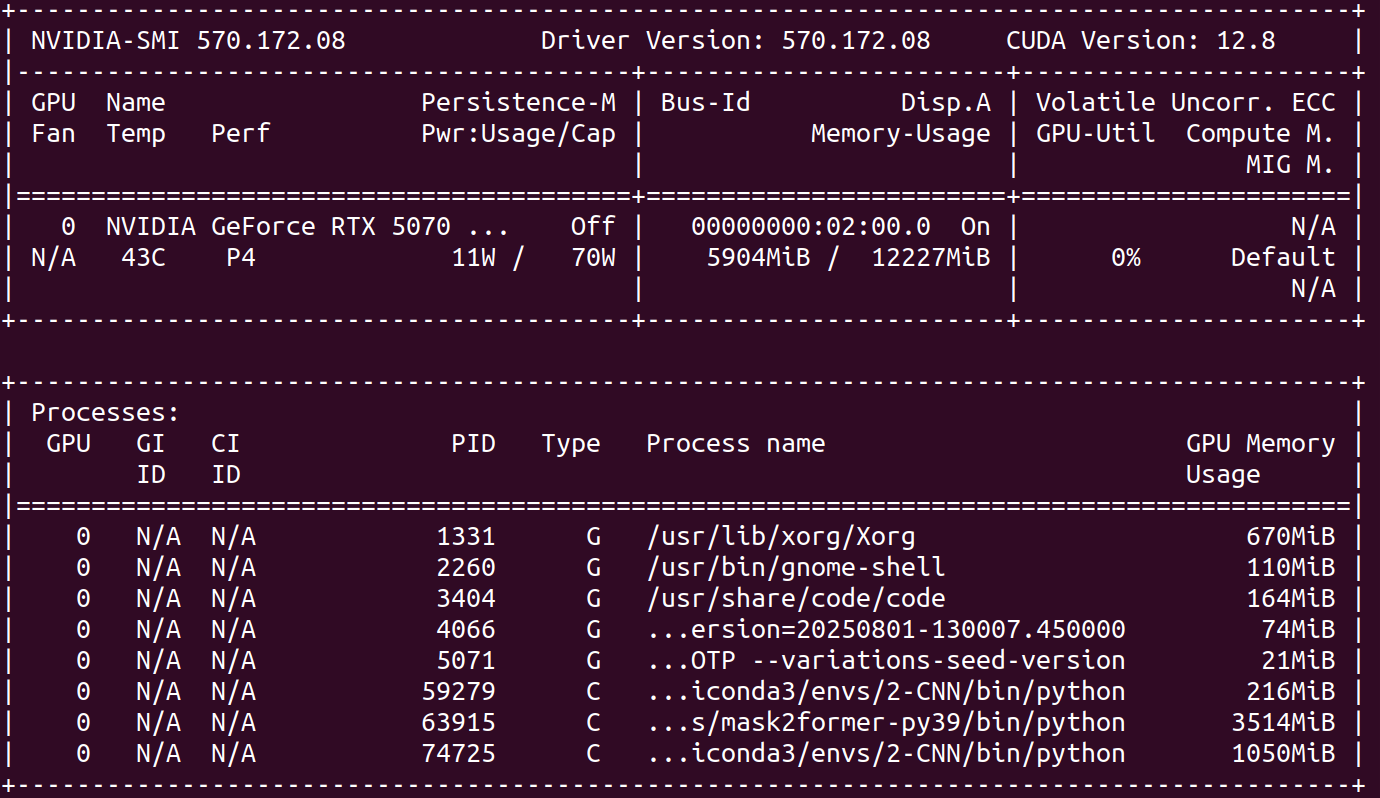
安装成功
二、安装CUDA
由于pytorch版本需求,CUDA版本需安装12.8及以上,这里推荐安装12.8(暂未测试过12.9)
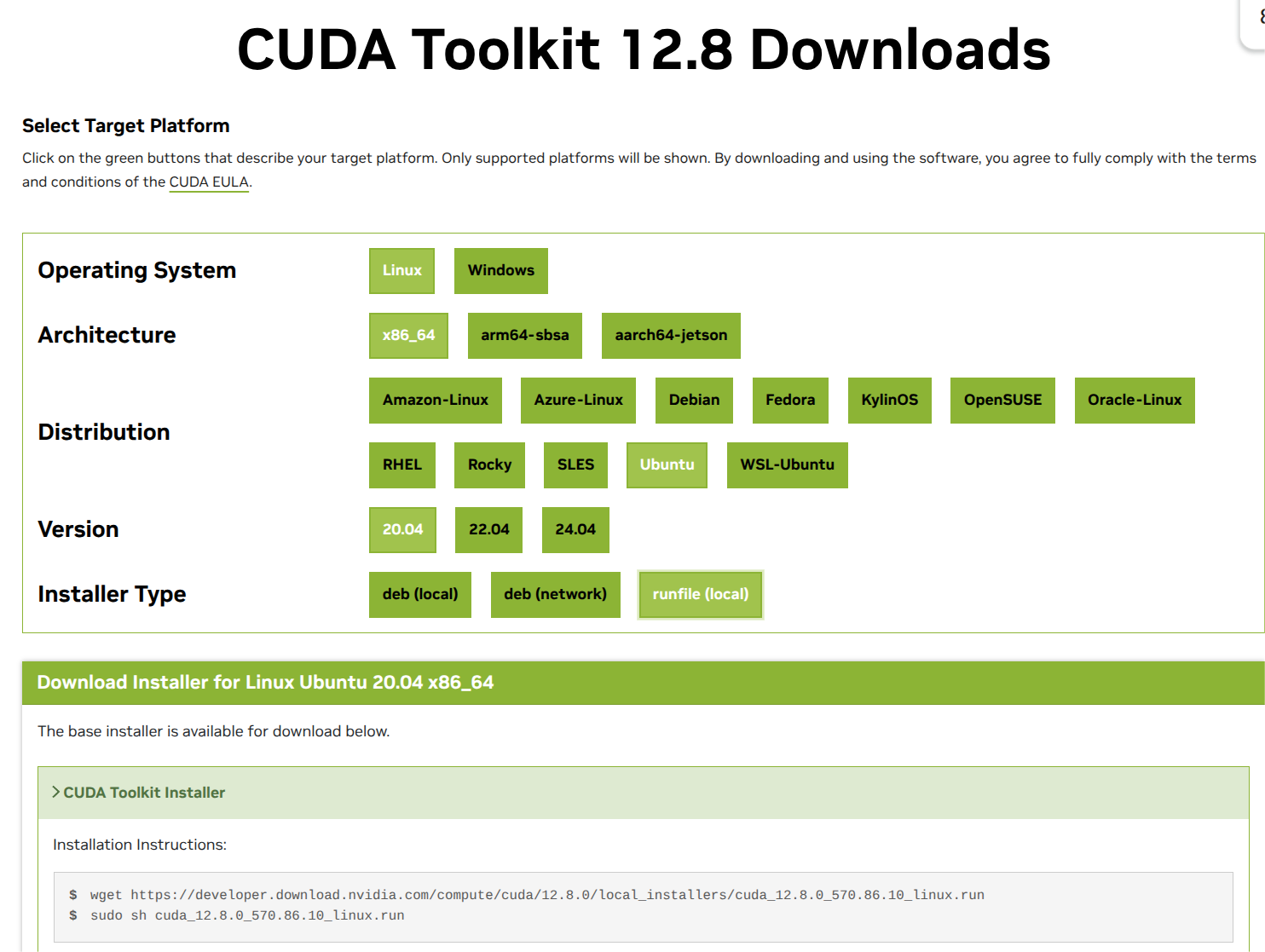
根据官方教程安装即可,这里采取的是runfile形式的安装,注意:在安装cuda时会出现以下界面

需要将Driver这一项取消选中,否则可能会和nvidia驱动冲突导致黑屏,X表示选中,按enter取消Driver这一项然后用↓方向键选到Install然后安装即可(这里是CUDA11.8的界面,12.8的与其一致)
设置环境变量
export CUDA_HOME=/usr/local/cuda-12.8
export PATH=$CUDA_HOME/bin:$PATH
export LD_LIBRARY_PATH=$CUDA_HOME/lib64:$LD_LIBRARY_PATH
安装完成后使用nvcc -V命令即可确认安装
三、Pytorch、torchvision、torchaudio
安装目前较新的pytorch2.8 nightly版本,支持50系显卡sm89的编译
pip install torch==2.8.0.dev20250627+cu128 \\
torchvision==0.23.0.dev20250627+cu128 \\
torchaudio==2.8.0.dev20250627+cu128 \\
–index-url https://download.pytorch.org/whl/nightly/cu128