文章目录
- 一、swipe滑动
-
- 1.1 方法
- 1.2 swipe-示例
- 二、scroll滑动
-
- 2.1 方法
- 2.2 scroll-示例
- 三、drag_and_drop 拖拽
-
- 3.1 方法
- 3.2 drag_and_drop-示例
- 四、滑动和拖拽事件的选择
-
- 4.1 为什么每次运行滑动的时候会有一些误差
一、swipe滑动
1.1 方法
# 1.获取起始坐标和结束坐标
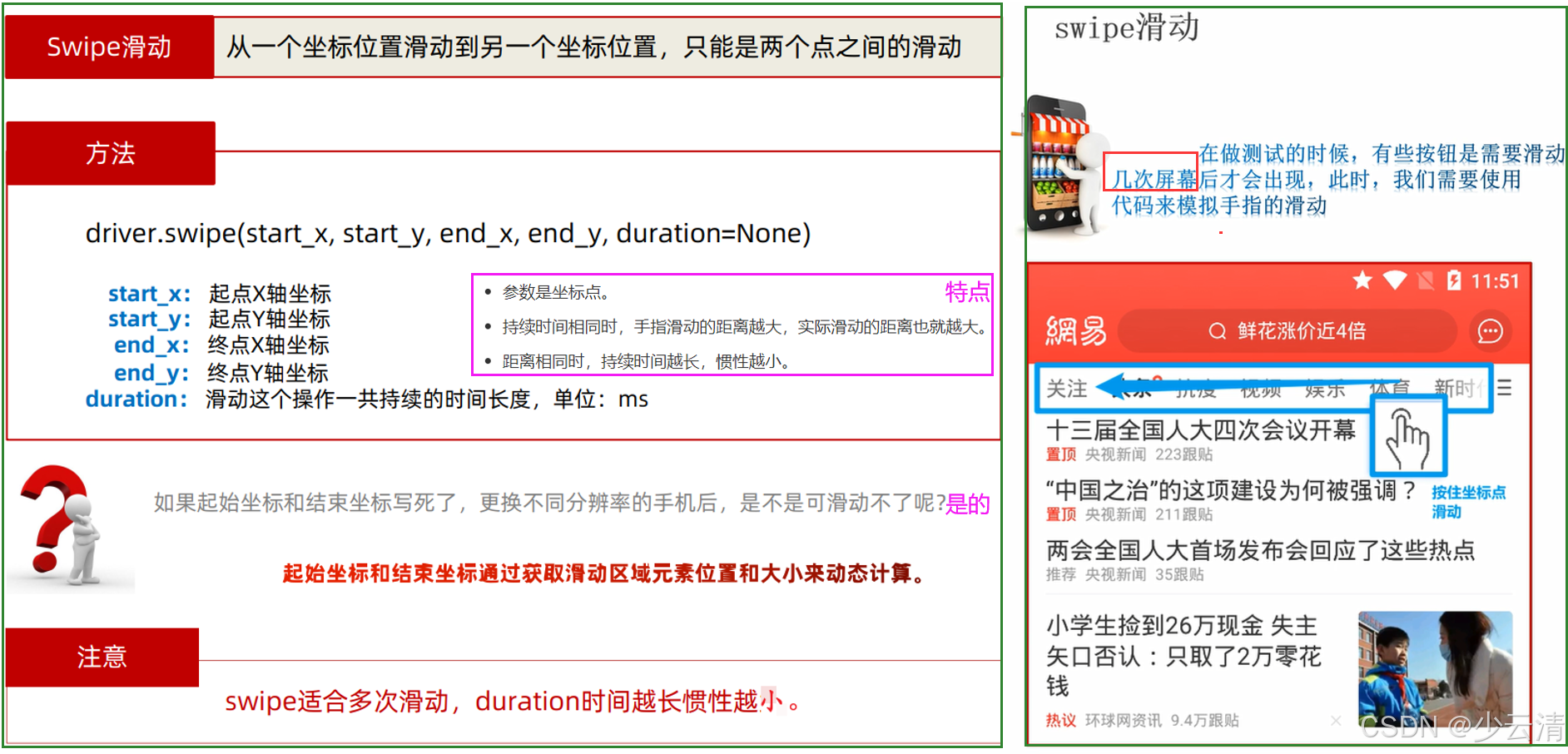
driver.swipe(start_x, start_y, end_x, end_y, duration=None)
– 当所要定位元素不知道需要滑动几次时才能定位到,则通过坐标来进行滑动, duration时间越短惯性越大
– 特点︰精准滑动(基于两个坐标点滑动)
– 说明:针对坐标点进行操作
1.2 swipe-示例
需求:打开手机《设置》应用,完成下面的步骤:
①模拟手指从(611, 1582),滑动到(611, 500)的位置,并持续5s。
切记:如果超出屏幕范围,会报错
# 1、导包
import time
from appium import webdriver
# 2、配置启动参数
desired_caps = {}
# 手机参数
desired_caps['platformName'] = 'Android'
desired_caps['platformVersion'] = '5.1'
desired_caps['deviceName'] = '1'
# 应用参数
desired_caps['appPackage'] = 'com.android.settings'
desired_caps['appActivity'] = 'com.android.settings.Settings'
desired_caps['unicodeKeyboard'] = True # 使用自带输入法,输入中文时填True
desired_caps['resetKeyboard'] = True # 执行完程序恢复原来输入法
# 3、创建APP驱动对象
driver = webdriver.Remote('http://localhost:4723/wd/hub', desired_caps)
# 隐式等待
driver.implicitly_wait(30)
# 4、业务操作
# 打开手机《设置》应用,完成下面步骤
# ① 模拟手指从(611, 1582),滑动到(611, 500)的位置,并持续5s。
driver.swipe(start_x=611, start_y=1582, end_x=611, end_y=500, duration=5000)
time.sleep(2)
# 5、关闭APP
driver.quit()
二、scroll滑动
2.1 方法
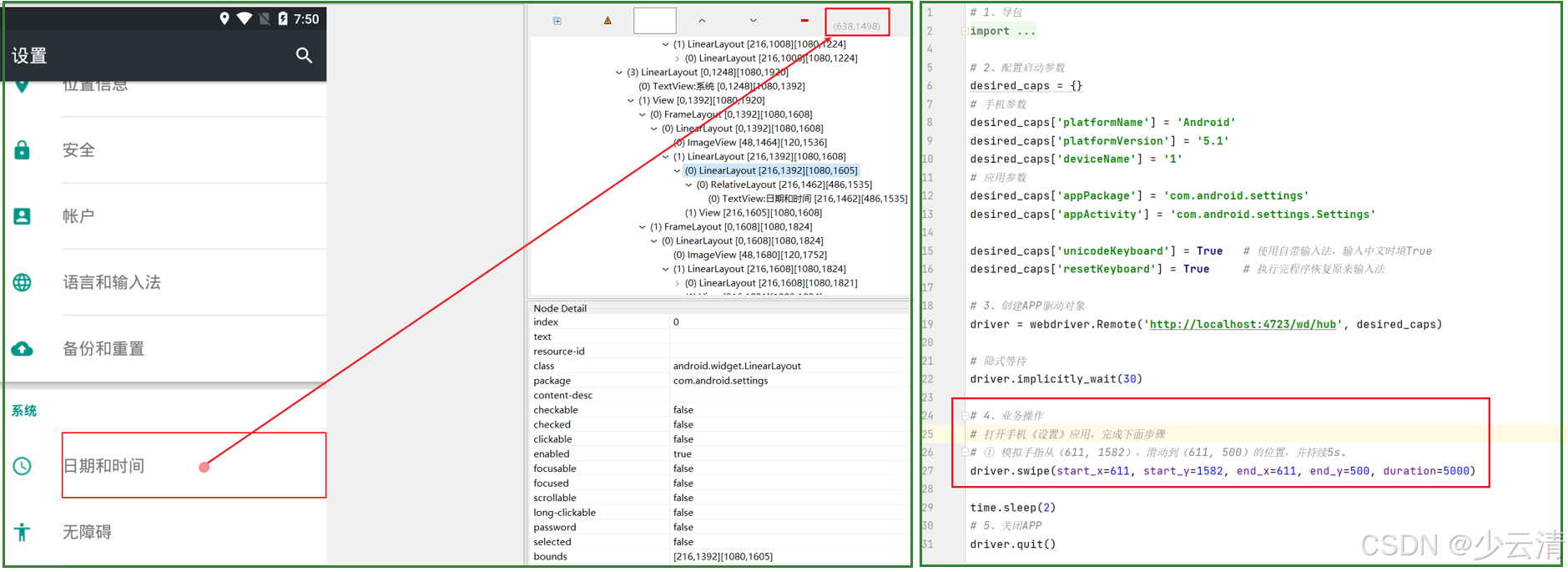
driver.scroll(origin_el, destination_el)
特点:滚动(有惯性存在,滚动下不按下第一个元素)
说明:针对两个元素进行操作
"""
适合一次性滑动的场景。例如:网易新闻首页下拉滑动会触发新新闻滑动的惯性很大
滑动的惯性很大
"""
2.2 scroll-示例
需求:打开《设置》应用,从 “存储” 滑动到 “更多” 。
# 1、导包
import time
from appium import webdriver
# 这个python类AppiumBy继承自By类,用于定义不同的定位策略常量,以便在Appium自动化测试中定位元素
from appium.webdriver.common.appiumby import AppiumBy # 导入AppiumBy
# 2、配置启动参数
desired_caps = {}
# 手机参数
desired_caps['platformName'] = 'Android'
desired_caps['platformVersion'] = '5.1'
desired_caps['deviceName'] = '1'
# 应用参数
desired_caps['appPackage'] = 'com.android.settings'
desired_caps['appActivity'] = 'com.android.settings.Settings'
desired_caps['unicodeKeyboard'] = True # 使用自带输入法,输入中文时填True
desired_caps['resetKeyboard'] = True # 执行完程序恢复原来输入法
# 3、创建APP驱动对象
driver = webdriver.Remote('http://localhost:4723/wd/hub', desired_caps)
# 隐式等待
driver.implicitly_wait(30)
# 4、业务操作
# 打开《设置》应用,从 “存储” 滑动到 “更多” 。
save_button = driver.find_element(AppiumBy.XPATH, "//*[@text='存储']")
more_button = driver.find_element(AppiumBy.XPATH, "//*[@text='更多']")
# 滚动
driver.scroll(save_button, more_button)
time.sleep(2)
# 5、关闭APP
driver.quit()
三、drag_and_drop 拖拽
3.1 方法
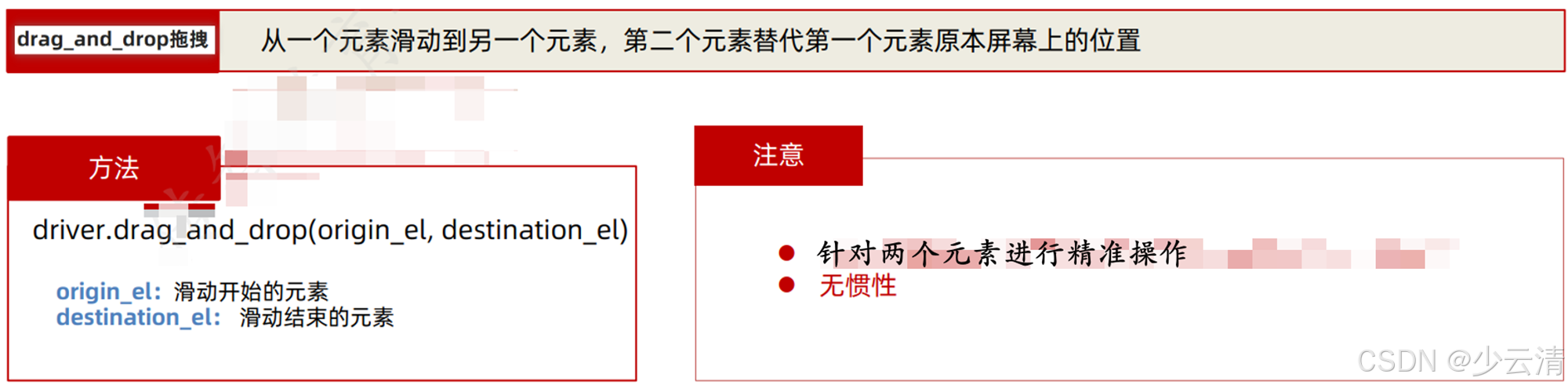
driver.drag_and_drop(origin_el, destination_el)
特点:拖拽(没有惯性,按下开始元素拖拽到指定元素位置)
说明:针对两个元素进行精准操作
"""
适合一次性滑动的场景。例如:网易新闻首页下拉滑动会触发新新闻
精准滑动
"""
3.2 drag_and_drop-示例
需求:打开《设置》应用,从 “存储” 滑动到 “更多” 。
# 1、导包
import time
from appium import webdriver
# 这个python类AppiumBy继承自By类,用于定义不同的定位策略常量,以便在Appium自动化测试中定位元素
from appium.webdriver.common.appiumby import AppiumBy # 导入AppiumBy
# 2、配置启动参数
desired_caps = {}
# 手机参数
desired_caps['platformName'] = 'Android'
desired_caps['platformVersion'] = '5.1'
desired_caps['deviceName'] = '1'
# 应用参数
desired_caps['appPackage'] = 'com.android.settings'
desired_caps['appActivity'] = 'com.android.settings.Settings'
desired_caps['unicodeKeyboard'] = True # 使用自带输入法,输入中文时填True
desired_caps['resetKeyboard'] = True # 执行完程序恢复原来输入法
# 3、创建APP驱动对象
driver = webdriver.Remote('http://localhost:4723/wd/hub', desired_caps)
# 隐式等待
driver.implicitly_wait(30)
# 4、业务操作
# 打开《设置》应用,从 “存储” 滑动到 “更多” 。
save_button = driver.find_element(AppiumBy.XPATH, "//*[@text='存储']")
more_button = driver.find_element(AppiumBy.XPATH, "//*[@text='更多']")
# 拖拽
driver.drag_and_drop(save_button, more_button)
time.sleep(5)
# 5、关闭APP
driver.quit()
四、滑动和拖拽事件的选择
滑动和拖拽无非就是考虑是否有 “惯性” ,以及传递的参数是 “元素” 还是 “坐标”。
1、有惯性,传入参数坐标:swipe,设置较短的持续时间
2、有惯性,传入参数元素:scroll
3、无惯性,传入参数坐标:swipe,设置较长的持续时间
4、无惯性,传入参数元素:drag_and_drop
下面这些场景应该选择哪个滑动方式?
场景一:验证《网易新闻》页面向下滑动是否能触发新的新闻的加载? scoll滑动或者swipe滑动
场景二:验证《淘宝》查询商品结果中有没有预期品名的商品? swipe滑动
场景三:验证《网易新闻》显示新闻页面底部新闻显示信息是否完整? drag_and_drop拖拽
4.1 为什么每次运行滑动的时候会有一些误差
比如CPU工作2秒干别的,但是真实时间已经走了3秒,但是cpu计时器还是认为2秒,等到结束的时候,真实时间会多出1秒。