pip install pytesseract
import pytesseract
print(pytesseract.image_to_string('test.jpg'))
# TesseractNotFoundError: tesseract is not installed
pytesseract是Python的OCR(光学字符识别)库,可以从图片中提取文字。Windows上使用需要先安装Tesseract OCR引擎。
版本要求
pytesseract依赖Tesseract OCR引擎:
| pytesseract | 0.3.10 | 3.7+ | Python封装库 |
| Tesseract-OCR | 5.x | – | OCR识别引擎 |
| 中文语言包 | chi_sim | – | 简体中文识别(可选) |
| 英文语言包 | eng | – | 英文识别(默认自带) |
注意:pytesseract只是封装库,必须先安装Tesseract OCR引擎才能使用。
安装中可能遇到的问题
问题1:Tesseract引擎未安装
import pytesseract
pytesseract.image_to_string('test.jpg')
# TesseractNotFoundError: tesseract is not installed or it's not in your PATH
只装了pytesseract,没装Tesseract OCR引擎。
问题2:路径未配置
import pytesseract
pytesseract.image_to_string('test.jpg')
# pytesseract.pytesseract.TesseractNotFoundError
Tesseract安装了,但Python找不到,需要手动指定路径。
问题3:中文识别乱码
text = pytesseract.image_to_string('中文图片.jpg')
print(text)
# 输出:乱码或空白
没有安装中文语言包chi_sim.traineddata。
问题4:识别准确率低
识别结果错误很多,可能是图片质量差、没有预处理。
如果你想避免这些问题,可以用抠头助手自动安装Tesseract引擎和语言包。
方式一:一键安装
使用抠头助手自动安装pytesseract和Tesseract OCR引擎。
下载地址:https://www.codetou.com
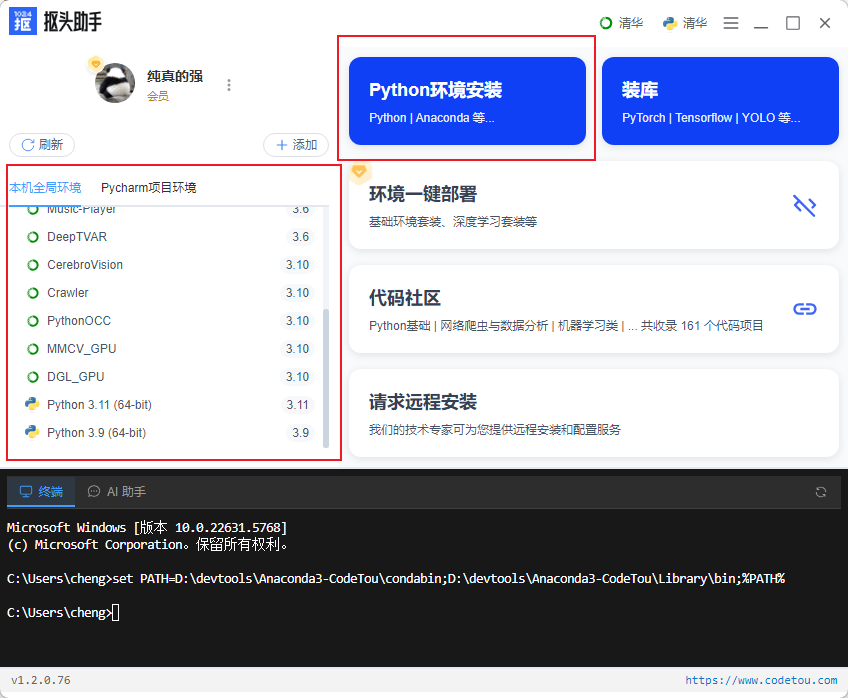
1. 选择Python环境
打开软件,在左侧选择你的Python环境:
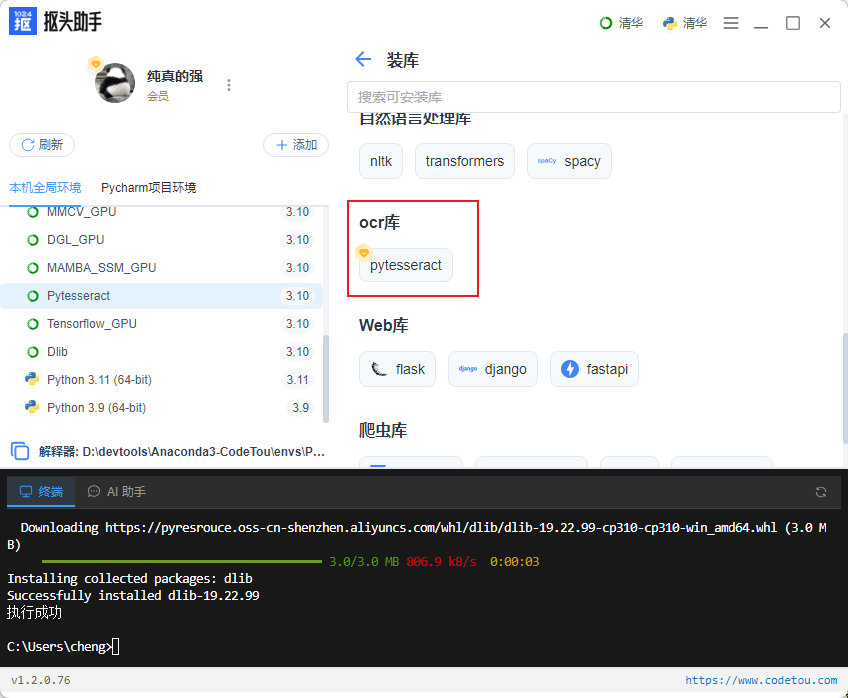
2. 找到PYTESSERACT
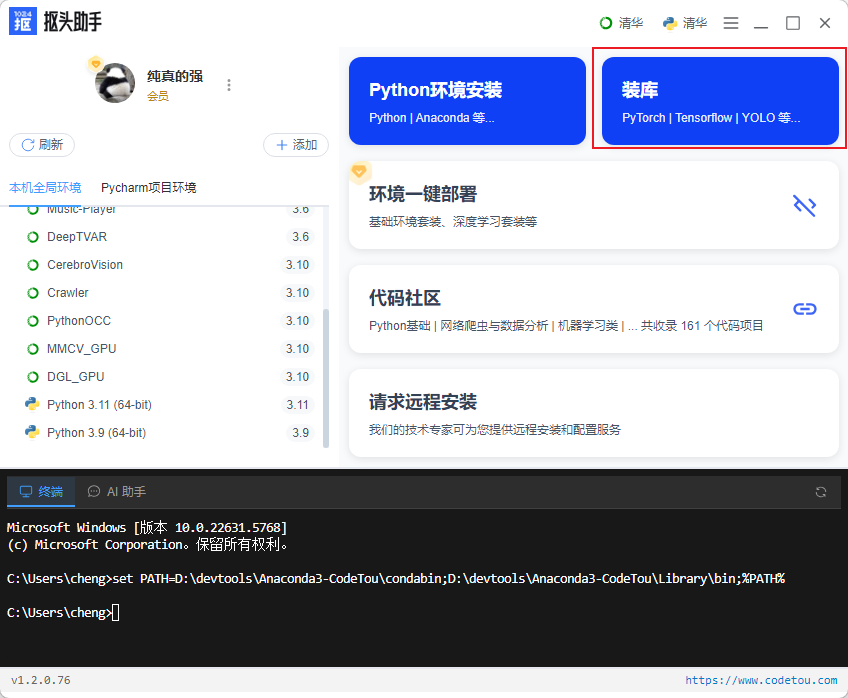
切换到「客户端」或「工具库」,找到或者搜索PYTESSERACT:
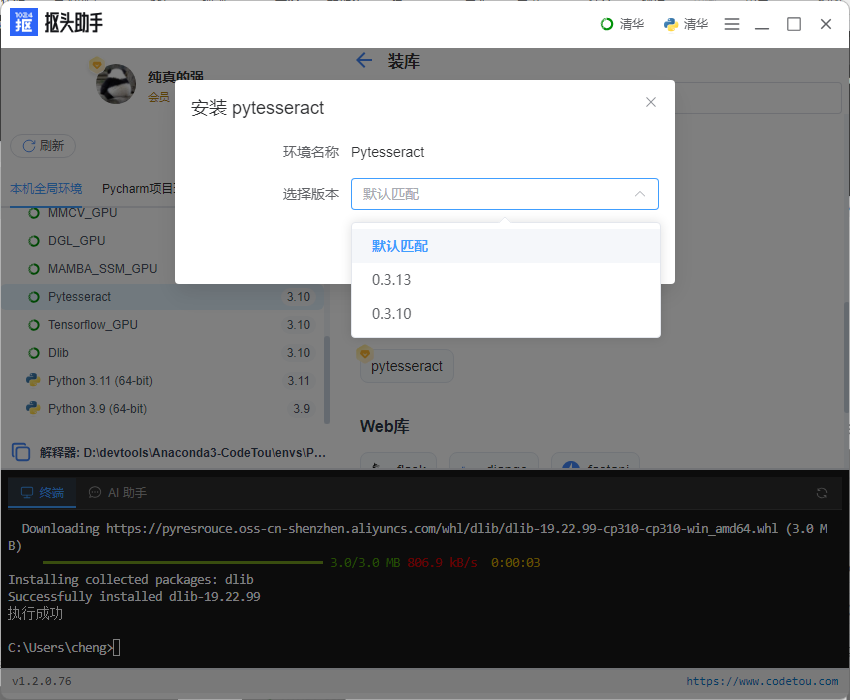
3. 确认配置并安装
软件会自动安装Tesseract OCR引擎和中文语言包:
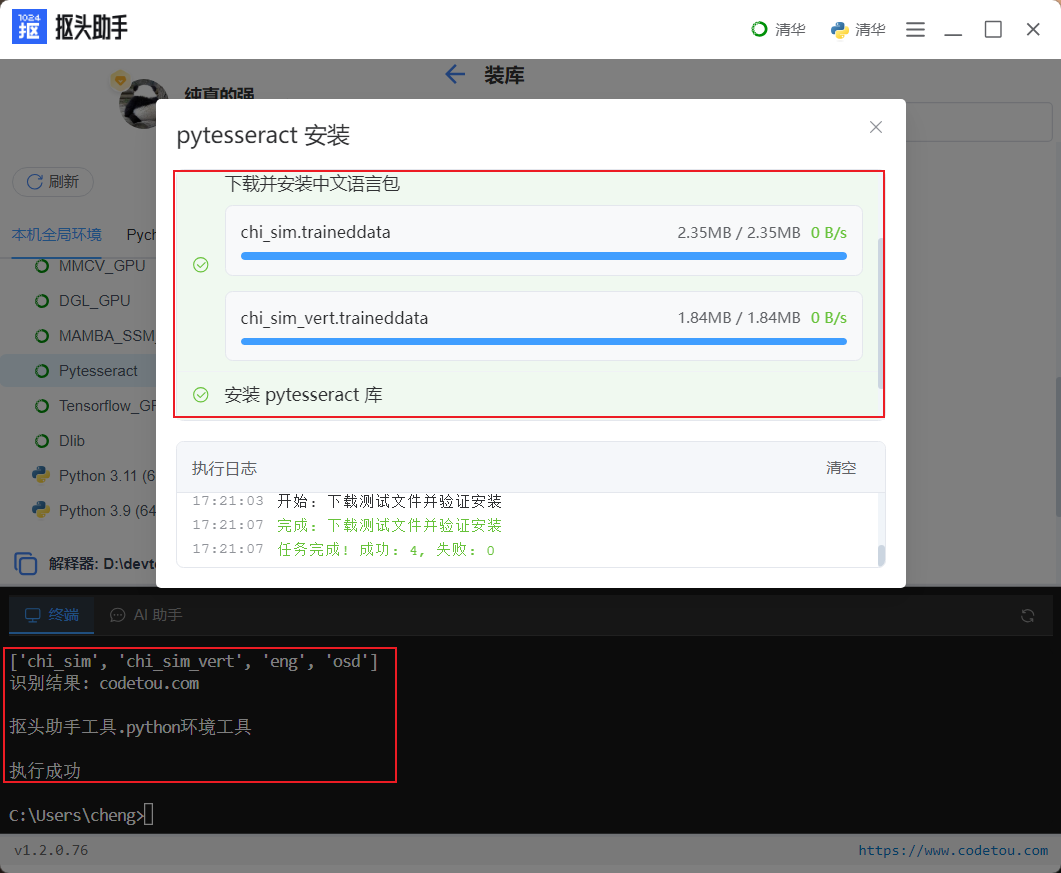
4. 等待完成
自动完成pytesseract、Tesseract引擎、语言包的安装和配置:
方式二:手动安装
步骤1:安装Tesseract OCR引擎
下载地址:Tesseract OCR引擎下载地址
选择最新版本(如tesseract-ocr-w64-setup-5.3.3.20231005.exe)下载并安装。
安装时注意:
- 勾选"Additional language data" → 选择"Chinese – Simplified"(简体中文)
- 记住安装路径(默认:C:\\Program Files\\Tesseract-OCR)
步骤2:配置环境变量(可选)
将Tesseract添加到系统PATH:
步骤3:安装pytesseract
pip install pytesseract pillow
步骤4:配置Tesseract路径
在Python代码中指定Tesseract路径:
import pytesseract
# 指定Tesseract安装路径
pytesseract.pytesseract.tesseract_cmd = r'C:\\Program Files\\Tesseract-OCR\\tesseract.exe'
步骤5:下载中文语言包(如未安装)
下载地址:语言包下载地址
下载chi_sim.traineddata(简体中文),放到:
C:\\Program Files\\Tesseract-OCR\\tessdata\\
验证安装
基础测试
import pytesseract
from PIL import Image
# 配置路径(如果没加环境变量)
pytesseract.pytesseract.tesseract_cmd = r'C:\\Program Files\\Tesseract-OCR\\tesseract.exe'
# 测试英文识别
img = Image.open('test_eng.jpg')
text = pytesseract.image_to_string(img)
print(f"英文识别结果:\\n{text}")
# 测试中文识别
img_cn = Image.open('test_chn.jpg')
text_cn = pytesseract.image_to_string(img_cn, lang='chi_sim')
print(f"中文识别结果:\\n{text_cn}")
检查支持的语言
import pytesseract
# 查看已安装的语言包
print(pytesseract.get_languages())
# ['chi_sim', 'eng', …]
实用案例
案例1:身份证识别
import pytesseract
from PIL import Image
import cv2
# 读取身份证图片
img = cv2.imread('身份证.jpg')
# 图像预处理(提高识别率)
gray = cv2.cvtColor(img, cv2.COLOR_BGR2GRAY) # 灰度化
blur = cv2.GaussianBlur(gray, (5, 5), 0) # 降噪
_, binary = cv2.threshold(blur, 0, 255, cv2.THRESH_BINARY + cv2.THRESH_OTSU) # 二值化
# OCR识别
text = pytesseract.image_to_string(binary, lang='chi_sim')
print(f"身份证信息:\\n{text}")
# 提取特定字段(示例)
lines = text.split('\\n')
for line in lines:
if '姓名' in line:
print(f"姓名: {line.split('姓名')[–1].strip()}")
if '身份证号' in line:
print(f"身份证号: {line.split('身份证号')[–1].strip()}")
案例2:截图文字提取
import pytesseract
from PIL import ImageGrab
# 截取屏幕
screenshot = ImageGrab.grab()
screenshot.save('screenshot.png')
# 识别文字
text = pytesseract.image_to_string(screenshot, lang='chi_sim+eng')
print(f"截图文字:\\n{text}")
# 保存到文件
with open('extracted_text.txt', 'w', encoding='utf-8') as f:
f.write(text)
案例3:验证码识别
import pytesseract
from PIL import Image
import cv2
import numpy as np
# 读取验证码
img = cv2.imread('captcha.jpg')
# 预处理(验证码识别关键)
gray = cv2.cvtColor(img, cv2.COLOR_BGR2GRAY)
_, binary = cv2.threshold(gray, 150, 255, cv2.THRESH_BINARY)
# 去噪
kernel = np.ones((2, 2), np.uint8)
opening = cv2.morphologyEx(binary, cv2.MORPH_OPEN, kernel)
# 识别(只允许数字和字母)
custom_config = r'–oem 3 –psm 6 -c tessedit_char_whitelist=0123456789ABCDEFGHIJKLMNOPQRSTUVWXYZabcdefghijklmnopqrstuvwxyz'
text = pytesseract.image_to_string(opening, config=custom_config)
print(f"验证码: {text.strip()}")
案例4:批量PDF转文字
import pytesseract
from pdf2image import convert_from_path
from PIL import Image
def pdf_to_text(pdf_path, output_txt):
# PDF转图片
images = convert_from_path(pdf_path, dpi=300)
full_text = ""
for i, img in enumerate(images):
print(f"处理第{i+1}页…")
text = pytesseract.image_to_string(img, lang='chi_sim+eng')
full_text += f"\\n========== 第{i+1}页 ==========\\n"
full_text += text
# 保存结果
with open(output_txt, 'w', encoding='utf-8') as f:
f.write(full_text)
print(f"完成!文本已保存到 {output_txt}")
# 使用
pdf_to_text('扫描文档.pdf', '提取文本.txt')
提高识别准确率
1. 图像预处理
import cv2
# 读取图片
img = cv2.imread('test.jpg')
# 灰度化
gray = cv2.cvtColor(img, cv2.COLOR_BGR2GRAY)
# 二值化
_, binary = cv2.threshold(gray, 127, 255, cv2.THRESH_BINARY)
# 去噪
denoised = cv2.fastNlMeansDenoising(gray, None, 10, 7, 21)
# 调整大小(放大可能提高识别率)
resized = cv2.resize(gray, None, fx=2, fy=2, interpolation=cv2.INTER_CUBIC)
2. 配置OCR参数
import pytesseract
# 常用配置
# –psm: Page Segmentation Mode(页面分割模式)
# 6: 单一文本块(默认)
# 7: 单行文本
# 8: 单个词
# 11: 稀疏文本
# –oem: OCR Engine Mode
# 0: 仅使用Legacy引擎
# 1: 仅使用神经网络LSTM引擎
# 3: 默认(自动)
# 示例:单行文字识别
text = pytesseract.image_to_string(img, lang='chi_sim', config='–psm 7')
# 示例:只识别数字
text = pytesseract.image_to_string(img, config='–psm 6 -c tessedit_char_whitelist=0123456789')
3. 选择合适的语言
# 纯英文
text = pytesseract.image_to_string(img, lang='eng')
# 纯中文
text = pytesseract.image_to_string(img, lang='chi_sim')
# 中英混合
text = pytesseract.image_to_string(img, lang='chi_sim+eng')
# 繁体中文
text = pytesseract.image_to_string(img, lang='chi_tra')
常见问题
Q:TesseractNotFoundError怎么办?
pytesseract.pytesseract.tesseract_cmd = r'C:\\Program Files\\Tesseract-OCR\\tesseract.exe'
Q:中文识别全是乱码?
Q:识别准确率很低怎么办?
Q:能识别手写字吗?
Tesseract对手写字识别效果较差,建议使用深度学习模型(如PaddleOCR)。
Q:商业使用需要付费吗?
Tesseract是Apache 2.0开源协议,可免费商用。
Q:pytesseract和其他OCR方案对比?
| pytesseract | 免费、离线、轻量 | 识别率一般、手写字差 | 印刷体文字 |
| 百度OCR API | 识别率高、支持手写 | 收费、需联网、有调用限制 | 商业项目 |
| PaddleOCR | 识别率高、免费 | 模型大、配置复杂 | 高精度需求 |
| EasyOCR | 多语言支持、简单易用 | 速度较慢 | 多语言场景 |
常用功能
获取文字位置
import pytesseract
from PIL import Image
img = Image.open('test.jpg')
# 获取文字及位置信息
data = pytesseract.image_to_data(img, lang='chi_sim', output_type=pytesseract.Output.DICT)
for i, text in enumerate(data['text']):
if text.strip():
x, y, w, h = data['left'][i], data['top'][i], data['width'][i], data['height'][i]
print(f"文字: {text}, 位置: ({x}, {y}), 大小: {w}x{h}")
保存为PDF
import pytesseract
from PIL import Image
img = Image.open('scan.jpg')
pdf = pytesseract.image_to_pdf_or_hocr(img, lang='chi_sim', extension='pdf')
with open('output.pdf', 'wb') as f:
f.write(pdf)
置信度检测
import pytesseract
from PIL import Image
img = Image.open('test.jpg')
data = pytesseract.image_to_data(img, lang='chi_sim', output_type=pytesseract.Output.DICT)
for i, text in enumerate(data['text']):
confidence = data['conf'][i]
if confidence != –1 and text.strip():
print(f"文字: {text}, 置信度: {confidence}%")
相关教程
如果你还需要安装其他Python库:
- Windows安装Mamba_ssm教程
- Windows安装DGL GPU版完全指南 – 图神经网络环境配置
- Windows安装TensorFlow GPU完全指南
- Windows安装MMCV完全指南
更多Python库安装教程,访问:https://www.codetou.com
抠头助手:https://www.codetou.com
遇到问题?打开软件右上角菜单 →「技术客服」,扫码添加微信获取帮助。